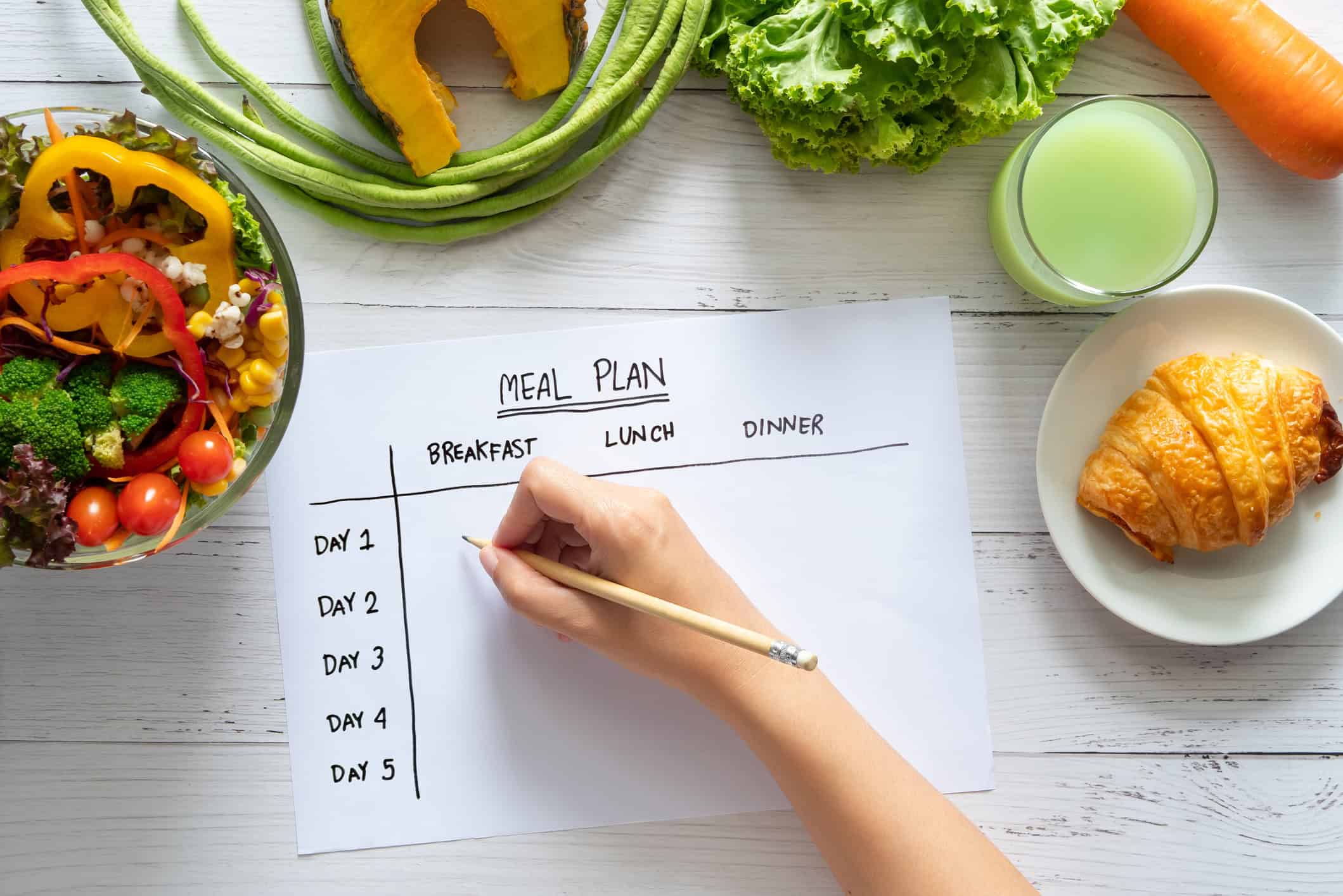




Ever feel overwhelmed trying to figure out what’s for dinner? Organizing your recipes in one digital system can save you time, money, and effort. Here’s how to simplify meal planning:
- Save Money: Plan meals around ingredients you already have to reduce food waste and avoid unnecessary purchases.
- Eat Healthier: Tag recipes by dietary needs like low-carb or high-protein to stick to your goals.
- Reduce Stress: Use a searchable library with categories and tags (e.g., “Quick Dinners” or “Kid-Friendly”) to find recipes fast.
- Plan Efficiently: Assign meals to specific days and auto-generate grocery lists with apps like OrganizEat.
Creating & Organizing Your Meal Plan | Organization Tips + Meal Plan
Set Your Meal Planning Goals and Constraints
Having clear meal planning goals can prevent your digital recipe collection from turning into an overwhelming mess. When you know what you’re aiming for, it’s easier to decide which recipes to keep, how to organize them, and which app features will be most useful. Start by identifying your specific goals and practical constraints so you can create an efficient tagging system for your recipes.
Identify Your Meal Planning Goals
Most households focus on a few key priorities: saving money, reducing food waste, eating healthier, or making weeknight dinners less stressful. For example:
- Saving money? Look for recipes that use affordable staples and tag them as budget, pantry-friendly, or freezer-friendly.
- Reducing waste? Focus on recipes that use perishable items and tag them by ingredient, like spinach or buttermilk.
- Healthier eating? Keep recipes featuring whole grains, vegetables, and lean proteins, and mark them with tags such as high protein, low sugar, or Mediterranean.
- Simplifying weeknights? Stick to recipes that take 30 minutes or less and tag them as weeknight, 5-ingredient, or sheet pan.
Once your goals are clear, you can refine your system further by factoring in your practical constraints.
Understand Your Constraints
Your household’s size, dietary needs, cooking skills, time limits, and available equipment all play a role in determining which recipes work for you. Here’s how to account for these factors:
- Household size: Use tags like serves 2 or family-size to match recipes to your needs.
- Dietary restrictions: Clearly label recipes as gluten-free, dairy-free, or according to any other specific requirements.
- Skill level: Tag recipes as easy, intermediate, or advanced so you can quickly find something suitable for your cooking confidence.
- Time constraints: Many families in the U.S. rely on quick dinners during the workweek. Use tags like 15-minute, slow cooker, or make ahead to narrow down options.
- Equipment limitations: If you don’t own tools like an Instant Pot or air fryer, tag those recipes so you can skip them or save them for later.
Apply Goals and Constraints to Recipe Organization
Begin by sorting your recipes into broad categories that match your household’s needs, such as Weeknight Dinners, Budget Meals, Healthy Lunches, or Breakfast. From there, add detailed tags for easier filtering. For example, you might tag a recipe as 30 minutes, one-pot, high fiber, kid-friendly, or dairy-free. Apps like OrganizEat allow you to combine multiple tags – like dairy-free + kid-friendly + 30 minutes – so you can quickly find recipes that check all the right boxes.
This approach ensures your recipe library stays focused on meals you’ll actually make, streamlining your weekly meal planning and cutting down on stress.
Build Your Digital Recipe Collection
Creating a well-organized digital recipe collection is the key to making meal planning easier and more efficient. If your recipes are scattered across bookmarked websites, screenshots, handwritten cards, and old cookbooks, it’s time to bring them all together. A centralized digital library allows you to search for recipes instantly, filter them by prep time or meal type, and plan your week without the hassle of hunting through disorganized sources. Apps like OrganizEat make this process seamless by letting you upload photos of physical recipes, import recipes from websites, and store everything in a searchable format.
Gather Recipes from Multiple Sources
Start by rounding up all your recipes, no matter where they’re stored. Many home cooks in the U.S. rely on a mix of cookbooks, family recipe cards, food blogs, brand websites, Pinterest boards, Instagram or TikTok videos, email newsletters, and screenshots. Using OrganizEat’s Snap ‘n Store feature, you can quickly photograph cookbook pages or handwritten cards and turn them into editable recipes with clear ingredients and instructions. For online recipes, the app’s web import tool supports over 200 popular sites like AllRecipes, FoodNetwork, and Delish. With just a tap or a pasted URL, you can pull in the recipe, minus the ads and clutter. Found a recipe on social media? Take a screenshot, upload it to the app, and add structured fields like ingredients, steps, and tags to make it easy to find later. You can even import recipes directly from emails or PDFs and attach the original file for reference. Once all your recipes are collected in one place, you’ll be ready to organize and standardize them.
Standardize Recipe Information
To make your library easy to use, focus on entering consistent details for each recipe. Include information like servings, prep time, cook time (or total time), meal type (breakfast, lunch, dinner, or snack), main ingredient (like chicken, vegetarian, or pasta), and dietary labels (such as gluten-free or low-carb). These fields allow you to filter recipes quickly, plan meals for busy nights, and adjust ingredient quantities when creating grocery lists. Many apps automatically recalculate ingredient amounts when you change the number of servings, saving you time and reducing errors. Be consistent with naming – use clear titles like “Sheet-Pan Chicken with Broccoli” instead of generic ones like “Chicken” to ensure accurate search results. Stick to U.S. measurement units for simplicity and uniformity.
Clean Up Your Recipe Library Regularly
A streamlined library makes meal planning faster and less stressful. Set a reminder to review your collection monthly. Delete recipes you didn’t enjoy, fix entries missing critical details (like cooking times or complete ingredient lists), and add notes after trying a dish. For example, jot down comments like “too spicy, cut back on chili flakes” or “family favorite – make again!” Use app features like star ratings or favorites to highlight recipes you rely on for weeknights, and archive recipes you haven’t used in six to twelve months unless they’re for special occasions. Consolidate duplicate recipes and standardize titles to keep your library tidy. With cloud backup and syncing options – available in OrganizEat – you can safely remove less useful content, knowing it’s recoverable if needed. Regular updates and pruning ensure your recipe collection stays organized and ready to adapt to your schedule.
Organize Recipes with Categories and Tags
Once you’ve set up your digital recipe library, the next step is organizing it in a way that makes meal planning a breeze. Start by using categories to group recipes – think “Breakfast”, “Weeknight Dinners”, or “Freezer-Friendly” – and tags to add specific details like cooking time, dietary preferences, or other helpful filters. Categories help you group recipes by type, while tags offer an extra layer of detail for quick filtering. This two-step system saves time and makes planning a week’s worth of meals far easier.
Choose High-Level Categories
Keep it simple by starting with 8–12 main categories that are easy to skim on a phone screen. For most U.S. households, a practical setup might include categories based on meal type (Breakfast, Lunch, Dinner, Snacks, Dessert), use case (Quick Weeknight, Slow Cooker/Instant Pot, Make-Ahead/Meal Prep, Freezer-Friendly, Special Occasion/Holidays), or dish type (Main Dishes, Sides, Salads, Soups & Stews). Use familiar terms like “weeknight dinners” or “holiday treats” so you can easily remember where to file new recipes and find them later.
If a recipe fits into more than one category, pick one primary folder that reflects how you’ll use it most often. For example, a chicken tortilla soup you batch-cook might go under “Soups & Stews”, while tags like “Freezer-Friendly”, “Make-Ahead”, “Lunch”, and “Dinner” ensure it shows up in other relevant searches. This structure also works well with advanced search and filtering tools in apps like OrganizEat.
Use Tags for Advanced Filtering
Tags let you fine-tune your recipe searches to match your meal planning needs. Some useful tag groups include:
- Dietary Needs: Gluten-Free, Dairy-Free, Nut-Free, Vegetarian, Vegan, Low-Carb, Low-Sodium.
- Time and Simplicity: Under 20 Minutes, Under 30 Minutes, 1 Hour+, 5 Ingredients or Less, One-Pot, Sheet Pan.
- Cooking Method or Equipment: Oven, Stovetop, Grill, Air Fryer, Slow Cooker, Instant Pot.
- Skill Level: Beginner, Intermediate, Advanced.
- Budget: Budget-Friendly, $, $$, or Pantry-Only.
You can also tag recipes by protein type (Chicken, Beef, Pork, Seafood, Beans/Lentils, Eggs) or seasonal themes (Summer, Winter, Comfort Food, No-Oven). These tags help you plan meals around grocery deals, seasonal produce, or specific occasions. With detailed tags, you can quickly find recipes that check multiple boxes – like gluten-free dinners that are quick, kid-friendly, and easy on the wallet.
Use Search Features
Once your recipes are categorized and tagged, you can take full advantage of search tools to find exactly what you need. Apps like OrganizEat let you search by title, ingredient, tag, or category. For instance, you can open the “Dinner” folder and filter by tags like “Kid-Friendly” and “Budget-Friendly”, or narrow it down further with options like “Chicken” or “Ground Beef.”
You can also search by ingredient – typing in “salmon” or “zucchini”, for example – and combine it with tags like “Leftover-Friendly” to make the most of what you already have in the fridge. From there, you can save recipes to the app’s meal-planning calendar and even generate a grocery list automatically. OrganizEat also makes handwritten recipe cards searchable when you tag key ingredients, so no recipe gets overlooked.
With a well-organized library, meal planning becomes a simple, efficient process, leaving you more time to enjoy cooking and less time stressing over what’s for dinner.
sbb-itb-6688478
Create a Meal Plan from Your Organized Recipes
Turn your recipe collection into a practical weekly meal plan that works with your schedule, commitments, and those inevitable leftover nights. The goal? A stress-free system that accounts for busy evenings, social plans, and the occasional need to eat out.
Start with Your Weekly Schedule
Take a look at your calendar to figure out which nights you’ll actually be cooking. Use the app’s note feature to mark non-cooking nights with tags like “Eating out” or “Leftovers.” This helps you avoid over-planning and keeps your grocery list manageable.
Once you’ve identified your cooking days, think about opportunities for batch cooking. For example, if you have extra time on a Sunday, you could whip up a slow cooker meal or double a recipe to enjoy leftovers later in the week. On hectic nights, lean on recipes tagged as “Quick Weeknight” to save time. With your cooking nights sorted, you’re ready to assign specific recipes to your meals.
Assign Recipes to Meals
Head over to the Meal Plan tab and start assigning recipes to specific days and meals. Tap the calendar icon on a recipe to schedule it. Prefer more flexibility? Add 5–7 recipes to your “This Week” shortlist without locking them into specific days. Just tap the checkmark on the recipes you want to cook soon. As Rachel Mislovaty, co-founder of OrganizEat, puts it:
“‘This Week’ is your shortlist of recipes you plan to cook soon. Think of it as your weekly cooking intention – not a rigid schedule. It’s perfect for people who like to plan ahead but don’t want to overthink things.”
Build Flexibility into Your Plan
Make sure your plan can roll with life’s unexpected changes. Keep a list of backup meals – think pantry staples or freezer-friendly options – for those nights when plans shift. Tagging recipes as “Pantry-Only” or “Freezer-Friendly” can save you a last-minute trip to the store.
If you’re new to meal planning, start small. Plan just 2–3 dinners for the week and fill the rest with leftovers or simple, no-fuss meals. As you get the hang of it, you can gradually add more structure. The key is to create a system that simplifies your life, not one that feels like another chore.
Generate and Manage Grocery Lists
Meal planning is great, but turning those plans into a usable grocery list shouldn’t feel like a chore. With the right approach, you can skip the manual work and get a list that’s perfectly organized by store sections in no time.
Automate Grocery List Creation
Once your meal plan is set, it’s time to streamline your shopping prep. In OrganizEat, simply go to “More” > “Add to groceries”, and choose the timeframe for your planned meals. The app will pull all the ingredients into one tidy list. Duplicate items? Not a problem – OrganizEat automatically merges them. For instance, if onions appear in three recipes, the app consolidates them into one line with the total amount you need.
Even better, the app organizes everything by sections typically found in American grocery stores – produce, meat & seafood, dairy, frozen, and pantry. This setup mirrors the layout of most supermarkets, making your shopping trip faster and more efficient. With just a few taps, your meal plan transforms into a practical shopping list.
Check Inventory and Adjust Quantities
Before you head to the store, take a moment to check what you already have at home. If your list shows three cans of black beans but you’ve got two in the pantry, adjust the quantity so you’re only buying what’s necessary. For perishables, double-check both the amount on hand and expiration dates to prioritize items that need to be used soon.
Many apps, including OrganizEat, allow you to flag staples like olive oil or rice so they only appear on your list when you’re running low. This simple habit can help cut down on food waste. According to the USDA, the average family of four in the U.S. wastes about $1,500 worth of food annually. A quick inventory check can save you money and reduce waste at the same time.
Sync Lists for Household Coordination
To keep everyone in the loop, enable cloud syncing for your grocery list. This feature updates the list in real time across all devices. That way, if one person adds an item or crosses something off, the entire household sees it immediately. It’s perfect for dividing and conquering at the store – one person can handle produce while another grabs pantry staples or meat.
The best part? OrganizEat supports cross-platform access on iOS, Android, and major web browsers. Whether you’re at home, at work, or already at the store, your list is always accessible. By encouraging everyone in the household to add items as soon as they notice something running low, your grocery list becomes a living, dynamic tool instead of a rushed, last-minute task.
Maintain and Update Your Meal Planning System
Once you’ve organized your recipes and planned your meals, the next step is to keep your system running smoothly. Life changes, and so should your meal planning setup. Keeping it updated ensures it continues to save you time and effort while staying relevant to your needs.
Review and Refine Regularly
Take 15 minutes each week to fine-tune your recipe collection. Mark your favorites, add tags or labels to make searches quicker, and remove recipes you no longer use. This simple habit keeps your library neat and manageable, making meal planning easier.
And don’t forget – backing up your updates is just as important.
Use Cloud Backup and Sync
With OrganizEat, your recipes are securely backed up and synced across devices, giving you access wherever you are. Whether you’re at the grocery store double-checking an ingredient, chatting with friends about dinner ideas, or cooking in your kitchen, your recipes are always at your fingertips.
“Moving all of my recipes to my iPhone meant I would always have my recipes with me when I needed them. Such as at the store checking for an ingredient, on the playground with other moms when we share dinner ideas, and of course in the kitchen when I cook.”
- Rachel Mislovaty, Lead Software Developer, OrganizEat
Even better, one purchase of OrganizEat works across all platforms – iOS, Android, and major browsers – so your whole household can share the same recipe library without needing separate subscriptions.
Adapt as Life Changes
Your meal planning system should grow and change with you. As your dietary needs or preferences shift, adjust your tags and categories accordingly. If your schedule tightens, focus on recipes tagged “30 minutes or less.” OrganizEat makes it easy to expand your library by importing recipes from over 200 websites and social platforms like Instagram, TikTok, and Facebook.
Don’t stop at recipes – keep your calendar and grocery lists updated to reflect changes in your household or routine. The idea is to make your system work for the life you’re living now, not the one you had six months ago.
Conclusion
Consolidating all your recipes into one digital platform lays the groundwork for stress-free meal planning. By bringing together everything – whether it’s cherished family recipes, online finds, or social media favorites – you eliminate the hassle of scouring multiple sources. Instead, you have a searchable, organized library that makes it quick and easy to find recipes tailored to your schedule, budget, or dietary preferences.
Using the strategies mentioned earlier, meal planning becomes a breeze. It’s a simple process: define your goals, build your recipe collection, organize with tags and categories, plan your meals for the week, and create grocery lists. A centralized system minimizes planning headaches and encourages consistent habits over time.
OrganizEat simplifies this entire workflow into one user-friendly tool. It seamlessly connects your recipe library to meal planning and grocery lists. Once your recipes are saved, you can use tags and categories to sort by meal type, prep time, or cuisine. From there, add meals to the planner calendar, generate a grocery list with a single tap, and use cooking mode for hands-free guidance in the kitchen. Cloud backup and syncing ensure your recipes, plans, and lists are accessible from any device – whether you’re at home or on the go.
Start small: add 5–10 favorite recipes, tag them by meal type and prep time, and create a one-week meal plan. Generate your grocery list, and you’ll immediately notice how much time you save. Over the next few weeks, expand your collection and refine your system. Because everything is digital and flexible, you can easily update tags, swap recipes, or adjust plans to fit changes in your schedule, dietary needs, or family size. It’s a system that evolves with you.
When your recipes, meal plans, and grocery lists are all in one place, cooking transforms from a rushed chore into a predictable and manageable routine. OrganizEat turns meal planning into a simple, repeatable process you can access from your phone, saving you time, money, and energy week after week. With this streamlined approach, hassle-free meal planning becomes your new normal.
FAQs
What’s the best way to tag recipes to match my dietary preferences?
Tagging recipes the right way can simplify meal planning and help you stick to your dietary goals. With OrganizEat, you can use clear and consistent tags to organize your recipes, making searches quicker and more accurate.
Start by using broad categories like breakfast, lunch, or dinner. Then, layer on diet-specific tags such as gluten-free, vegan, or low-carb. Ingredient-based tags like no-sugar or high-protein can also be helpful for highlighting key elements you want to prioritize or avoid. For more personalized needs, consider custom tags like kid-approved or 30-minute meals to create a collection that fits your lifestyle.
To keep everything tidy, stick to singular, lowercase tags and avoid using synonyms. And don’t forget to update your tags regularly as your dietary preferences evolve – this ensures your recipe library remains relevant and easy to navigate.
What’s the best way to keep my digital recipe collection organized?
Keeping your digital recipe collection in order comes down to consistency and a little upkeep. Start by gathering all your recipes in one spot – whether they’re scribbled on notecards, clipped from cookbooks, or saved online. A recipe organizer app can work wonders here. You can snap photos of handwritten recipes, import ones from the web, or even add your own custom entries. This way, everything stays in one, easy-to-search place.
Once you’ve got them all together, it’s time to categorize. Use clear titles and tags to sort your recipes. Think about adding details like meal type (breakfast, dinner), cuisine (Italian, Mexican), dietary needs (vegetarian, gluten-free), or even prep time. These tags will make it a breeze to find exactly what you need, whether you’re planning your weekly meals or prepping for a big dinner party.
Don’t forget to keep your collection current. Use cloud backup to protect your recipes and sync them across your devices. Set aside time to review your library – delete duplicates, update notes, and maybe add seasonal tags. With a little organization and regular updates, you’ll have a stress-free way to plan meals and tackle your grocery list.
How can I create a grocery list from my meal plan?
With OrganizEat, creating a grocery list from your meal plan is a breeze. Start by adding your recipes to the Meal Planner. You can do this straight from a recipe by selecting a date and meal type, or by picking a specific day in the Meal Planner tab and assigning recipes to it.
Once your meals are scheduled, head to the Meal Planner and choose the week or month you’ve planned out. Tap the More button and select Add to groceries. OrganizEat will instantly gather all the ingredients from your planned meals into a single grocery list. You can then review the list to tweak quantities, remove items you already have, or add anything extra you might need.
When your list is finalized, you can save it, share it, or export it, making it easily accessible while you shop. This seamless process ensures your meal planning and grocery shopping stay perfectly aligned.