
OrganizEat is your new nutrition-value estimation app, estimating the carbs, fats, protein, and calories for your favorite recipes with a click. Whether you want to lose some extra weight or need to watch your cholesterol and sugar, staying on track with your nutrition has never been easier!
Check us out →



You can now get estimated calories, protein, carbs, fiber, fat, and many more for any recipe in OrganizEat. No more looking up ingredients one by one or doing the math yourself!
Open a recipe in OrganizEat and scroll down to the new Nutrition section.
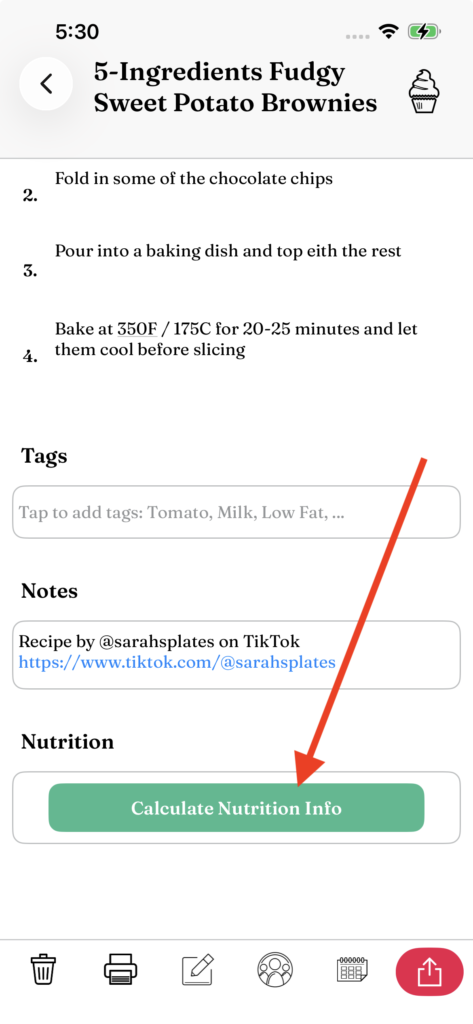
2. Tap “Calculate Nutrition Info” button.
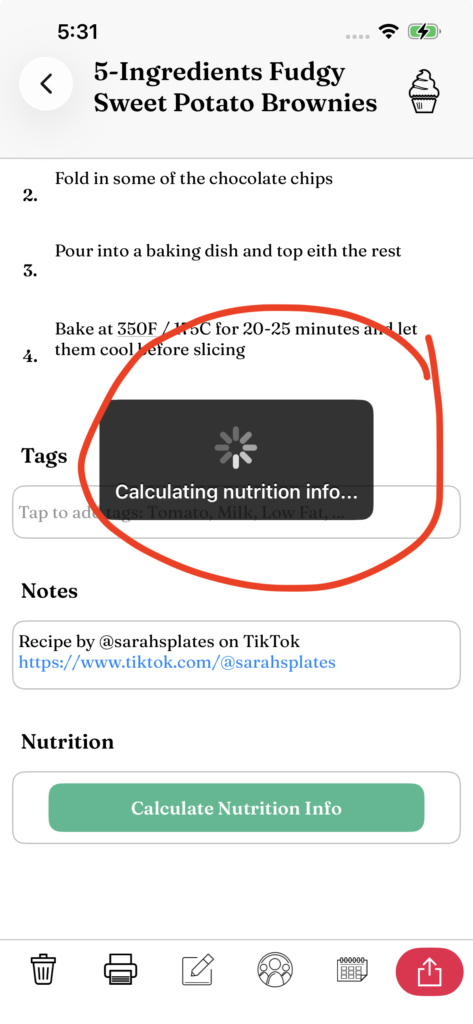
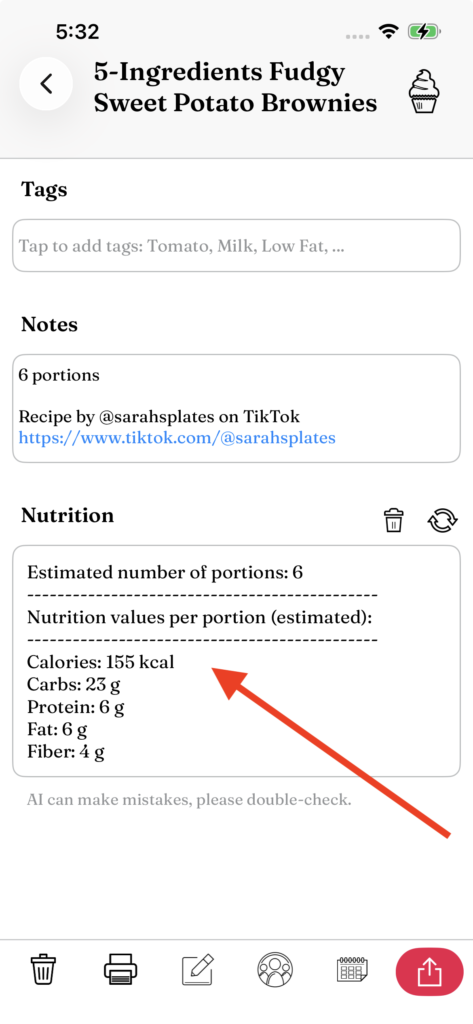
3. See the resulting estimated nutrition per serving!
Q: Will it work with every recipe?
It works with any recipe that lists its ingredients in either the Ingredients or Notes section.
A: If your recipe contains only a photo of the recipe text, OrganizEat will first let you know that it needs to extract the ingredients from the image and ask for your approval. Once it imports the ingredients, it will calculate the nutrition information. This process may take a little longer.**
(**Currently, OrganizEat can extract recipe text from English-language images only. Nutrition Calculation will therefore not work with a non-English recipe stored only as an image.)
Q: Is the nutrition information precise?
A: The results are AI-powered estimates based on the information in your recipe, including its ingredients and serving size. Although AI mistakes are now quite rare, they can still happen. The results are not scientifically precise calculations, so please treat them as a helpful guide rather than exact measurements.
Q: Can I delete the nutrition information if I change my mind?
A: Yes! Next to the Nutrition title, you’ll see a small trash can button. Tap it to remove the calculated nutrition information from your recipe.
Q: What if I want the estimate for a different number of servings?
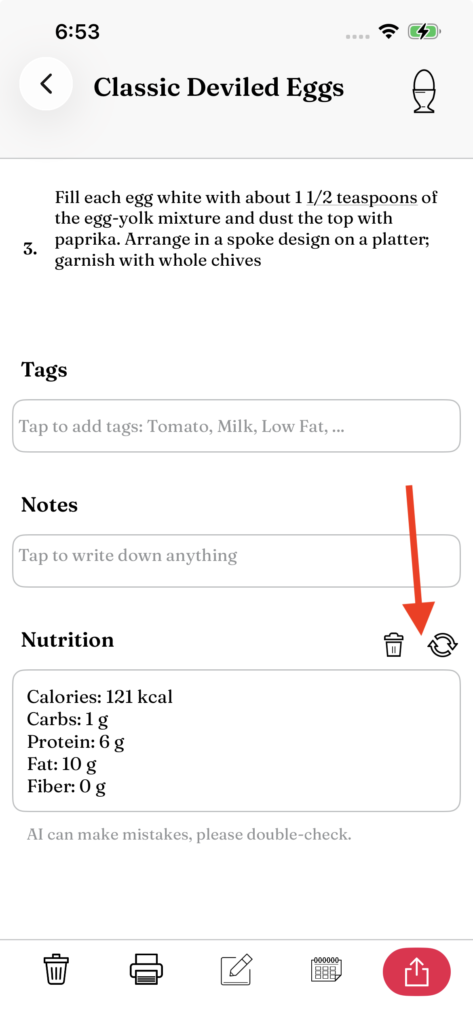
A: Write the number of servings you want in the recipe’s Notes section, then tap the rounded-arrow button to recalculate. OrganizEat will use the serving information you added when creating the new estimate.
Q: The estimate doesn’t look right. Can I recalculate it?
A: Yes! Tap the small rounded-arrow button next to the Nutrition title. OrganizEat will analyze the recipe again and generate a new estimate.
Everyone has different nutritional needs and priorities. Some people need to monitor sodium, others care about cholesterol, and others want to track nutrients such as calcium or iron. You can choose exactly which nutritional values you want OrganizEat to calculate and display for your recipes.
1) Tap the small “gauges” icon next to the Nutrition title.
2) You’ll see a full list of available nutritional values. By default, calories, carbs, protein, fat, and fiber are turned on, while the additional values are turned off.
3) Customize the list to suit your needs. Turn off anything you don’t want to calculate, and turn on the nutrients that are important to you.
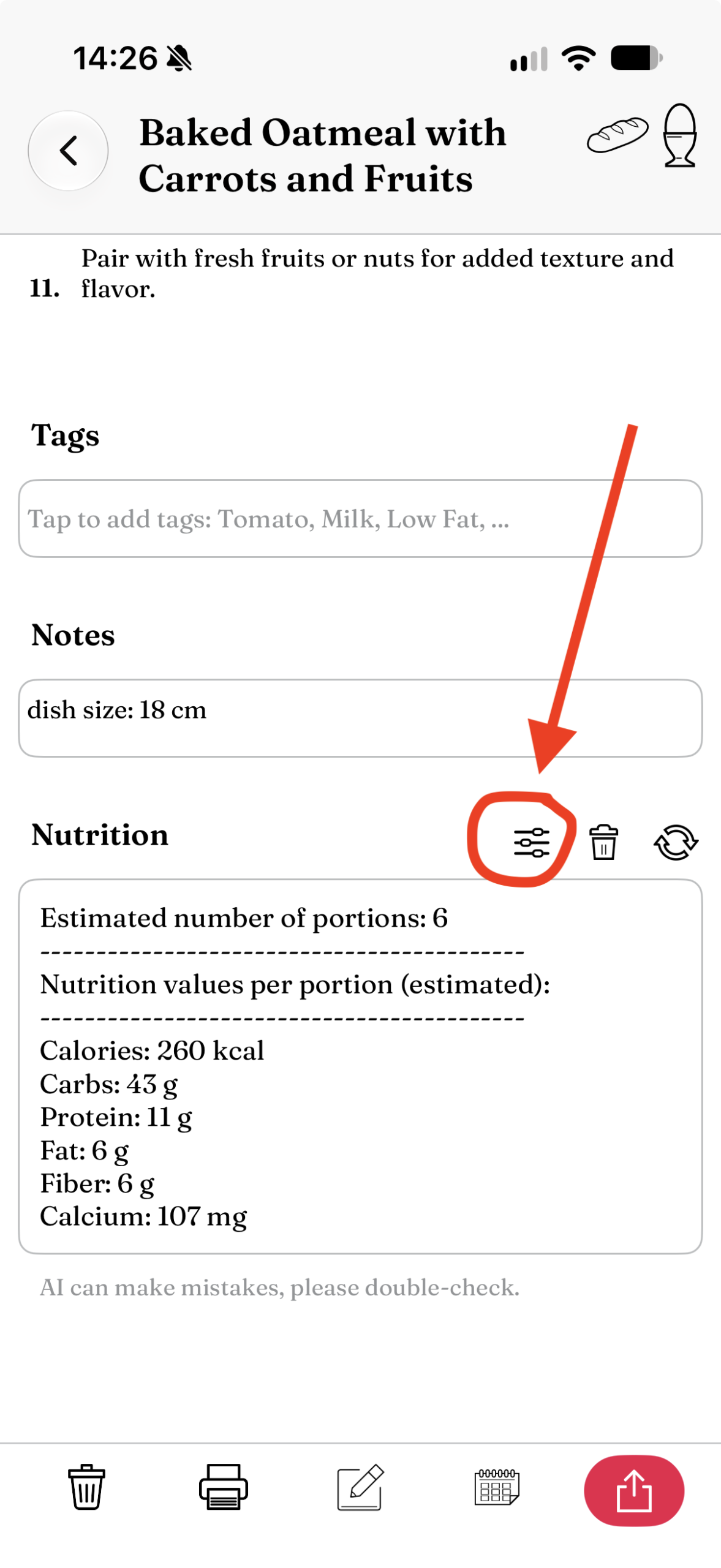
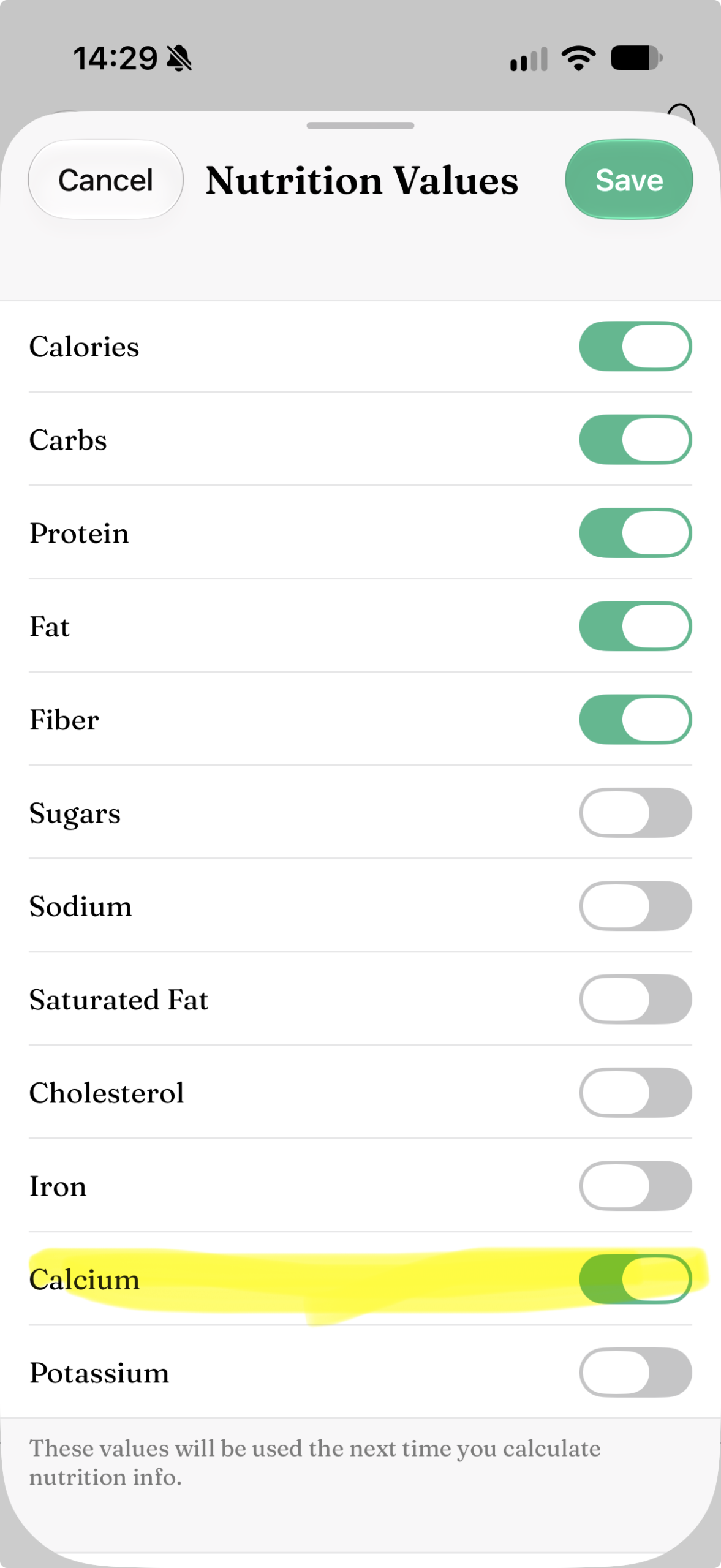
Your selections are saved automatically, so you only need to set them once. They will be used for all future nutrition calculations. And if you already calculated nutrition information for this recipe before the customization was introduced: simply tap the refresh button to recalculate it with your new settings (the rounded-arrow button).
Check us out →
© 2026 OrganizEat. All rights reserved. | Privacy Policy | Terms of Service | Accessibility Statement