


You open Mail on your iPhone, pull down to refresh, and nothing changes. Meanwhile, the same message is sitting in webmail or on your laptop. That gap is what makes email sync problems so annoying. The account looks connected, but it isn't behaving like one connected mailbox.
Most of the time, the fix isn't exotic. It's usually one of a few things: the account was added the wrong way, the sync settings are too limited, or iOS moved a menu and the guide you found is already outdated. If you want to sync email to iPhone without wasting an hour poking around settings, start with the setup method that matches your account, then tune the sync behavior after it's working.
Table of Contents
- Getting Started Adding Your Email Account
- Manual Setup for Custom and Business Accounts
- Optimizing Your Mail Sync Settings
- Solving Common iPhone Email Sync Problems
- Pro Tips for Managing Your iPhone Mail
- Frequently Asked Questions About iPhone Email
Getting Started Adding Your Email Account
Find the right Mail settings first
If you're following an older guide, the first thing that may trip you up is the menu path. In iOS 18, Apple moved Mail controls to Settings > Apps > Mail, which has confused a lot of people because many tutorials still point to older locations, as shown in Apple's current Mail settings guide for iPhone.
That one change matters because if you can't find the right screen, every setup step after that feels wrong.
Use the automatic setup when your provider is listed
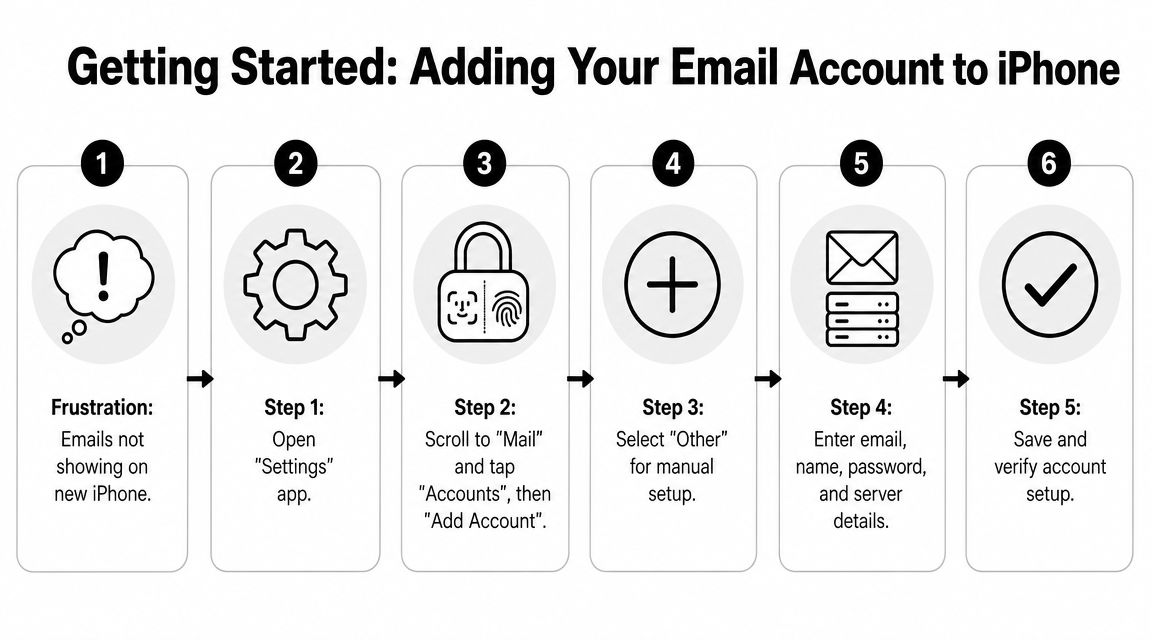
For Gmail, Outlook, Yahoo, and iCloud, the fastest route is usually the built-in account flow.
- Open Settings.
- Go to Apps > Mail.
- Tap Mail Accounts or Accounts, then Add Account.
- Pick your provider, such as Google or Microsoft Exchange.
- Sign in with your email address and password.
- Approve any sign-in prompts or security checks.
- Choose what you want to sync, such as Mail, Contacts, Calendars, or Notes.
In many cases, that's enough. Apple and the provider handle the server details behind the scenes, which avoids the most common manual entry mistakes.
Practical rule: If your provider appears in Apple's add-account list, use that option before trying manual setup.
If you're dealing with a hosting company, school account, or office mailbox that needs extra details, keep a reference like these device mail-in instructions nearby so you can confirm the incoming and outgoing mail settings before you start entering anything by hand.
What to check right after you add the account
The account can be added successfully and still not behave the way you expect. Right after setup, check these items:
- Mail is enabled: Open the account settings and make sure the Mail toggle is on.
- Other data is optional: If you don't want contacts or calendars from that account on your iPhone, turn those off now.
- Inbox activity is real: Send yourself a test message from another account and make sure it arrives.
- Outgoing mail works too: Reply from the iPhone so you know sending is working, not just receiving.
A lot of sync complaints come from half-finished setup. The account signs in, but the actual Mail toggle stays off, or only one data type was enabled. If you want a second reference for organizing mobile workflows after setup, the OrganizEat tutorials library is useful for learning how people handle saved content across devices without relying on a crowded inbox.
Manual Setup for Custom and Business Accounts
Choose the account type that actually syncs
Manual setup is where people accidentally build a mailbox that works on one device and breaks everywhere else. The big decision is IMAP or Exchange vs. POP.
For reliable multi-device synchronization, your iPhone email account should be configured as IMAP or Exchange. POP3 is designed to download and often remove messages from the server, which breaks the ability to keep your inbox consistent across your phone, tablet, and computer, as explained in this iPhone mail sync setup guide.
That's the practical difference:
| Account type | What it does on iPhone | Good for sync |
|---|---|---|
| IMAP | Keeps mail on the server and mirrors mailbox changes across devices | Yes |
| Exchange | Server-based sync for mail and often calendars, contacts, and more | Yes |
| POP | Downloads mail locally and can break consistency across devices | No |
What manual setup really needs
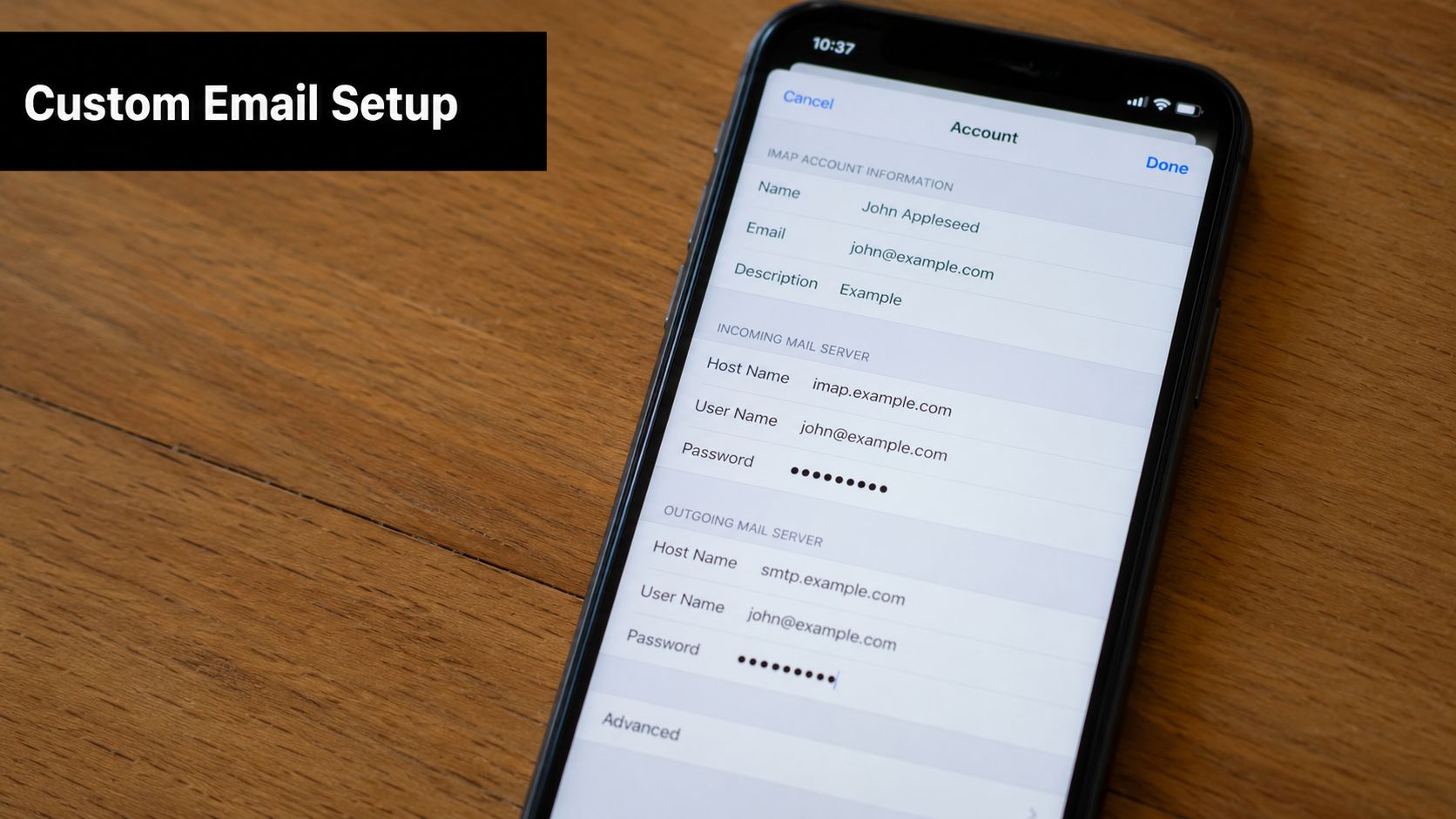
If your provider isn't listed, go to Add Account > Other > Add Mail Account. After the basic name, address, password, and description fields, you'll usually need these pieces from your email host or IT team:
- Incoming mail server
- Outgoing mail server
- Username
- Password
- Whether the account should be IMAP or POP
- Any security requirements, such as SSL
The part that matters most is not guessing. If one letter is wrong in the server name or the outgoing settings don't match what the provider expects, the iPhone may save the account but fail when you send mail or refresh folders.
Don't choose POP just because it looks familiar. If you read mail on a laptop, phone, or tablet, POP is usually the wrong choice.
Business accounts add one more wrinkle. Exchange accounts often rely on organization-managed sign-in, and some workplaces limit what can sync until the device finishes authentication. If the account signs in but shows little or no data, ask whether the mailbox is meant to use Exchange, not generic IMAP.
When two-factor security gets in the way
A common headache is a perfectly correct password that still doesn't work in Mail. That often happens when the email provider has two-factor authentication turned on. In that case, the account may require an app-specific password or an approval step in the provider's security settings.
A good troubleshooting pattern is simple:
- Confirm you can sign in through the provider's webmail.
- If webmail works, check whether the provider requires an app-specific password for Mail.
- Re-enter the account on the iPhone only after that security step is complete.
If you skip that part, you can spend a long time retyping a password that isn't the problem.
Optimizing Your Mail Sync Settings
Push and Fetch work differently
Once the account is added, the next issue is usually speed. People say email “isn't syncing,” but often it is syncing. It's just syncing on a schedule they didn't realize was active.
Apple Mail can use Push for near-instant delivery if the provider supports it, or Fetch on a schedule like 15, 30, or 60 minutes, which is why one account may feel immediate while another feels delayed, as noted in this Apple community discussion on iPhone Mail sync timing.
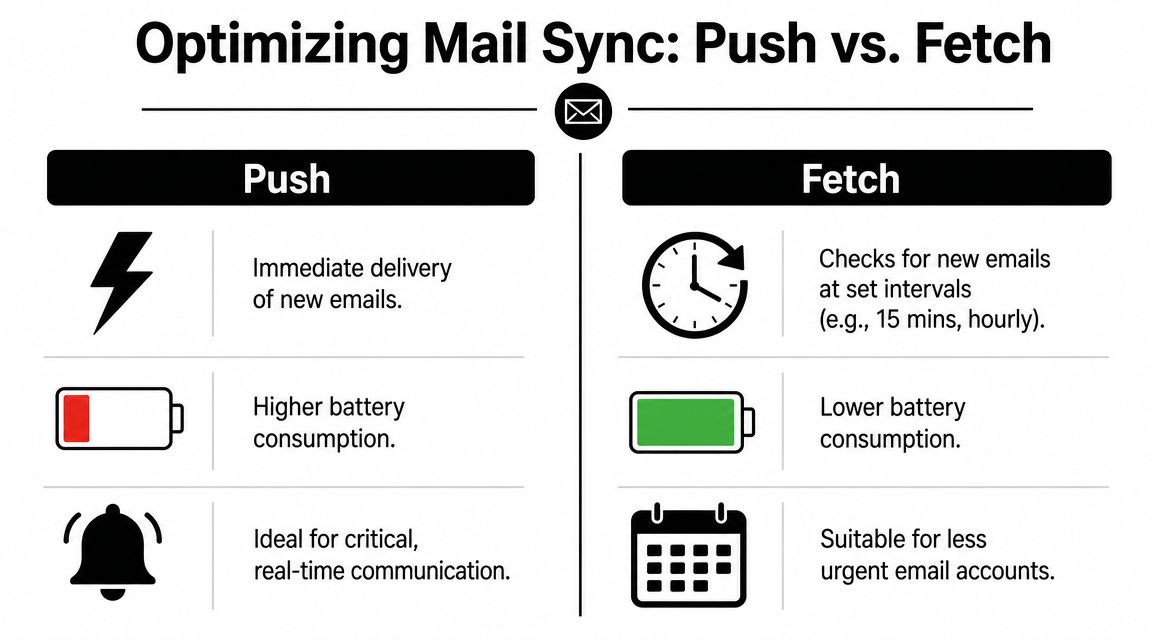
Think of it this way:
- Push is like the server tapping your shoulder the moment a message arrives.
- Fetch is your iPhone checking in at intervals to ask whether anything new has shown up.
How to tune each account
Open Settings > Apps > Mail > Mail Accounts > Fetch New Data and inspect what's set for each account.
Here's the useful breakdown:
- Work mailbox: If the provider supports Push, use it for the account you need to monitor closely.
- Personal inbox: Fetch may be enough if small delays aren't a problem.
- Low-priority accounts: Less frequent checking can cut down on distraction and preserve battery.
Some accounts also let you toggle more than just Mail. If you don't need Contacts, Calendars, or Notes from that account, turn them off. Fewer synced data types can make the setup cleaner and easier to manage later.
For more device organization ideas after you finish the sync basics, this collection of iPhone tips is handy.
A simple way to choose the right trade-off
Push is great when timing matters. Fetch is better when battery and simplicity matter more. Neither is universally “better.”
If you're troubleshooting slow mail, check the sync schedule before you blame the phone.
That one check saves time because a scheduled fetch can look exactly like a sync problem if you expect mail to appear instantly.
Solving Common iPhone Email Sync Problems
Start with the boring checks first. They solve more real-world problems than deep settings changes.
If new mail is not showing up
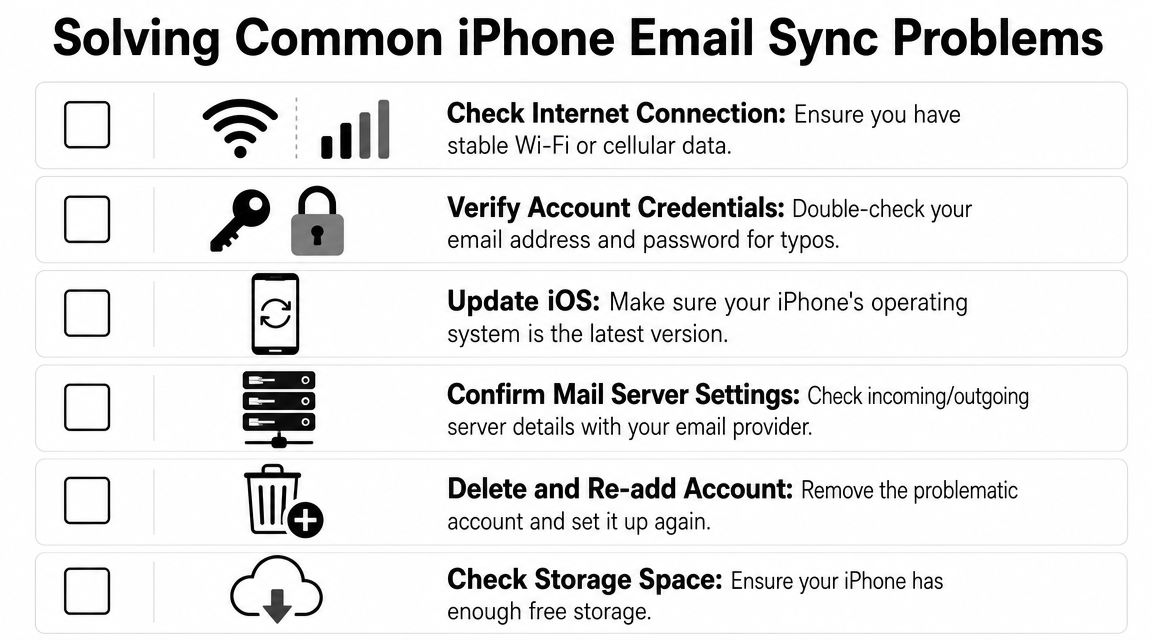
If your inbox isn't updating, work through this list in order:
- Check connectivity: Make sure Wi-Fi or cellular data is working.
- Open the account directly: Sometimes one mailbox is failing while the Mail app itself is fine.
- Review sync behavior: If the account uses a scheduled fetch, delayed delivery may be normal.
- Confirm the server-side account works: Log in through webmail or another device.
- Look for stale setup data: An old password, changed security setting, or bad server field can leave the account half-connected.
This short video walks through some of the same checks visually:
If webmail updates correctly but the iPhone doesn't, the problem is usually local to the phone setup. If webmail also looks wrong, the issue is likely with the account or provider, not iOS.
If you can receive mail but cannot send
That usually points to the outgoing mail server, not the inbox. The account may have the correct incoming settings but the wrong SMTP server, username, password, or security option for sending.
Use this quick comparison:
| Symptom | Likely issue |
|---|---|
| New mail arrives, but sending fails | Outgoing server settings |
| Mail sends, but inbox does not update | Incoming server or sync behavior |
| Nothing works | Credentials, account type, or full setup problem |
If this is a work account or a family member’s account you don’t want to rebuild alone, a hands-on service for professional email setup can help verify the configuration without trial-and-error.
Why sent mail often fails to sync
This is one of the most missed iPhone mail issues because the inbox can look fine while sent messages vanish from other devices.
A common but rarely explained sync issue is when sent emails don’t appear on other devices. This is often because the iPhone’s Sent Mailbox isn’t correctly mapped to the server’s Sent Items folder, and the fix is usually in the account’s advanced mailbox behavior settings, as explained in this sent mail syncing support note.
Check mailbox mapping, not just inbox delivery. Incoming mail can work while sent mail still goes to the wrong folder.
If your sent mail is missing on your laptop but visible on the iPhone, inspect the account’s advanced settings and look for folder mapping for Sent Mailbox.
When deleting and re-adding the account is faster
Sometimes the smartest fix is to stop tweaking and start clean. Old configurations can hold onto stale credentials or server details even after you update one field.
Delete and re-add the account when:
- You changed the password recently
- The provider changed security requirements
- The account was originally set up years ago
- Manual edits have piled up and you no longer trust the settings
This sounds drastic, but it’s often faster than hunting through every submenu trying to find the one bad field.
Pro Tips for Managing Your iPhone Mail
Use Mail features that cut daily clutter
After you get sync working, the next win is reducing how often you have to hunt for messages. iOS 18 changed enough of the Mail interface to throw people off, especially if you were used to older swipe behavior and thread views. A few settings are worth checking once, then leaving alone.
- Set VIP contacts: Keep key clients, family members, or time-sensitive senders easy to spot.
- Adjust swipe actions: Set left and right swipes to the actions you use, such as Archive, Flag, or Move Message.
- Review thread view: Some people like grouped conversations. Others miss individual messages, especially in long back-and-forth chains with attachments.
- Remove old accounts: If an account is dead, unused, or only there because you added it years ago, delete it. A shorter mailbox list is easier to scan.
If your Mail app still feels messy after that, these tips for creating groups on iPhone can help you clean up the rest of your setup too.
One practical tip for business users: turn on the settings that make triage faster, but keep enough message detail visible to avoid opening every email just to figure out what it is. That matters more once you have multiple accounts feeding into one inbox.
Move reference emails out of Mail
Some messages are better treated like saved information than active email. Recipes, travel details, school reminders, vendor instructions, and approval notes all fit that category.
Recipe emails are the one people underestimate. You save a recipe newsletter for later, your inbox fills up, and two weeks later it is buried under receipts and replies. If you run a food business, manage meal planning, or just collect family recipes, keeping those messages in Mail is usually the wrong long-term system. Save the recipe somewhere built for reference instead of letting it sit in a mailbox folder you rarely search properly.
OrganizEat is one example. It gives you a dedicated place to store recipes from emails and other sources, so your inbox stays focused on communication instead of becoming a storage bin for things you want to cook later.
That small habit keeps Mail usable. It also makes it much easier to find the message that needs a reply.
Frequently Asked Questions About iPhone Email
How many email accounts can I add
Practically, the answer is “more than you’ll need.” iPhone doesn’t feel limited in normal use. A significant limit is how manageable the Mail app stays once you’ve added several accounts.
Does Push use more battery than Fetch
Usually, yes. Push aims for near-real-time delivery, while Fetch checks on a schedule. If you don’t need immediate updates for every mailbox, using Fetch on lower-priority accounts is a sensible compromise.
What is the quickest way to remove an account
Open the account settings in Mail, select the account, and remove it from the device. Do this when you’re replacing an old setup, removing an unused mailbox, or clearing a broken configuration before adding the account again.
What is the difference between Mail Days to Sync and Fetch
They control different things. Fetch is about how often the iPhone checks for new mail. Mail Days to Sync is about how much recent mail the device keeps available from the server. One affects timing. The other affects the visible history of messages on the device.
If you regularly save recipes from emails, newsletters, family messages, or social posts, OrganizEat gives those recipes a place to live outside your inbox, with sync across devices and a searchable library that’s easier to use when you’re cooking.