


You're probably here because something on your phone needs to be saved before it disappears. A recipe buried in a long blog post. A screenshot from Instagram. A travel confirmation. A doctor's form. A cookbook page you snapped at your mom's house and swore you'd organize later.
That's where a PDF printer for Android becomes useful. Not because you want paper on the counter, but because you want a clean, stable copy that won't vanish when a page updates, a post gets deleted, or your browser loses the tab. For home cooks, this matters more than is often recognized. A good PDF can preserve the ingredient list, instructions, and layout of a recipe in a form you can reopen anytime, even offline.
Table of Contents
- Why You Need a PDF Printer on Your Android
- Using Android's Built-In 'Save as PDF' Feature
- Digitizing Physical Documents and Recipes
- Adjusting Settings for the Perfect PDF
- When to Use a Dedicated PDF App
- Troubleshooting Common PDF Printing Problems
Why You Need a PDF Printer on Your Android
A lot of people first use a PDF printer by accident. They tap Print, notice Save as PDF in the printer list, and realize their phone can turn almost anything into a portable document. Once you start using it intentionally, it solves a bunch of everyday problems.
Say you find a weeknight pasta recipe online. The page looks fine now, but it's surrounded by ads, popup videos, and someone's life story. You don't want to gamble on finding it again. Saving the page as a PDF gives you a version you can keep, share, and reopen while cooking, even if the website changes later.
The same thing applies outside the kitchen. Boarding passes, return labels, event tickets, school forms, and appliance manuals all become easier to manage once they're saved as PDFs instead of left scattered across email and browser tabs.
Practical rule: If you know you'll need the content again and don't control the original page, save it as a PDF.
For Android users, this isn't some niche trick. It's a built-in part of the platform. Android devices include a native Save as PDF function built into the Google Cloud Print system, which lets you convert documents, images, and web pages to PDF without installing third-party printer drivers, as explained in this Android print-to-PDF walkthrough.
A PDF printer for Android is also useful because it gives one format for many sources:
- Web pages become readable copies you can archive.
- Emails and confirmations turn into files you can send or store.
- Images can be gathered into printable documents.
- Recipes stop living in random apps and start becoming part of a collection you can use.
For simple saving, the built-in tool is usually enough. For scanned family recipes, markup, page reordering, or combining files, you'll want more control. That difference matters.
Using Android's Built-In 'Save as PDF' Feature
You find a promising pasta recipe on your phone while standing in the grocery aisle. By the time dinner rolls around, the page has three popups, the screen keeps dimming, and the ingredient list jumps every time an ad loads. Saving it as a PDF fixes that fast.
The fastest way to save a recipe page
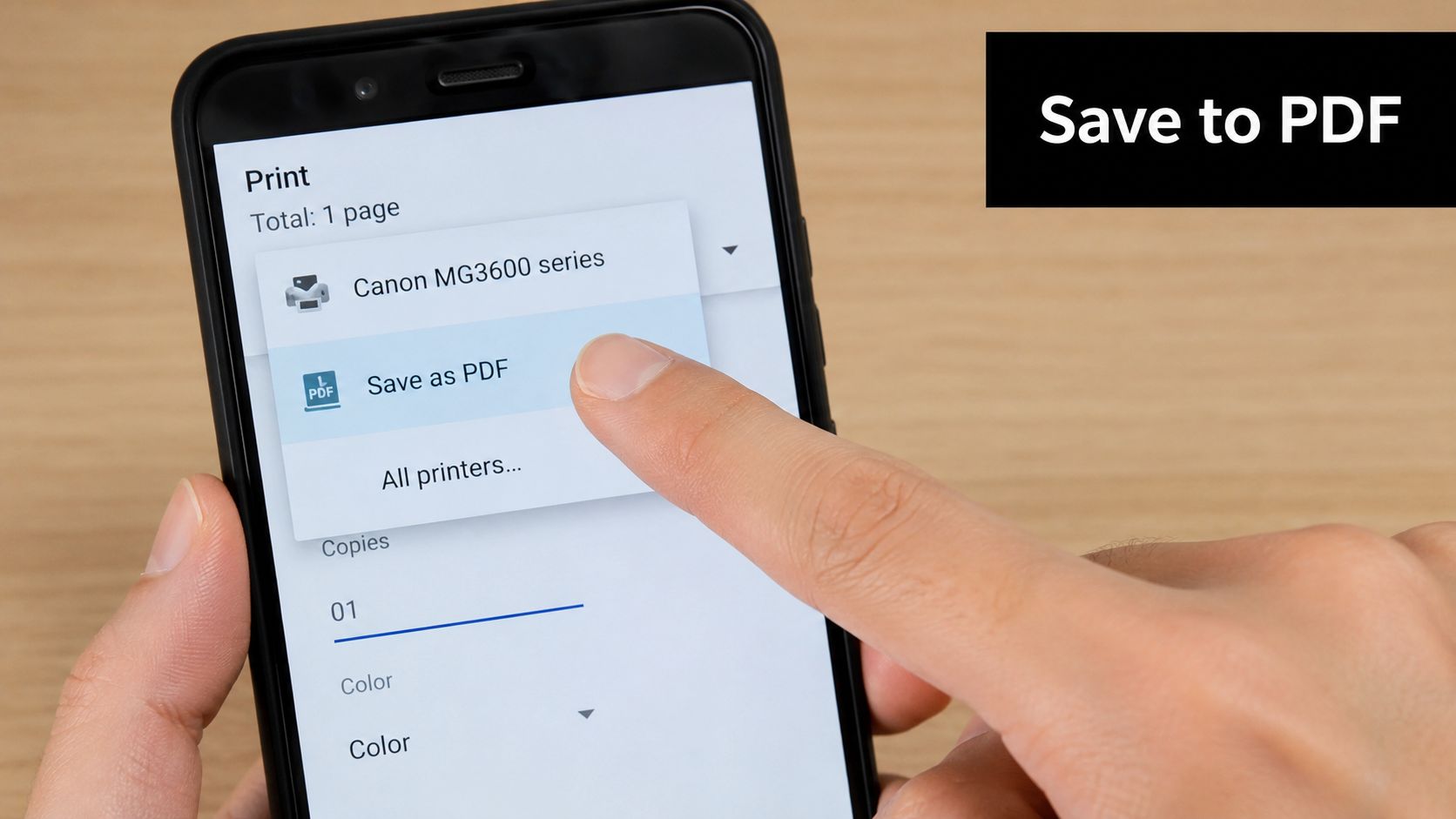
On most Android phones, the built-in print menu is the quickest way to turn digital content into a PDF. It works well for recipe sites, emails, Google Docs, order confirmations, and notes, as long as the app offers a Print option.
Use this path:
- Open the page, email, or file.
- Tap the three-dot menu or Share button.
- Choose Print.
- Open the printer selector.
- Select Save as PDF.
- Check the preview page by page.
- Tap the PDF icon or Save.
- Pick a folder, rename the file, and save it.
The rename step matters more than people expect. A phone fills up quickly with vague filenames. Save "Banana-Bread-1-bowl.pdf" instead of "document.pdf" and you will find it later.
This method is best when the screen already looks close to what you want to keep. A clean recipe page, a school handout, or a shipping label usually converts well. A cluttered mobile page with sticky headers, autoplay video, or comments often does not.
If you move between Android and Apple devices, keeping the file in a standard PDF format makes the handoff simple. This guide on how to download PDF files to iPad is useful if you save recipes on your phone and open them later on a tablet in the kitchen.
What Android is doing behind the scenes
Android has supported system-level printing since Android 4.4 (KitKat). In practice, that means many apps can send content to the same print panel instead of building their own export tool. You see one familiar workflow across Chrome, Docs, email apps, and many note apps.
That consistency is helpful, but it also explains a common failure point. Android can only turn the app's printable view into a PDF. If the app presents a bad print layout, the PDF will preserve the bad layout too.
For recipes, check the preview before you save. Look for these problems:
- ingredient columns cut off at the edge
- missing photos or missing step numbers
- oversized text that pushes directions onto extra pages
- ads, comment sections, or navigation menus showing up in the file
- dark mode colors that make the PDF hard to read or waste ink later
I usually treat the preview as the decision point. If it looks clean, the built-in tool is the fastest option. If text is overlapping, symbols are missing, or the page breaks in awkward spots, it is better to change tactics before saving a messy file you will need to fix later.
A short demo helps if you want to see the taps in real time:
The built-in option works especially well in a few everyday cases:
- Saving a recipe from Chrome: Good for offline cooking when the print preview strips out some web clutter.
- Turning an email into a PDF: Handy for potluck details, class instructions, and order receipts.
- Keeping a fixed copy of a Google Doc: Useful when you want the layout to stay put.
- Sharing a recipe with family: Better than sending a long link that may change later.
If the preview is wrong, stop there. Fix the page view, switch apps, or use a dedicated PDF tool instead of saving a broken copy.
That one check saves time, especially with recipes you plan to keep.
Digitizing Physical Documents and Recipes
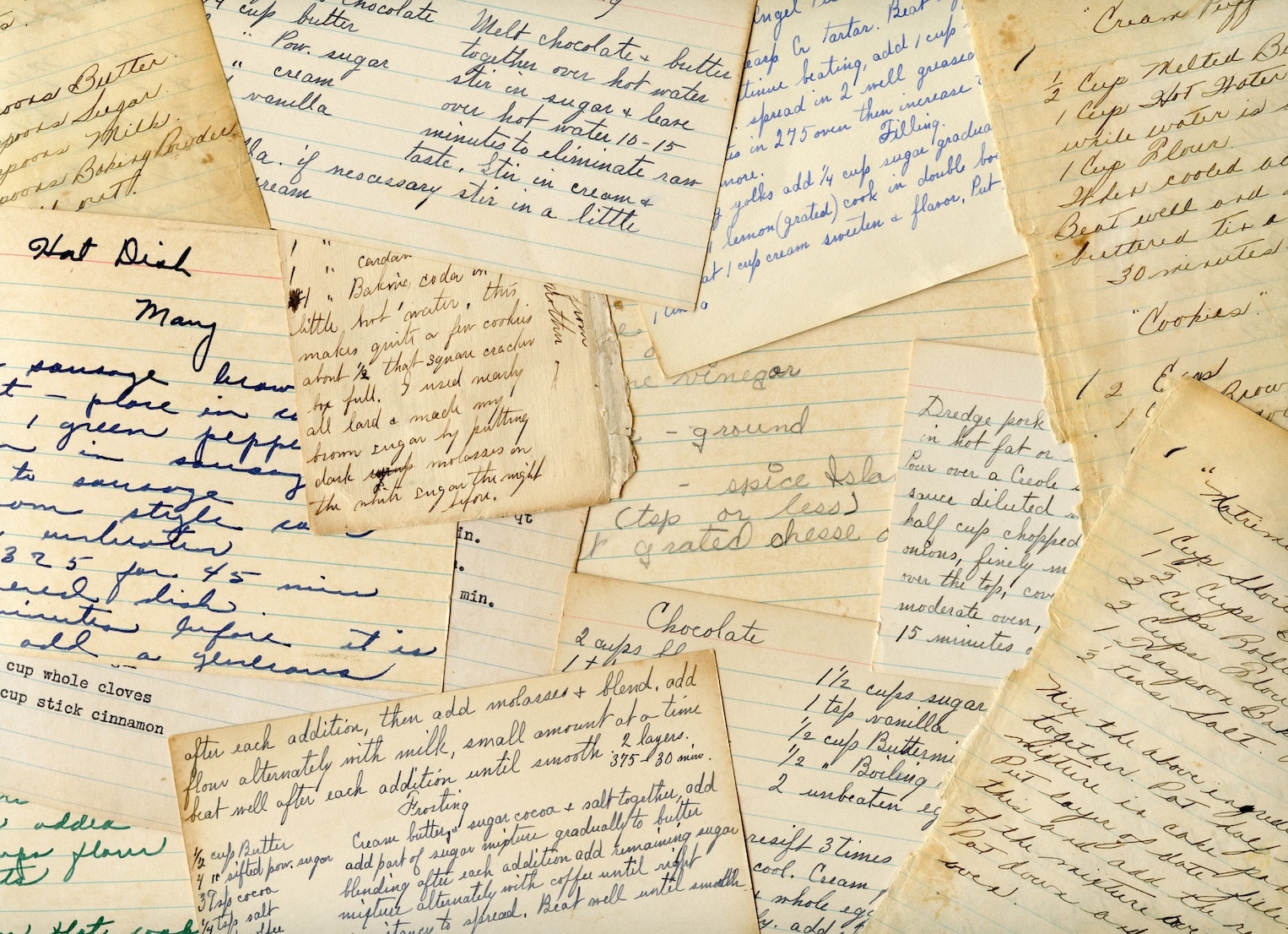
You find a recipe card in the junk drawer. It has a butter stain across the corner, the oven temp is written in fading blue ink, and the ingredient line for baking powder is half hidden by a crease. That is the point where a basic photo often stops being good enough.
Paper recipes need a different approach than web pages. With a web page, the main job is saving the layout correctly. With a handwritten card or a cookbook page, the main job is capturing readable text before you ever make the PDF. If you skip that part, you get a file that is technically preserved but frustrating to cook from.
Android handles the PDF output side well through its built-in print framework, as noted earlier. The weak spot is the capture step. Glare from overhead lights, curved cookbook pages, soft focus, and low contrast can make fractions and handwritten notes disappear. Recipes are especially sensitive to that. Losing a single "1/2" or "1 tsp" changes the result.
A quick phone photo works for some pages. I use it for clean printed recipes on matte paper with strong lighting and clear text. For anything older, glossy, folded, or handwritten, I switch to a more careful process because cleanup later takes longer than doing it right once.
Use this workflow when you want a PDF you can cook from:
- Flatten the page first: Set recipe cards, magazine clippings, or notebook pages on a plain surface.
- Use even light: Window light or two lamps from the sides reduces shadows and glare.
- Shoot straight down: Angled photos stretch lines and make ingredient lists harder to read.
- Crop before exporting: Remove the table, counter pattern, and anything else that competes with the text.
- Zoom in on the small stuff: Check fractions, abbreviations, oven temperatures, and handwritten substitutions.
- Create the PDF after cleanup: A clean image produces a cleaner PDF and gives OCR a better chance if your app supports text recognition.
Cookbook pages need one extra check. The inner margin near the spine often bends the text, and that is where ingredients or step numbers get warped. If the page will not lie flat, take two shots and keep the clearer one rather than forcing a single bad capture.
For a box of family recipes, batch the job. Group cards by source, such as holiday baking, weeknight dinners, or one relative's handwritten notes. Name files as you go. "Grandma_Apple_Pie_Handwritten" is far more useful than "IMG_2026." If you want more ideas for handling older recipe collections, this guide on simple ways to digitize old family recipes is worth bookmarking.
Use Android's PDF printing after the page is clean and readable. Use a recipe-organizing workflow when the main problem is keeping dozens of scans searchable, named, and easy to find later. Those are separate jobs, and recipes usually need both.
Adjusting Settings for the Perfect PDF
A saved PDF isn't automatically a useful PDF. The difference usually comes down to settings and file management.
If you've ever opened a recipe PDF and found tiny text, cut-off margins, or ten pages of comments after the actual instructions, you've seen what happens when people save first and inspect later.
Settings that matter before you save
When the app gives you print options, use them. In Google Docs on Android, the print-to-PDF flow lets you adjust paper size like A4 or Letter, orientation such as portrait, color mode, and two-sided printing before saving to the device's Downloads folder, as shown in this Google Docs Android print video.
Those settings matter for recipes more than people expect.
| Setting | Best use for recipes | What can go wrong |
|---|---|---|
| Portrait | Standard recipe cards, blog recipes, shopping lists | Wide tables may get cramped |
| Landscape | Meal plans, side-by-side notes, wide screenshots | Text may shrink oddly in some previews |
| A4 or Letter | Match your printer or usual storage format | Wrong paper size can affect margins |
| Color mode | Keep photos, highlights, or colored notes | Can add visual clutter if the page is busy |
Try this habit before saving:
- Check whether the recipe title and ingredient list fit comfortably.
- Scroll the preview for surprise pages.
- Change orientation if a table or image looks cramped.
- Save only the pages you want, when the app allows it.
If you like printing recipe collections later, a polished PDF also makes covers, dividers, and inserts easier to pair with printable materials like these recipe book cover ideas.
What to do after the file is created
Most Android phones save PDFs somewhere obvious, often Downloads. Don't leave them there with generic names.
Use a naming pattern you'll recognize later. For example:
- Recipe name plus source
- Holiday plus dish
- Book title plus page
- Topic plus date
A file called Pumpkin_Bread_Aunt_Mara.pdf is easier to find than document(7).pdf.
The best PDF is the one you can find in ten seconds while your onions are already in the pan.
If the PDF is just a temporary holding place before you organize recipes elsewhere, that's fine too. What matters is that the file is readable, named clearly, and stored where you'll look for it.
When to Use a Dedicated PDF App
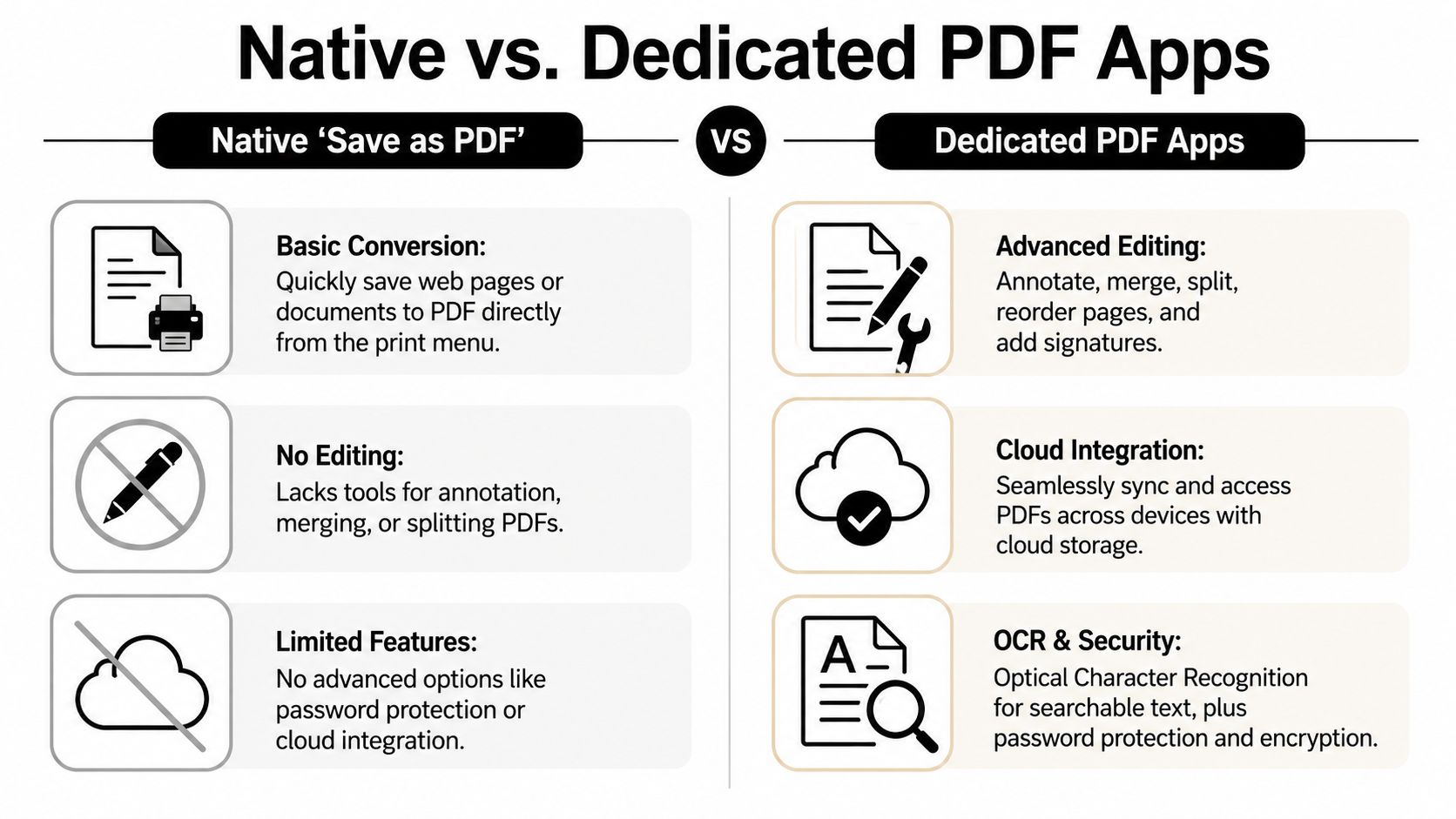
The built-in tool is excellent for quick capture. It isn't a full workshop.
If all you need is “turn this page into a PDF,” stay native. It's faster. Fewer taps. Less clutter. But once you need to edit, annotate, combine, reorder, sign, or convert files, the basic Android print menu starts feeling cramped.
By 2026, the Android ecosystem is projected to host thousands of dedicated “PDF printer” apps on the Google Play Store, with top-rated tools offering features like merging PDFs, converting PDFs to JPG for printing, and printing web pages directly from mobile devices, according to this roundup of PDF printer apps for Android.
Built in convenience versus advanced control
Here's the practical trade-off:
| Need | Native Save as PDF | Dedicated PDF app |
|---|---|---|
| Save a recipe page quickly | Excellent | Good, but often slower |
| Merge several recipes into one file | Limited | Much better |
| Add notes or highlight substitutions | Limited | Much better |
| Reorder pages | Limited | Much better |
| Fill out forms or sign documents | Limited | Much better |
| Convert between file types | Limited | Much better |
Dedicated apps make sense in a few common kitchen and household scenarios:
- You’re building a holiday binder: Merging multiple PDFs into one organized file is easier in an advanced tool. If that’s your task, Digital ToolPad’s guide on merging PDFs gives a solid overview of what to look for in the process.
- You annotate recipes as you cook: If you want to mark “use less salt” or “double the sauce,” basic Save as PDF won’t help much after the file is created.
- You need one file from many sources: A scanned card, a downloaded recipe page, and a typed note often need to live together.
- You handle forms too: Household paperwork and recipe organization often overlap more than people admit.
A dedicated app is worth it when the PDF is the beginning of the job, not the end of it.
Troubleshooting Common PDF Printing Problems
Most Android PDF issues aren’t mysterious. They usually fall into a few familiar buckets.
Missing text broken layout or blank pages
This is the problem too many simple tutorials skip. Users frequently report that text missing when printing PDF document from Android happens because the mobile operating system doesn’t always process complex PDF variations as well as a computer, which can lead to rendering failures in formatting, images, or text, as noted in this HP support forum discussion about Android PDF printing problems.
If that happens, try these fixes:
- Open the file in a different app: One viewer may render the document better than another.
- Save the original content another way: If a web page prints badly, copy the recipe into a clean document first, then export.
- Simplify the source: Busy pages with overlays, ads, or embedded widgets often break the preview.
- Use a computer for stubborn files: Some PDFs are handled better on desktop systems.
If the preview already has missing content, the final PDF won’t magically improve.
If Save as PDF doesn’t appear
Sometimes the print menu looks different across apps. Look for Print under the three-dot menu, Share sheet, or export options. Some apps hide it well.
If it still isn’t available:
- Try a different app path: Open the same content in Chrome, Google Docs, or your file manager.
- Share the item first: Some apps expose print only from Share.
- Check whether it’s an image, a web page, or a locked document: The menu options can vary by file type.
For wireless printer problems, separate printing to a physical printer from saving as a PDF. If your real goal is just to preserve the file, bypass printer setup entirely and save locally first. That cuts out a lot of avoidable frustration.
If your real goal isn’t just making PDFs, but keeping recipes organized in one reliable place, OrganizEat is a practical next step. It helps you save recipes from social media and websites, digitize handwritten cards and cookbook pages, keep everything searchable, and access your collection even when the original page disappears.