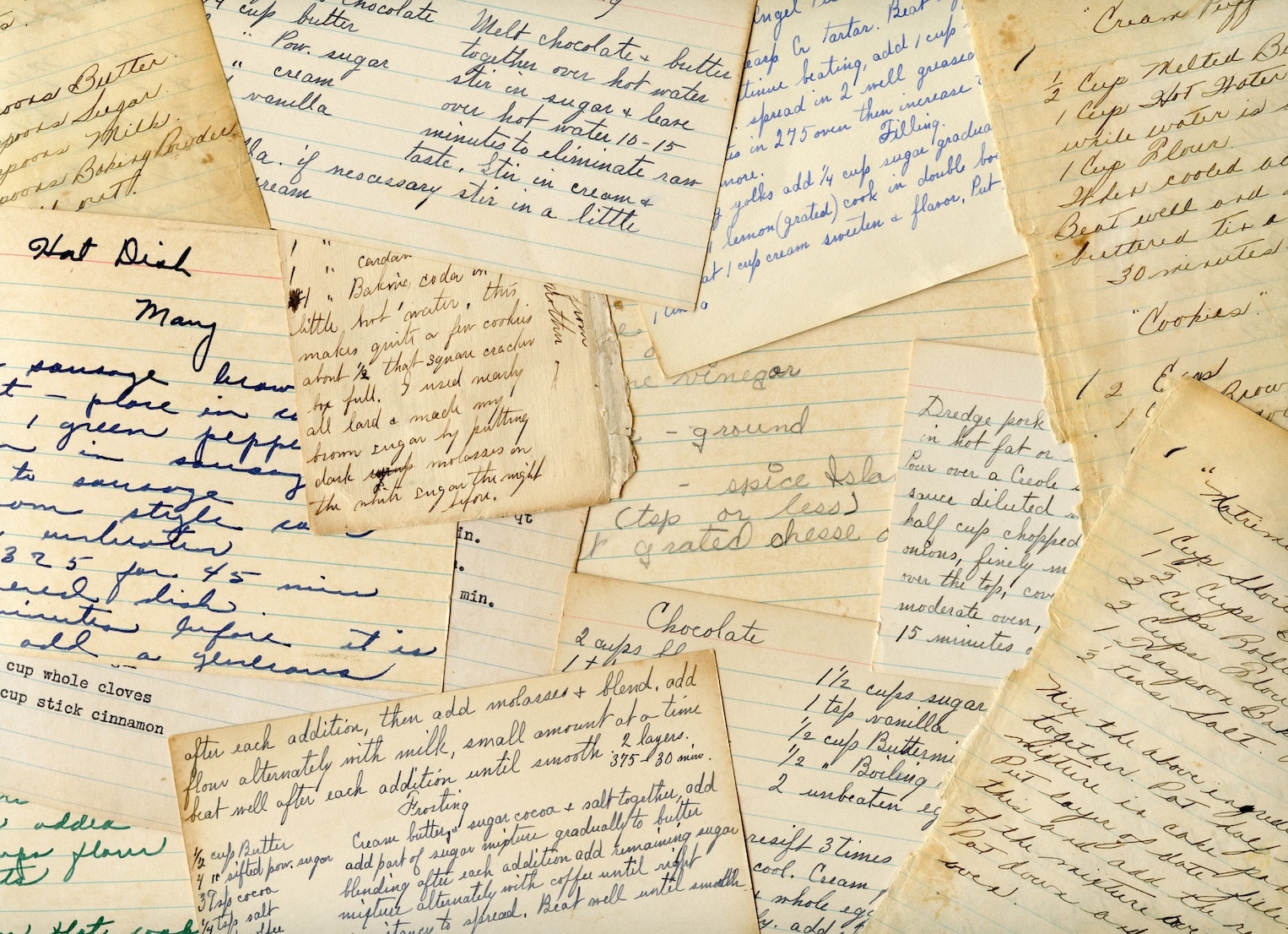




You found a recipe PDF on your iPad. Maybe it's a holiday cookie guide from a food blog, a scanned family recipe card from email, or a baking chart someone shared in a group chat. You tap it, read it, maybe even cook from it once, and then it seems to vanish.
That's the part that frustrates people. The file opened, so it feels like it should be saved somewhere obvious. On iPad, that only happens reliably when you use the right save workflow and put the PDF somewhere you'll check later.
If you've been trying to figure out how to download PDF files to iPad without losing them in app limbo, the good news is that the process is much simpler than it used to be. The bigger win is learning how to organize those PDFs so your recipes are ready when your hands are floured and dinner's already running late.
Table of Contents
- Your iPad Is a Perfect PDF Hub Once You Know the Tricks
- The Easiest Way to Download PDFs from Web Pages
- Saving PDFs from Your Email and Other Apps
- Organizing Your PDFs for Easy Offline Access
- Advanced Methods and Troubleshooting Common Issues
- Your Questions About iPad PDFs Answered
Your iPad Is a Perfect PDF Hub Once You Know the Tricks
A lot of iPad PDF frustration comes from treating the iPad like a big phone. It isn't anymore. Apple's modern file system update in 2019 made file management first-class on iPad, which shifted PDF handling away from app-only sharing and toward folder-based storage in the Files app, as noted in Adobe's iPad PDF guide.
That change matters in everyday use. If you save a sourdough recipe, appliance manual, meal plan, or school handout into Files, you can organize it the way you'd organize documents on a computer. That's a much better fit for home kitchens, where you don't want to re-hunt the same PDF every time you need oven temperatures or ingredient ratios.
Files is the hub
The Files app is where your downloaded PDFs should live if you want predictable access later. You can save into On My iPad for local storage, or use cloud-backed folders if you prefer access across devices.
For cooks, that usually means building a few obvious homes:
- Recipes: Weeknight dinners, baking, holiday menus
- Kitchen manuals: Mixer, thermometer, espresso machine guides
- Meal planning: Grocery sheets, pantry lists, prep charts
Practical rule: If a PDF matters after today, save it intentionally into Files. Don't assume the app you opened it in will keep it easy to find.
That single habit removes most of the chaos.
Why this feels easier once you start organizing
The trick isn't just learning how to download PDF files to iPad. The trick is pairing downloading with naming and folder choice at the same moment. That's why people who use their iPads for planning tend to have a smoother experience than people who let everything pile into a catch-all location.
If you already use your tablet for meal planning, notes, or calendars, an iPad planner workflow for everyday organization fits naturally with the same habit. Save first, sort once, find fast later.
The Easiest Way to Download PDFs from Web Pages
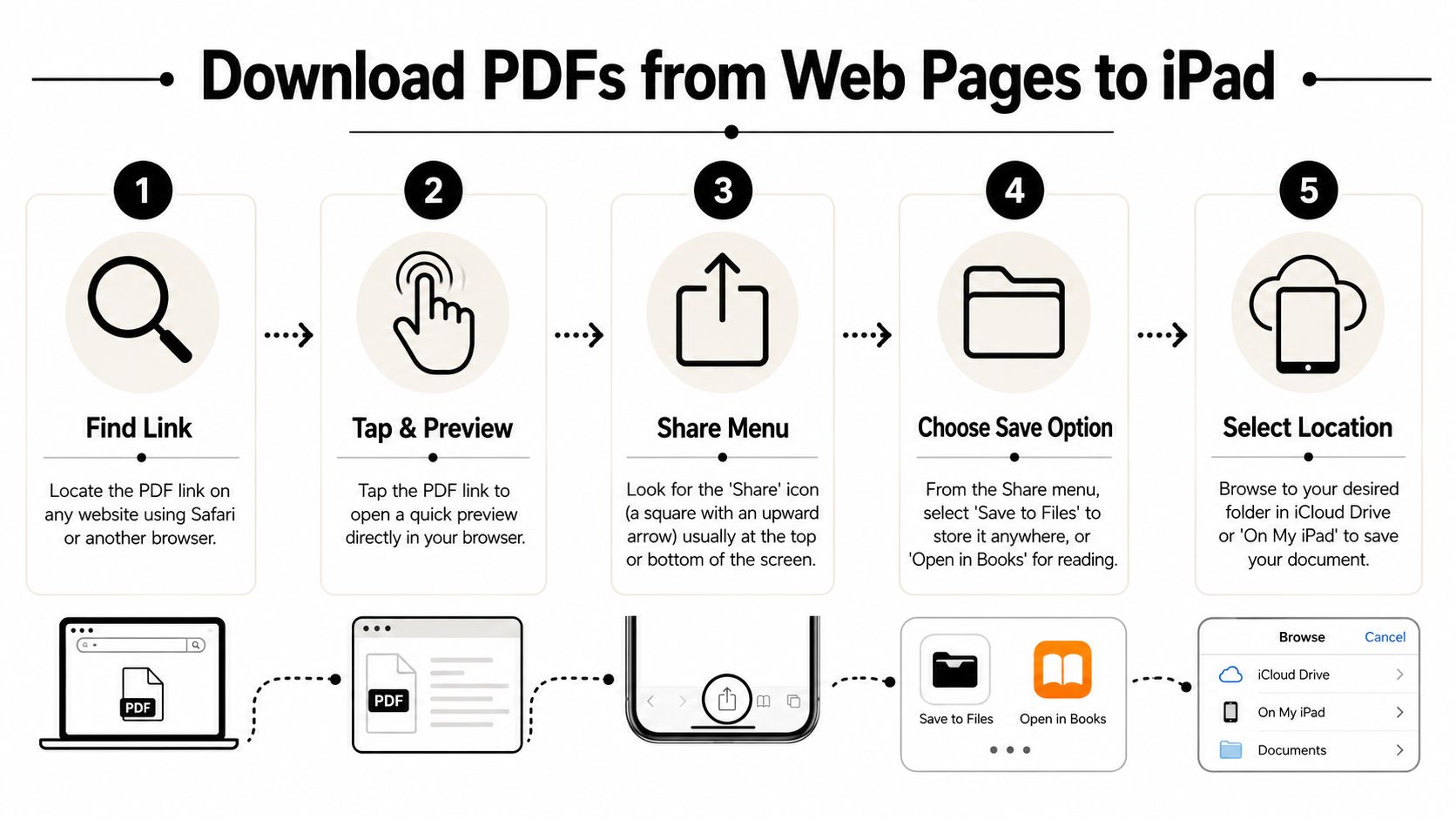
The ideal approach is one dependable method that can be repeated without thinking. On iPad, this is it: open the PDF in Safari, use the Share button, and choose Save to Files. Apple Community guidance also notes that Safari downloads go to the Downloads folder in Files by default, which makes that folder the first place to check if your file seems missing, as shown in this Safari PDF workflow walkthrough.
Use the Share button, not wishful thinking
If a website opens a PDF in Safari, don't just read it and close the tab. That only proves the file can display. It doesn't mean you've saved it.
Use this workflow instead:
- Open the PDF link in Safari.
- Wait for the PDF preview to load.
- Tap the Share icon. It looks like a square with an upward arrow.
- In the Share Sheet, tap Save to Files.
- Choose a folder, then tap Save.
That's the most reliable browser-based method on iPad.
A small but important detail. If the website gives you both a plain link and a download icon, either can work, but the goal is the same. Get the PDF open or available in Safari's share options, then send it to Files.
Pick the right folder the first time
At this stage, people either save themselves time or create future annoyance.
When the location picker opens, don't just hit Save as fast as possible. Take a second and choose a folder that matches how you cook and search. If the file is a recipe, save it into Recipes, not Downloads. If it's a user manual for your rice cooker, save it into Kitchen Manuals.
You can also create a folder right there from the save screen. That's useful when a new category appears, like:
- Holiday baking
- Air fryer cheat sheets
- School lunch ideas
Saving is only half the job. Naming and filing the PDF while it's on screen is what makes it usable next week.
If you collect lots of online cooking ideas, a related habit is turning scattered web finds into a personal system. This guide on building a digital recipe collection from web recipes fits well with the same mindset.
Saving PDFs from Your Email and Other Apps
A lot of tutorials stop at Safari. Real life doesn't. Recipe PDFs often arrive through Gmail, Apple Mail, Messages, Chrome, a classroom portal, or a cloud storage app someone in the family uses.
Apple's guidance around downloading PDFs is often presented through Safari, but the same Share and Save to Files workflow is designed to work across most apps, not just the browser, as described in Apple's iPad PDF help page.
The same workflow works in more places than most guides admit
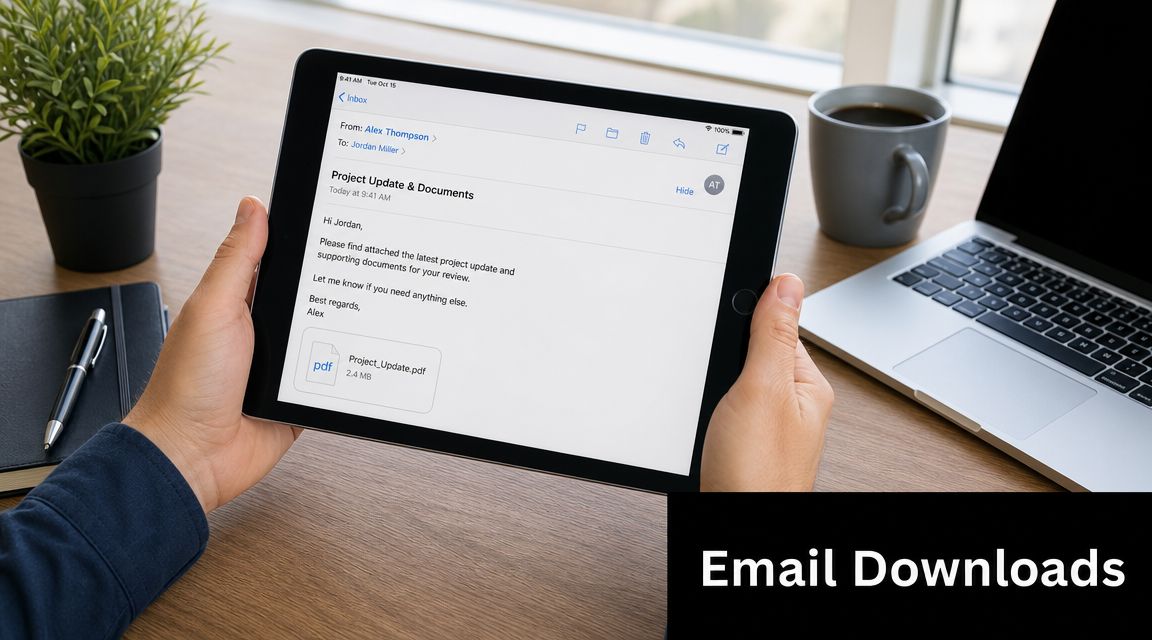
If the PDF is attached to an email, tap the attachment to preview it. Then look for the Share icon. From there, choose Save to Files and send it to the folder you want.
If you're in Messages, the process is similar. Open the PDF, tap the share controls, then save it into Files. In Chrome or another app, the exact button placement may look different, but you're still looking for the same path: open the file, then use Share to move it into Files.
Here's the practical pattern to remember:
- Email attachment: Open, share, save to Files
- Message attachment: Open, share, save to Files
- App preview: Find share controls, then save to Files
That consistency is what makes the iPad manageable once you know where to look.
When an app hides the file
Some apps don't make it obvious that you're looking at a preview instead of a saved file. That's where people get stuck. They see the PDF, close the app, and later discover there's no easy way back.
When that happens, try these moves:
- Tap and hold: Some apps reveal extra actions if you press and hold the attachment or file tile.
- Look for an export menu: It may not say Share. It might say Open In, Send a Copy, Export, or More.
- Move it out of the app: If the file matters, save a copy to Files instead of trusting the app's internal storage.
A short visual walkthrough can help if you're dealing with email-heavy workflows:
If recipe PDFs often come through your inbox, keeping email and saved documents in sync with a repeatable routine helps. This post about syncing email habits on iPhone and iPad is useful for that side of the workflow too.
Organizing Your PDFs for Easy Offline Access
A PDF you can't find at the stove might as well not be saved.
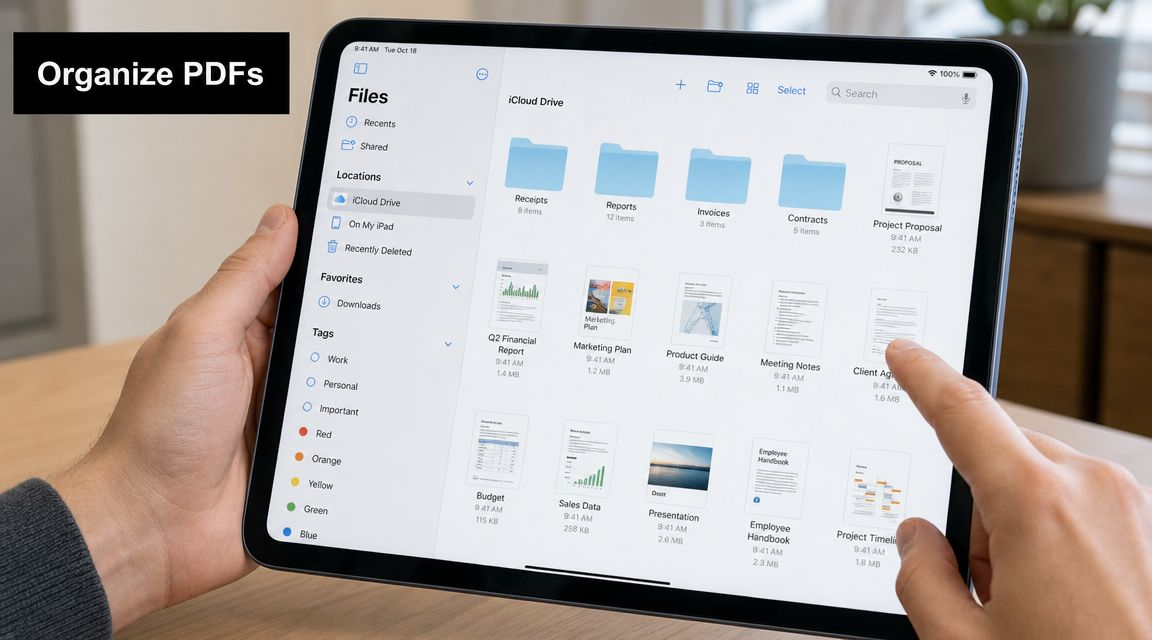
The Files app stores documents well, but it will not sort recipe PDFs into a system that makes sense during a busy weeknight. If everything stays in Downloads, you end up scrolling through appliance manuals, school forms, and recipe files while the onions are already in the pan.
A simple folder system that works in real life
The best setup is the one you can maintain without thinking about it twice. On an iPad used for cooking, four folders usually cover the job:
| Folder | What goes in it | Why it helps |
|---|---|---|
| Recipes | PDF recipes, scanned cards, magazine clippings | Keeps cooking content separate from general documents |
| Meal Plans | Weekly plans, prep sheets, freezer lists | Useful when you batch cook |
| Kitchen Guides | Appliance manuals, conversion charts, temperature references | Fast access during cooking |
| Family Favorites | The recipes you use repeatedly | Avoids searching through everything else |
File names matter just as much as folders. Rename the PDF as soon as you save it, while you still remember what it is. “sheet-pan-gnocchi.pdf” beats “document.pdf” every time, especially when Spotlight search becomes your backup plan.
One clear file name in the right folder saves more time than a pile of mystery downloads.
If you also share recipes with family or build combined packets for trips and holiday cooking, it helps to learn to manage PDF files securely before you start editing, merging, or moving documents between apps.
Why recipe PDFs often outgrow Files
Files is good storage. Cooking needs more context.
A plain folder cannot tell you whether a recipe is gluten-free, kid-friendly, worth repeating, or already scheduled for Sunday. It also cannot pull ingredients into a shopping list or group dinner ideas by tags you use. That is the trade-off. Files is flexible and built in, but it stays generic.
That is why many home cooks keep Files as the archive and use a recipe organizer for daily cooking. OrganizEat is one example. You can import recipe PDFs so they sit next to scanned handwritten cards, web recipes, and social posts you saved for later. That makes sense if your collection comes from different places and you want search, categories, and meal-planning tools in one place instead of opening one PDF after another.
For a small recipe collection, folders in Files may be enough. For a growing kitchen library, a dedicated recipe app usually makes the iPad much easier to use offline.
Advanced Methods and Troubleshooting Common Issues
Sometimes the normal save flow isn’t the right tool. Maybe you’ve got a whole folder of manuals on a laptop, or a season’s worth of recipe PDFs you want on your iPad before a trip. In those cases, direct transfer methods are faster than opening each file individually.
Some apps support local Wi-Fi transfer from computer to iPad. The general pattern is simple: both devices are on the same Wi-Fi network, you open a browser on the computer, connect through the app’s local transfer page, and drag PDFs over without cables or cloud storage, as described in this Wi-Fi PDF transfer guide.
Better ways to move batches of PDFs
If you’re transferring more than a few files, consider the trade-offs:
- AirDrop: Fast when you already use a Mac and just need to send a few PDFs.
- Wi-Fi transfer inside an app: Better for batches, especially when drag-and-drop from a browser is easier than repeating share actions.
- Cloud folders: Good if you already keep documents in iCloud Drive or similar storage and want them available across devices.
If you like local-first workflows in general, the same mindset shows up in other tools too. People who care about privacy and offline control often also look into private AI on your Mac rather than sending everything to cloud services.
What to check when something goes wrong
Most iPad PDF problems fall into a few common buckets.
- The file disappeared: Check the folder you chose when saving. If you expected a Safari download and can’t find it, search Files by filename or look through likely folders.
- Save to Files isn’t visible: Scroll through the Share Sheet actions, tap More if needed, or look for an app-specific export command such as Open In or Send a Copy.
- The PDF won’t open properly: Try opening it from Files instead of the original app. If that still fails, the file may not have downloaded cleanly.
- You saved the wrong version: Delete the duplicate or rename the final version right away so you don’t keep opening outdated copies.
A missing PDF usually isn’t magic. It’s almost always one of three things: saved to a different folder, trapped in an app preview, or downloaded with a vague filename.
Your Questions About iPad PDFs Answered
Can I save a PDF directly to my iPad for offline use?
Yes. Save it into the Files app, ideally in On My iPad or another folder you know you’ll use offline. If you’re preparing for travel or cooking in a spotty-signal kitchen, open the file once after saving so you know it’s there.
Why can I view a PDF but not edit it?
Viewing and editing are different jobs. Many apps can display a PDF, but that doesn’t mean they can change the text or layout. If you need annotations, signatures, page changes, or merges, use a PDF app built for editing rather than assuming the preview screen can do everything.
Can I save a webpage as a PDF on iPad?
Often, yes. If a recipe page doesn’t provide a PDF, you can use iPad sharing or print-related options to create a cleaner saved version. That’s handy when you want a stable copy of a recipe before the website changes, adds pop-ups, or disappears.
If your main goal is cooking, not file wrangling, keep the rule simple. Save the file once, give it a sensible name, and put it where your future self will look.
If your iPad recipe collection is spreading across PDFs, screenshots, social posts, and handwritten cards, OrganizEat gives those recipes a single home with offline access, tags, shopping lists, and a cooking-friendly view that’s easier to use in the kitchen than a crowded Downloads folder.