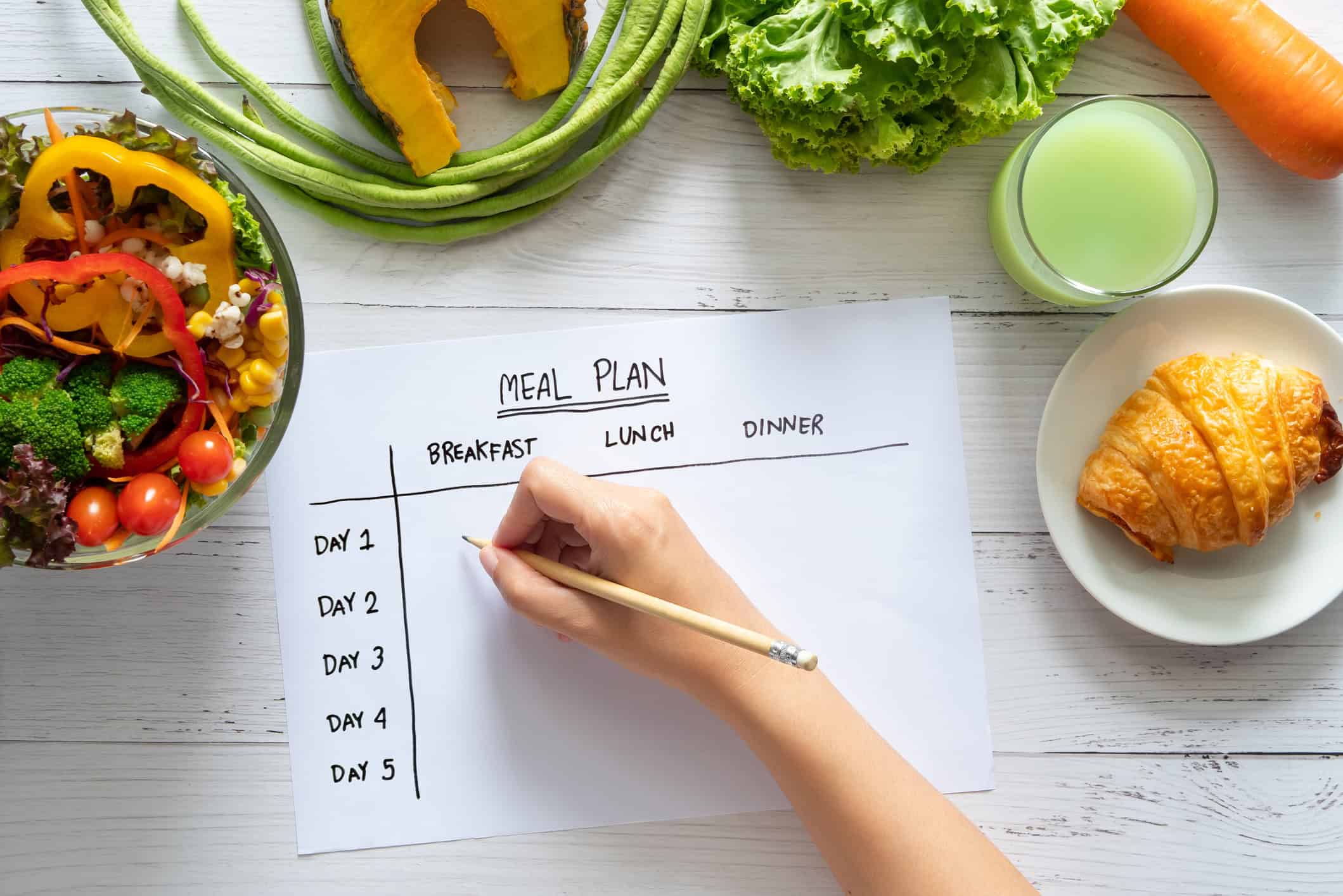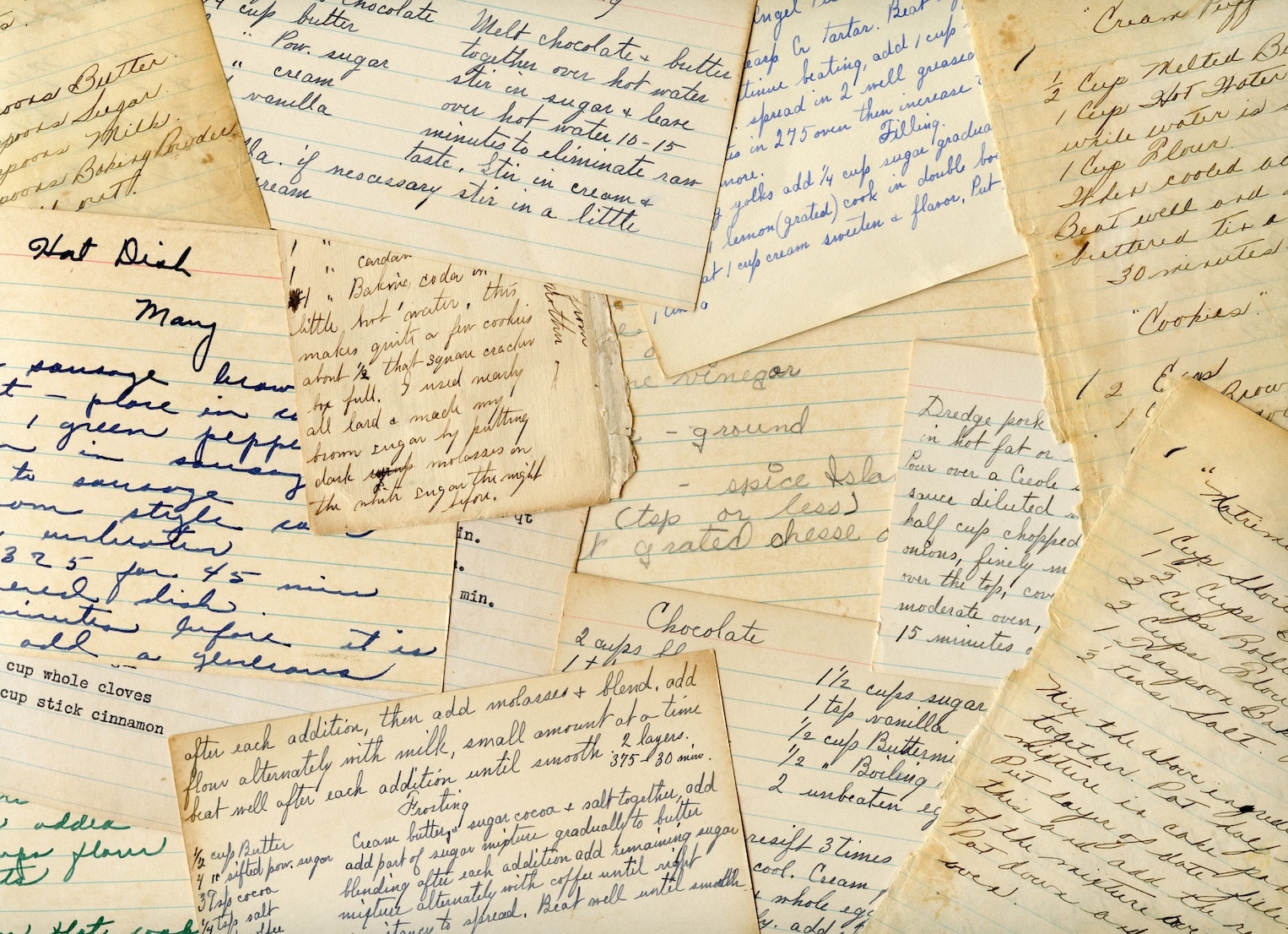
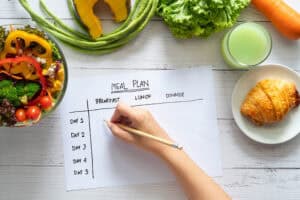


Your kitchen probably already has a planning system. It just isn’t a good one. A few recipes are saved in Instagram. A couple live in browser tabs you meant to revisit. Your favorite soup is on a stained index card. The weeknight pasta you use sits in Notes under a title like “Dinner maybe.”
That mess is exactly why a planner for iPad makes so much sense for home cooks. The iPad is big enough to plan on comfortably, fast enough to use while cooking, and flexible enough to handle recipes, calendars, grocery lists, and shared family planning in one place. The problem is that most planner advice stops at generic productivity. It talks about meetings, habit trackers, and pretty templates, but not the actual kitchen workflow: save recipes, schedule meals, turn them into a shopping list, then cook without touching your screen every thirty seconds.
Table of Contents
- Why Your iPad Is the Ultimate Kitchen Planner
- Building Your Digital Recipe Library
- Designing Your Meal Plan on a Calendar
- Automating Your Shopping and Grocery Lists
- From Planner to Hands-Free Cooking Assistant
- Your Meal Planning Workflow and FAQs
- The workflow that holds up on busy weeks
- FAQs
- How do I share a grocery list with a partner who uses Android
- What if a recipe website won’t import cleanly
- Should I save links or full recipes
- What’s the best way to preserve family recipe cards
- Do I need a monthly meal plan
- What should I do first if my recipe collection is a mess
Why Your iPad Is the Ultimate Kitchen Planner
Sunday afternoon is usually when kitchen planning either clicks or falls apart. You have a few recipes saved, a rough idea of what the week looks like, and a fridge that already needs using up. An iPad handles that moment better than a paper planner or a generic to-do app because it keeps the full cooking chain in one place: what you want to make, when you plan to make it, what you need to buy, and what you need to see while you cook.
That difference matters in a real kitchen. A standard digital planner can hold appointments and checklists, but meal planning has extra friction. Recipes come from screenshots, browser tabs, cookbooks, handwritten cards, text messages, and social posts. Grocery lists need to change when dinner changes. The screen also has to stay usable with wet hands, limited counter space, and a half-finished recipe in front of you.
If your household already uses a tablet to coordinate school pickups, dinners, and errands, it helps to borrow ideas from systems built to simplify family schedules. The useful part is the structure. Repeating plans live in one place, so dinner is decided before the late-afternoon scramble starts.
I use one simple rule. If a meal idea cannot move from saved recipe to calendar to shopping list on the same device, it usually dies in a browser tab.
A kitchen-ready iPad setup usually does four jobs well:
- Capture recipes from websites, social posts, screenshots, and photos
- Place meals on a calendar that reflects your actual week
- Build a grocery list from what you plan to cook
- Display recipes clearly on the counter during prep and cooking
Those jobs sound basic, but the trade-offs are real. Some planning apps are great at handwriting and weekly layouts but weak at recipe import. Some recipe apps save beautifully and fall apart when you try to plan five dinners across a busy family calendar. The best results come from choosing a recipe-first system, or a planner that can reliably support recipe storage, calendar planning, and list-making without extra copying.
If you are comparing options, this guide to best features to look for in recipe apps gives a solid checklist for import tools, search, organization, and day-to-day kitchen use.
Building Your Digital Recipe Library
The meal plan only gets easier after your recipe collection stops living in six places. Individuals often don’t need more recipes. They need a reliable way to store the ones they already use and the ones they mean to try.

Start with one capture rule
Use a simple rule: if you want to cook it again, save it into your recipe library immediately. Don’t leave it in a browser tab, don’t trust a social post to still exist later, and don’t assume you’ll remember who shared it.
That matters most with social recipes. Short videos are great for inspiration but terrible for retrieval. Capturing the recipe into a dedicated collection preserves the meal idea even if the original post disappears, changes, or gets buried.
For web and social recipes, I recommend sorting at save-time with a few tags only. Too many categories create drag. A compact tagging system works better:
| Tag type | Good examples | Why it helps |
|---|---|---|
| Meal role | weeknight, lunch, baking | Finds recipes by situation |
| Main ingredient | chicken, beans, pasta | Helps use what’s already in the fridge |
| Effort level | quick, project, make-ahead | Useful on tired days |
| People notes | kids like, freezer-friendly, guests | Keeps family favorites easy to find |
If you save a lot of baking content, it also helps to keep reference material next to recipes. For example, a guide on mastering yeast activation for home bakers can live in your baking folder as a technique note, not just a one-off article.
Digitize the recipes you already trust
Your best recipes are often the least digital ones. They’re the scribbled brownies from your aunt, the cookbook page with your own changes in the margin, or the recipe card with oil spots because you’ve made it twenty times.
The iPad becomes more than a viewer in this context. Successful iPad planning apps use PencilKit for low-latency handwriting (≤10ms input lag) and ML-based OCR with >92% accuracy via Apple’s Vision framework, critical for digitizing handwritten recipes (technical benchmark reference). In plain terms, good apps now make it practical to photograph old recipes and still search them later.
Save the original image even if the text is recognized perfectly. Family recipes often matter because of the handwriting, notes, and layout.
A dependable digitizing routine looks like this:
-
Photograph or scan clearly
Put recipe cards on a plain surface with good light. Avoid angled shots if you want cleaner text recognition. -
Name the recipe before you forget
“Grandma pie card” becomes “Apple Pie, Ruth.” -
Add one source note
Cookbook, family member, class, or website. That tiny note helps later. -
Tag it for real use
Dessert, holiday, freezer-friendly, or Sunday dinner.
If you want a walkthrough for moving internet recipes into a more permanent collection, this guide on how to convert web recipes into personal digital collections is useful.
Organize for retrieval not decoration
A pretty planner is nice. A recipe library you can search in under ten seconds is better.
Don’t organize by cuisine only. That’s where many systems become frustrating. “Italian” doesn’t help much when you have ground turkey to use and twenty-five minutes before soccer practice pickup. Instead, organize around how you decide what to cook.
Try these filters first:
-
By available time
under 20 minutes, sheet pan, slow cooker, weekend -
By shopping state
pantry meal, fresh produce needed, freezer meal -
By repeat value
weekly staple, company meal, lunch prep
The best digital recipe library is not the largest one. It’s the one you can trust on a Tuesday.
Designing Your Meal Plan on a Calendar
A recipe archive is storage. A meal calendar is action. A planner for iPad earns its place on the counter because a visual calendar makes trade-offs obvious fast. You can see heavy prep days, leftover opportunities, and nights where cooking from scratch is unrealistic.

Build a calendar you can edit fast
The best meal calendar is editable with almost no friction. If moving Thursday’s soup to Wednesday feels annoying, you’ll stop planning. That’s why drag-and-drop layouts work so well on iPad. You can glance at the week and reshuffle meals in seconds.
Integrated planning tends to save time beyond the calendar itself. Aggregated App Store analytics show that 62% of users who adopt integrated digital planners report 20%+ gains in weekly productivity, largely due to features that consolidate planning and execution (App Store analytics reference). For home cooks, that “execution” piece is the difference between a planner that looks nice and one that finally gets dinner made.
What to place on the calendar
Many people overfill the calendar with aspiration meals. Don’t schedule seven ambitious recipes for a chaotic week. Put the meals that fit the week you have.
A stronger setup uses a mix:
-
Anchor meals
These are your dependable dinners. Tacos, pasta, sheet-pan chicken, fried rice. -
Flexible leftovers
Mark one or two nights as leftovers or “finish what’s open.” -
Low-energy backups
Eggs, soup from the freezer, grilled cheese, rotisserie shortcuts. -
Prep events
Not every calendar entry needs to be a dinner. “Marinate chicken” or “wash greens” can save the week.
A simple way to look at it is:
| Day type | Best meal choice | Common mistake |
|---|---|---|
| Busy weekday | Fast, familiar recipe | New multi-step dish |
| Work-from-home day | Prep-ahead or slow-cook meal | Ignoring midday prep window |
| Weekend | Batch cook or try something new | Planning nothing and overspending on takeout |
A simple weekly planning pattern
I like a repeating rhythm more than a blank slate every week. Not because themes are trendy, but because they reduce decisions.
A practical example:
- Monday for leftovers or pantry meals
- Tuesday for a repeat favorite
- Wednesday for the meal that uses the freshest produce
- Thursday for something easy to move if plans change
- Friday for fun or takeout
- Weekend for a longer recipe, batch cooking, or baking
When a week goes sideways, move meals. Don’t abandon the plan. The calendar should bend with your life.
If a week works well, save it as a template. Not the exact dates. The structure. Then you’re not rebuilding dinner from scratch every Sunday.
Automating Your Shopping and Grocery Lists
The shopping list is where digital planning starts paying you back. Once meals are on the calendar, the next job should be almost automatic.

A lot of people still plan digitally but shop manually. They choose meals on the iPad, then rewrite every ingredient on paper or in a phone note. That defeats half the benefit. The broader shift away from paper has already happened. Digital planner adoption reached 55% by 2025, driven by iPad apps with time-saving features that go beyond simple calendar entries (market shift reference). Grocery automation is one of those features.
What a smart grocery workflow should do
At minimum, your planner should pull ingredients from scheduled meals into one list. Better systems also group items in a way that matches how people shop.
Look for a grocery workflow that can handle:
-
Merged ingredients
If two meals need onions, you should see one sensible line item, not duplicates. -
Manual additions
Paper towels, foil, dish soap, lunchbox snacks. -
Store-style grouping
Produce, dairy, meat, pantry, frozen. -
Editable quantities
Recipe quantities are often wrong for real households. You need to adjust.
A good grocery list also helps you shop from what you already have. Before you generate the final list, scan your pantry and mark meals that don’t need much. That’s where digital planning saves money qualitatively, not just time.
How to avoid duplicate and useless list items
Most shopping frustration comes from bad source data. Recipes say “salt to taste,” “oil for pan,” or “1 onion, divided,” and your list becomes cluttered. Clean recipes create clean grocery lists.
Before finalizing the week, do a quick review:
- Delete staple items you always stock
- Combine produce where the wording differs
- Add package context if needed, like “shredded mozzarella” instead of “mozzarella”
- Note the store, if you split shopping across two places
If you want a tool-focused walkthrough, this guide to a grocery list calculator for smart shopping shows the kind of logic that makes digital lists more useful.
A short demo makes the difference clearer in practice:
The key is to stop treating the shopping list as a separate chore. It should be the output of the meal plan, not a second project.
From Planner to Hands-Free Cooking Assistant
Dinner falls apart fast when the recipe is on step six, the pan is hot, and the screen locks with chicken on your hands. A planner for iPad earns its place in the kitchen when it works during that moment, not just during Sunday planning.

Set up cooking mode for real kitchen use
For cooking, the best setup is simple. Use a recipe view with large type, clear spacing, and a screen that stays awake while the dish is in progress. If your app cannot do that, it is still a planner, but it is not much of a cooking assistant.
The difference shows up immediately. A cluttered notes app forces pinching, scrolling, and hunting for the next line. A good cooking view keeps ingredients visible, surfaces the current step, and lets you glance over from the cutting board without breaking rhythm.
What helps in daily use:
- Large, readable text from a normal countertop distance
- A clean step view so instructions do not get lost under tags, comments, or nutrition panels
- Screen-on support while the recipe is open
- Quick access to timers without losing your place
- Easy rotation between portrait and horizontal display, depending on where the iPad stand sits
I have found that stand placement matters almost as much as the app. Put the iPad off to the side of the stove, high enough to read, far enough back to avoid splatter, and away from direct steam. A cheap stand usually solves more kitchen problems than another subscription.
Build for messy hands and interrupted cooking
Home cooking is full of interruptions. You answer the door, drain pasta, check the oven, or re-measure because the paprika jar ran out. The iPad setup should let you recover your place instantly.
That means saving recipes locally when possible, trimming long intros from imported recipes, and keeping the screen focused on the part you need now. For many home cooks, split view looks useful at first, but in practice it often shrinks the recipe too much. Full-screen cooking mode is usually easier to read while moving around the kitchen.
A reliable setup should cover four practical needs:
| Need | What works | What causes friction |
|---|---|---|
| Reading while cooking | Large text and clear step spacing | Tiny text in PDFs or web pages |
| Recipe access | Saved copy in your own library | Depending on a webpage to load again |
| Switching tasks | Timer access without losing the current step | Jumping between multiple apps |
| Cleanup after cooking | One tap back to notes or ratings | Re-finding the recipe from search |
Sync matters when other people touch the plan
Meal planning gets harder the minute it leaves one person’s device. One person picks dinners on the iPad. Someone else shops from a phone. Another family member starts cooking before you get home. If the recipe library, notes, or lists do not sync well, the whole system gets brittle.
Cross-platform access is the main trade-off to check before you commit to any planner for iPad. Some apps feel polished inside Apple’s ecosystem but become awkward in mixed-device households. If your partner uses Android or prefers a browser on a work laptop, test that workflow early. Shared grocery lists, editable meal notes, and offline recipe access matter more than extra templates.
The safest approach is straightforward. Keep recipes in your own organized library, make sure they are available offline, and choose tools the household can open without borrowing your iPad. That is what turns a digital planner into a practical kitchen station instead of a personal archive.
Your Meal Planning Workflow and FAQs
A planner for iPad works best when the routine is simple enough to repeat. Capture recipes as you find them. Digitize the handwritten ones you already love. Drop meals onto a visual calendar. Turn that plan into a grocery list. Then cook from a clean, readable screen instead of hopping between apps.
The workflow that holds up on busy weeks
Here’s the version that tends to stick:
- During the week, save recipes the moment you find them.
- Once a week, review your recipe library and pick realistic meals.
- Place meals on the calendar based on your actual schedule, not your best intentions.
- Generate and clean up the grocery list before shopping.
- Cook from the iPad with a full-screen recipe view and synced backup.
That routine removes a surprising amount of low-grade kitchen stress. You stop asking “What’s for dinner?” every day because the answer already exists.
FAQs
How do I share a grocery list with a partner who uses Android
Choose a planner or recipe system that supports cross-platform sync or web access. If a tool only works comfortably inside Apple’s ecosystem, sharing becomes clumsy fast. In mixed-device households, that limitation shows up immediately during shopping.
What if a recipe website won’t import cleanly
Save the core information manually. Title, ingredients, instructions, and source note are enough. If the formatting is messy, a clean manual copy is better than a broken import you’ll never trust again.
Should I save links or full recipes
Save the full recipe whenever possible. Links disappear, pages get edited, and social posts get buried. A personal library is much more dependable than a collection of bookmarks.
What’s the best way to preserve family recipe cards
Photograph both sides, keep the original image, then add searchable text if your app supports it. The photo preserves handwriting and notes. The text makes the recipe usable.
Do I need a monthly meal plan
Not usually. Most households do better with a weekly plan plus a short list of fallback meals. A full month can work for repeatable routines, but it often becomes too rigid.
What should I do first if my recipe collection is a mess
Start with your top twenty recipes. Don’t digitize everything in one weekend. Build the system around the meals you cook, then expand from there.
If you want one place to save social recipes, scan handwritten cards, plan meals on a calendar, build grocery lists, and cook from a clean full-screen view, OrganizEat is built for exactly that kind of home kitchen workflow. It’s a practical option for cooks who want their recipe collection organized, searchable, synced across devices, and easy to use when real life gets busy.