

Monday starts before you are ready. A meeting is on your calendar, the grocery list is buried in a notes app, a school reminder came through text, and the task you meant to finish this morning is already out of sight. A free planner app can pull that mess into one working system, but only if the free plan covers the basics you use.
That is the part many roundups skip. Free planner apps look similar at first, then the limits show up once you start relying on them. One app gives you a clean calendar but weak task management. Another handles tasks well but puts useful views, recurring planning, or reminders behind a paid plan. Some are flexible enough to run your whole week, but the setup takes effort before they save you any time.
This guide focuses on those practical trade-offs.
The goal is simple: help you choose a planner app that fits real life, not a demo account. For each option, the focus is on where the free tier works, where it starts to feel tight, and a Quick Setup Tip that gets you to a useful setup fast instead of leaving you stuck with an empty dashboard.
Table of Contents
- 1. Google Calendar
- 2. Microsoft To Do
- 3. Todoist
- 4. Notion
- 5. Trello
- 6. TickTick
- 7. Any.do
- 8. Asana
- 9. ClickUp
- 10. Remember The Milk
- Top 10 Free Planner Apps, Feature Comparison
- Final Thoughts
1. Google Calendar
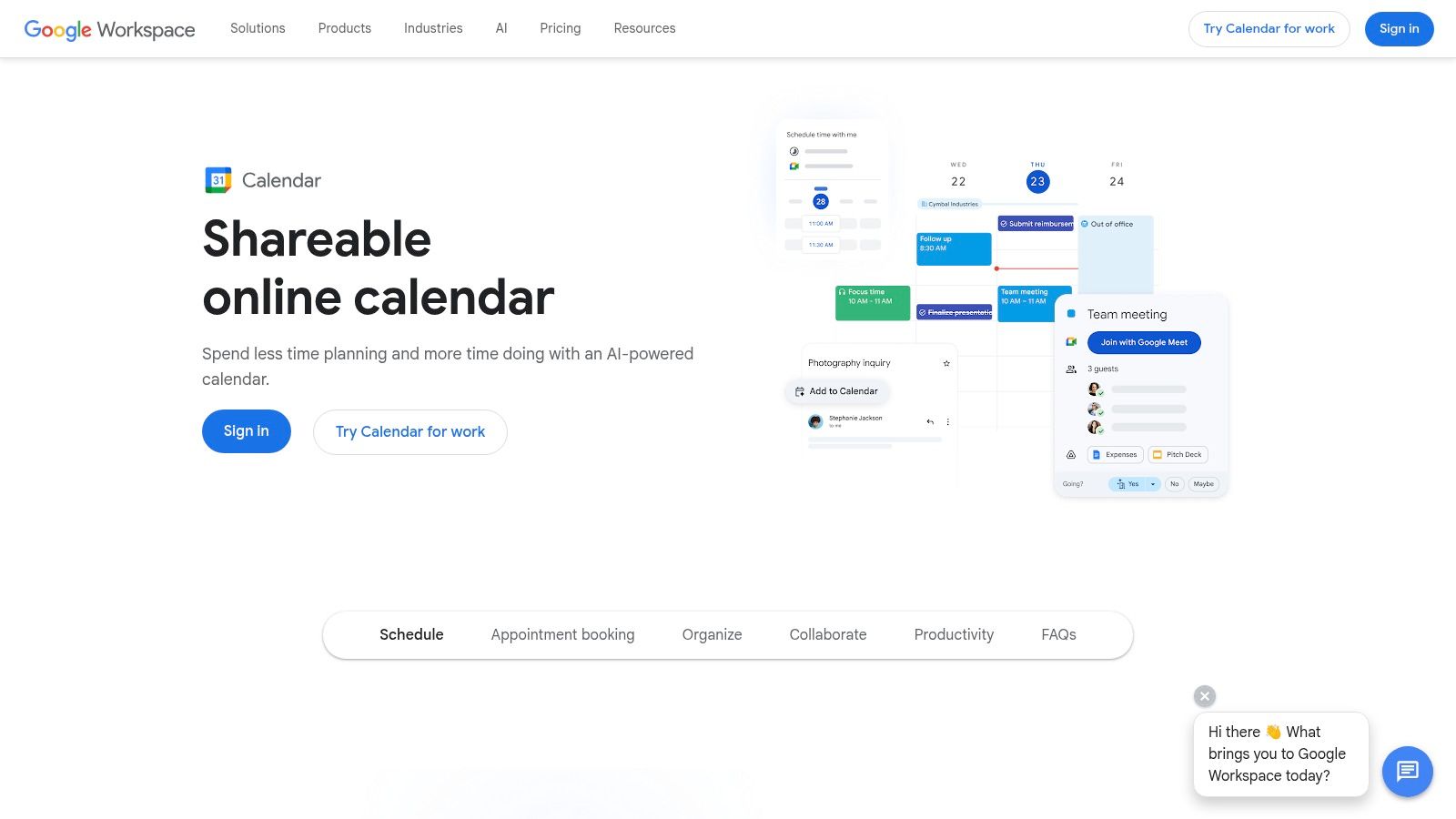
A packed Tuesday usually exposes the difference between a planner that looks organized and one that keeps the day on track. Google Calendar holds up well when the core problem is timing. Meetings, pickups, workouts, bills, and shared family events all need a place on the clock.
Google Calendar is still one of the easiest free planner apps to start using because it asks very little from you upfront. Add events, set reminders, share a calendar, and you already have a usable system. That matters if you want something working today, not after an hour of setup.
Why it works
Its free tier is strongest for people who plan by time block. Separate calendars for work, personal life, family, or routines make busy weeks easier to read, and the sync across phone and desktop is dependable.
The trade-off is that Google Calendar is a calendar first and a task manager second. Google Tasks works for basic follow-ups, but it gets cramped fast if you rely on subtasks, priority levels, or a real daily planning workflow. If your day is full of appointments, it feels great. If your day is full of ambiguous tasks like “finish proposal” or “plan trip,” you may need a second app to decide what to do next.
Shared scheduling is another clear win in the free version. Households, couples, and small teams can coordinate without much friction. But once scheduling gets more complex, such as appointment booking rules, availability windows, or client-facing workflows, the free tools start to feel limited.
Practical rule: Use Google Calendar to protect time, not to manage every detail of your work.
That distinction saves a lot of frustration. I’ve seen people overload it with every task they might do, then stop trusting the calendar because it becomes too crowded to read.
Quick Setup Tip
Start with only three calendars: Fixed events, Time blocks, and Shared/family. Give each one a distinct color, then create one repeating 20-minute weekly review block. During that review, drag unfinished time blocks to a realistic slot instead of leaving them buried in yesterday.
If you also manage projects in a more flexible workspace, keep the calendar as the execution layer and the planning details somewhere else. Teams that document processes in Notion can pair that setup with Optimize management with Notion AI while still using Google Calendar to decide when the work happens.
2. Microsoft To Do
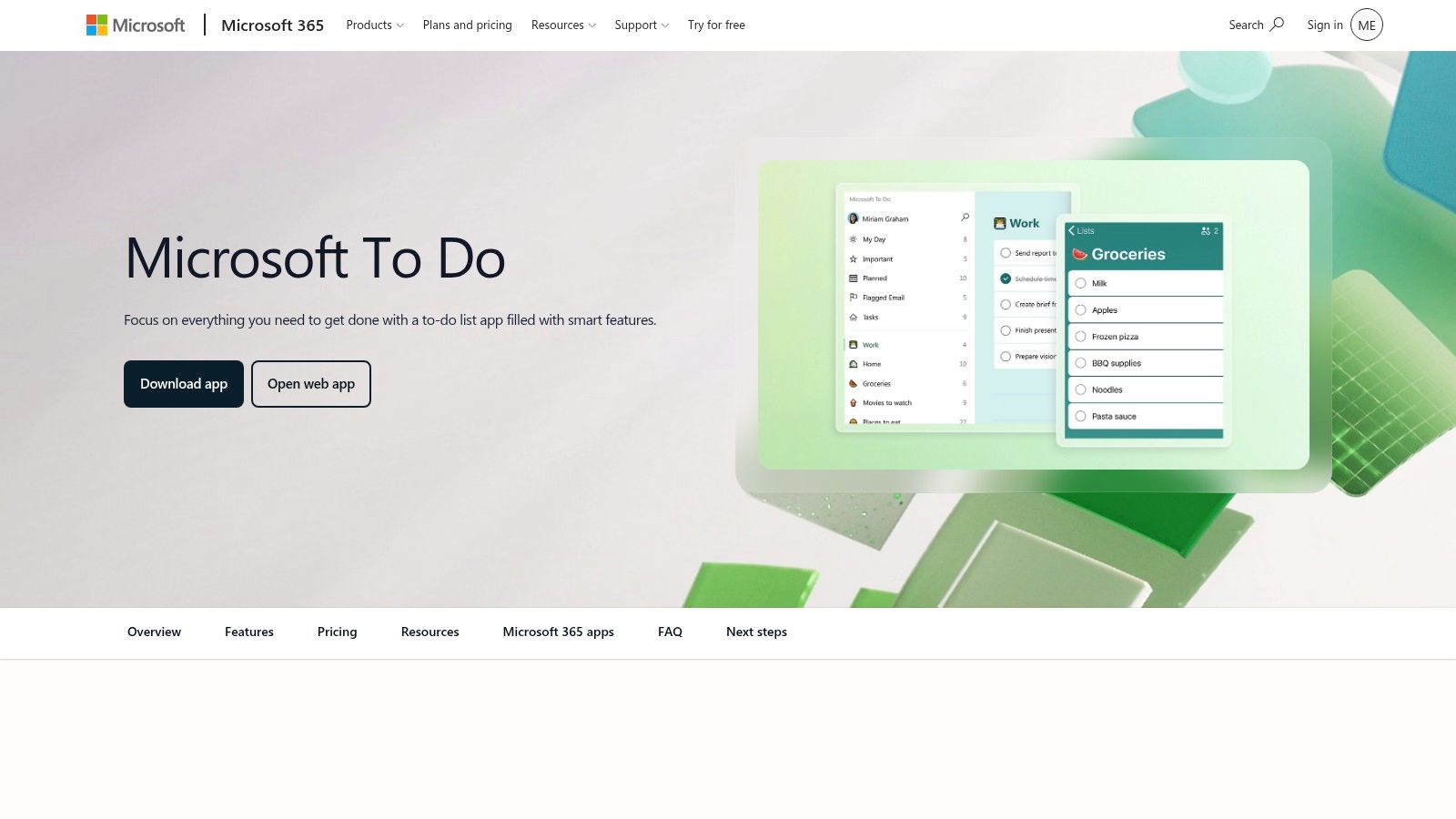
A common problem looks like this: your calendar is full, your inbox keeps growing, and the actual next task is still unclear. Microsoft To Do works well in that gap. It gives you a plain, low-friction place to collect tasks and decide what deserves attention today.
Microsoft To Do is strongest for people who want a personal planner that stays simple. The interface is clean, task entry is fast, and the free version does not feel like a trial with half the product missing. If you already use Outlook or Windows every day, it fits naturally into that routine.
My Day is the feature that makes the app useful in real life. Instead of scrolling through a long backlog, you pull a short list into one daily view and work from there. That sounds basic, but it solves a real planning problem. Many free apps capture tasks well and still leave you with too many choices at once.
The free tier has clear limits. Microsoft To Do is good at personal task management, reminders, and recurring chores. It is weaker once your system needs custom workflows, stronger team coordination, or multiple ways to view the same work. If you want kanban boards, detailed project dependencies, or built-in automation, you will outgrow it faster than you expect.
That trade-off matters. Microsoft To Do helps people who need to stop forgetting things. It helps less when the problem is coordinating a complex project across several people.
Use it if your tasks are mostly individual, deadline-driven, and tied to the Microsoft ecosystem. Skip it if you plan visually or need a free tier that can carry full project management. If your team documents work elsewhere, you can pair that process with Optimize management with Notion AI and keep Microsoft To Do focused on personal execution.
Quick Setup Tip
Start with three lists: Must Do, This Week, and Waiting On. Then add only three tasks to My Day each morning, not your whole backlog. That gives you an immediate win and teaches the right habit early. Microsoft To Do gets messy when everything feels equally urgent.
3. Todoist
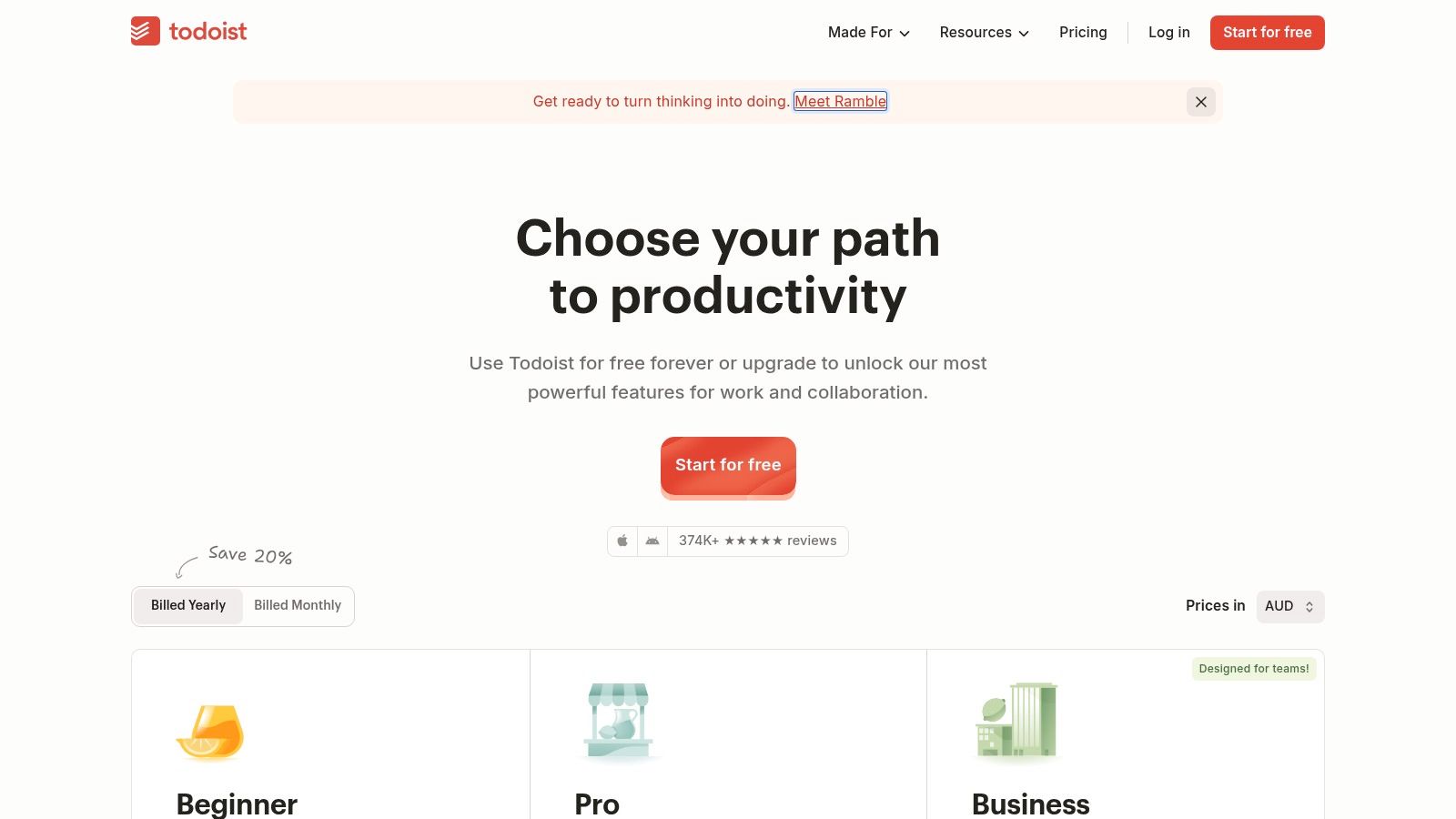
Todoist fits a common situation. You need something faster than a full project management app, but a plain checklist is no longer enough. Todoist usually works well in that middle ground because adding tasks is quick, the interface stays clean, and the app is reliable across phone and desktop.
The natural-language task entry helps more than it sounds on paper. Typing “submit expense report Friday 3pm” is faster than opening fields and menus, especially when you are capturing tasks in the middle of work.
Where the free tier feels tight
Todoist’s free plan is good for personal task management if you keep your setup lean. The limits show up once you try to separate life into several projects, share planning with other people, or rely on advanced views to decide what to do next. That is the actual trade-off. The app feels polished early, but the free tier asks you to stay disciplined and avoid building too much structure.
That matters in daily use.
Todoist is strongest for people who already know how they like to organize tasks. It is less forgiving for people who want the app to teach them a system. Labels, filters, priorities, and projects can work well together, but only if you name things consistently and review them often. If you do not, the app stays tidy on the surface while your task list turns into a bucket of unsorted inputs.
The free version also pushes you toward simpler planning. That can be a benefit if you tend to overbuild productivity systems. It becomes a limitation if you need a planner that handles shared responsibilities, more complex project structures, or several ways to review the same workload without paying.
Todoist works well as a focused task engine. It starts to strain when you expect the free tier to act like a full planning system for work, home, and collaboration at the same time.
Quick Setup Tip
Start with one capture point. Keep everything in Inbox for the first few days, then sort tasks into only four projects: Work, Personal, Errands, and Someday. Add labels only for contexts you use this week, such as Calls or Computer. That setup gives you a fast first win and avoids the common mistake of spending an hour organizing before the app has helped you finish a single task.
4. Notion
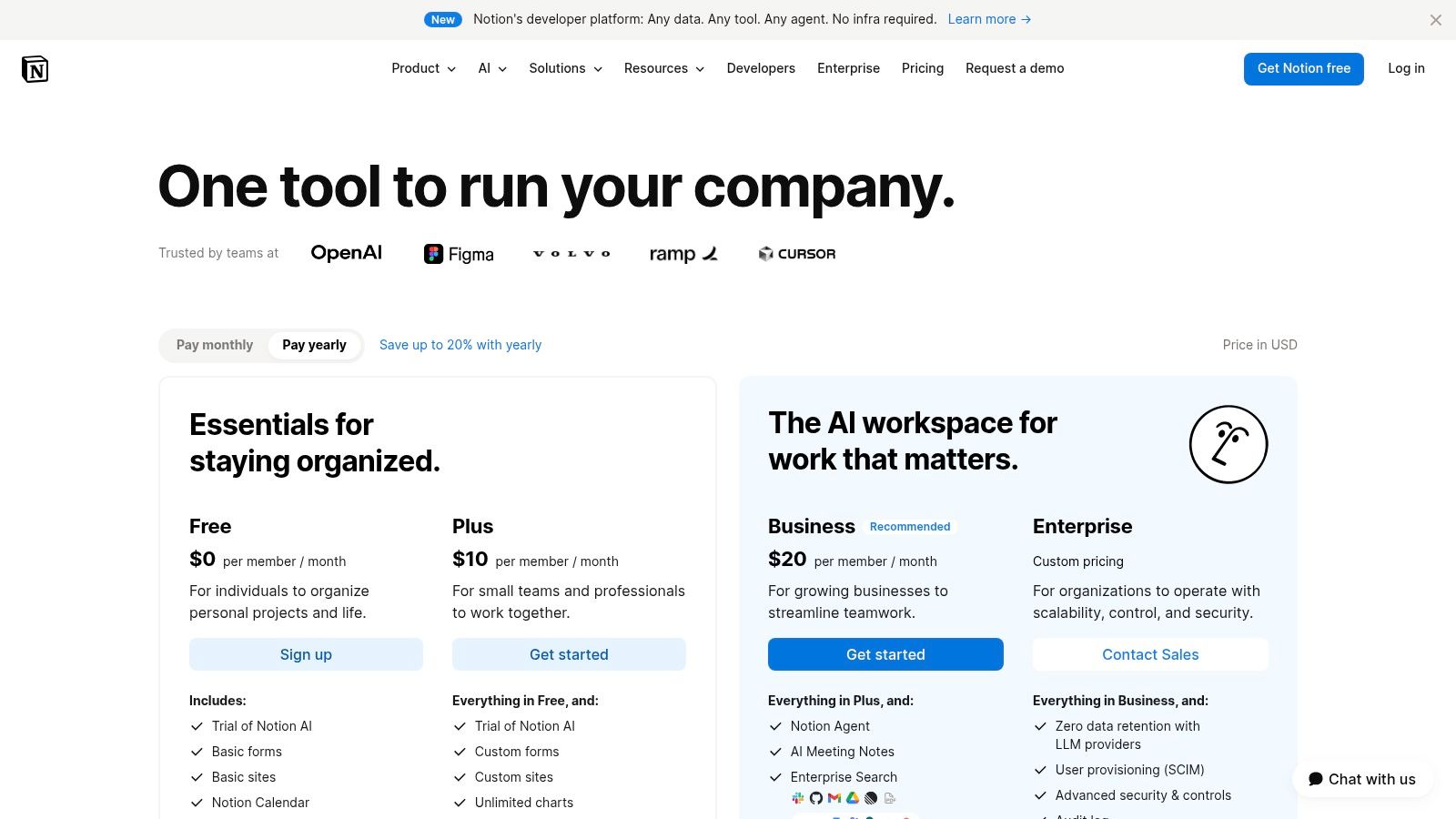
Notion is what people choose when no standard planner quite fits. If you want one workspace for tasks, notes, meal plans, reading lists, travel plans, and household systems, it’s hard to ignore.
That flexibility is both the draw and the trap. Notion can become a planner that matches your life closely. It can also become a weekend-long design project that leaves you with a beautiful dashboard and no real routine.
What it does better than simpler planners
Notion is strong when your planning depends on context, notes, and reference material. A task can sit beside detailed information, not just a due date. For content teams and managers, that’s part of the appeal, and this piece on Optimize management with Notion AI shows why people often extend Notion beyond simple planning.
The free tier is generous enough for solo users, but the actual limitation isn’t always a missing feature. It’s setup cost. You have to decide what your planner should be before it becomes helpful.
There’s also a broader issue many roundups miss. Early’s discussion of free digital planners highlights a gap in this category: many lists compare features, but rarely deal with offline access, data portability, and long-term preservation in a practical way. That’s a real concern with planner systems built around highly customized workspaces. If long-term access to your information matters, check export and offline behavior before you invest heavily.
Quick Setup Tip
Don’t build from scratch. Create one database called Planner, then use only these properties: Status, Date, and Area. Add calendar and list views. That gives you a working planner in minutes, and you can customize later if you still need more.
5. Trello
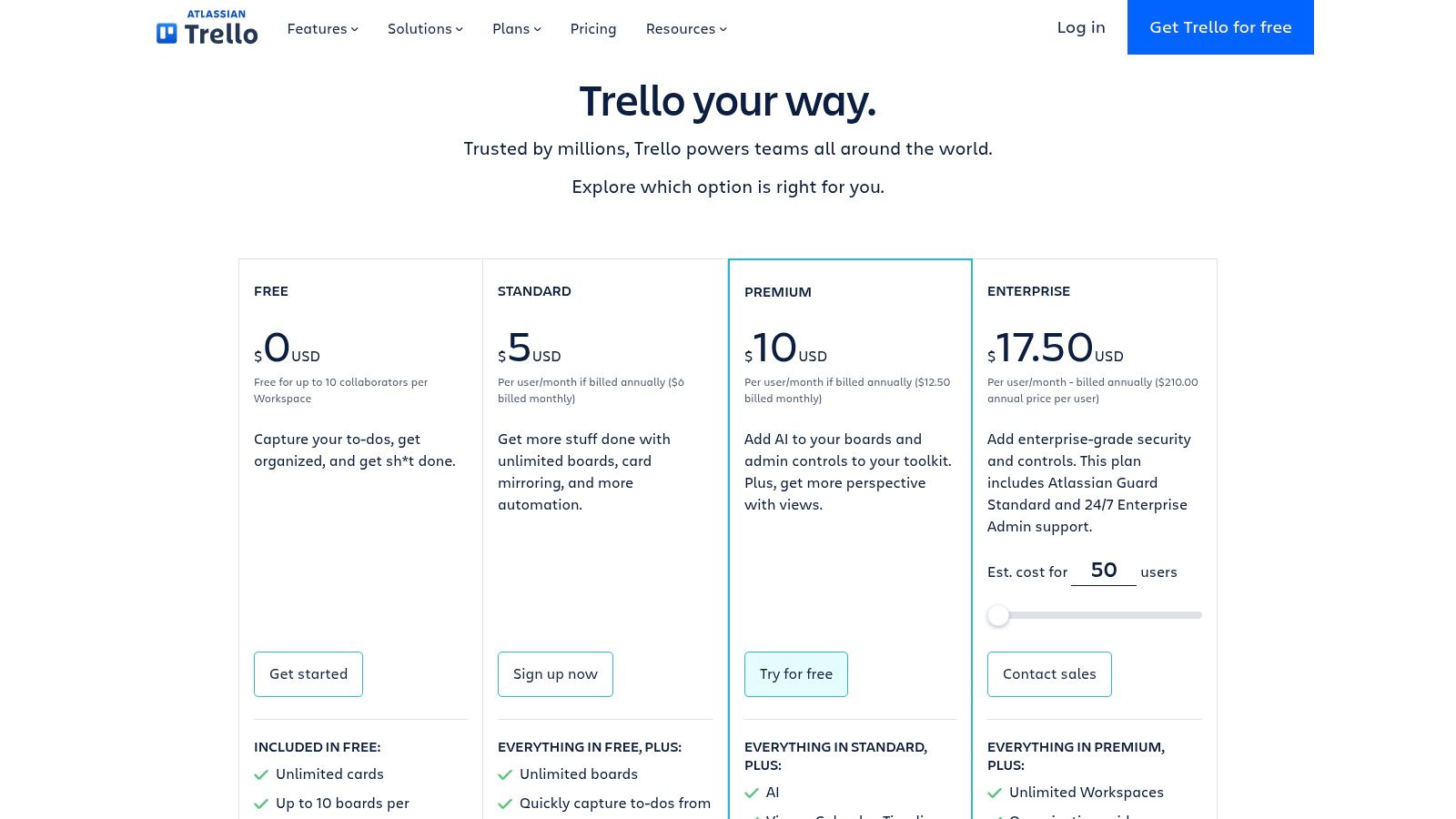
Some planners make sense the second you open them. Trello is one of those. If you like moving cards across columns, it feels natural almost immediately.
That visual simplicity makes Trello good for weekly planning, household chores, content calendars, and shared family projects. It’s easy to build a board called This Week and create lists like To Do, Doing, Waiting, and Done. You don’t need a tutorial to get started.
When Trello clicks and when it doesn’t
Trello works best when your life can be seen as a flow. It struggles more when you need a serious daily planner with lots of scheduling nuance. Due dates and checklists help, but the free plan is still strongest as a visual organizer, not a full command center.
The free tier is good for simple use. The trade-off shows up when you want richer views, more advanced automation, or a cleaner big-picture view across lots of responsibilities. Boards can also get cluttered fast if every card becomes a mini storage bin.
- Best for: visual thinkers, couples, families, and lightweight project planning.
- Less ideal for: people who need heavy recurring task logic or detailed daily agenda planning.
- Free-tier issue: it’s easy to outgrow if your planning gets more layered.
A clean Trello board beats an overbuilt one. Fewer lists usually means better follow-through.
Quick Setup Tip
Create one board called Life Admin first. Add only four lists: Inbox, This Week, Waiting, and Done. Then make one card template for repeating chores or errands. That gives you a reusable system without turning every part of life into a separate board.
6. TickTick
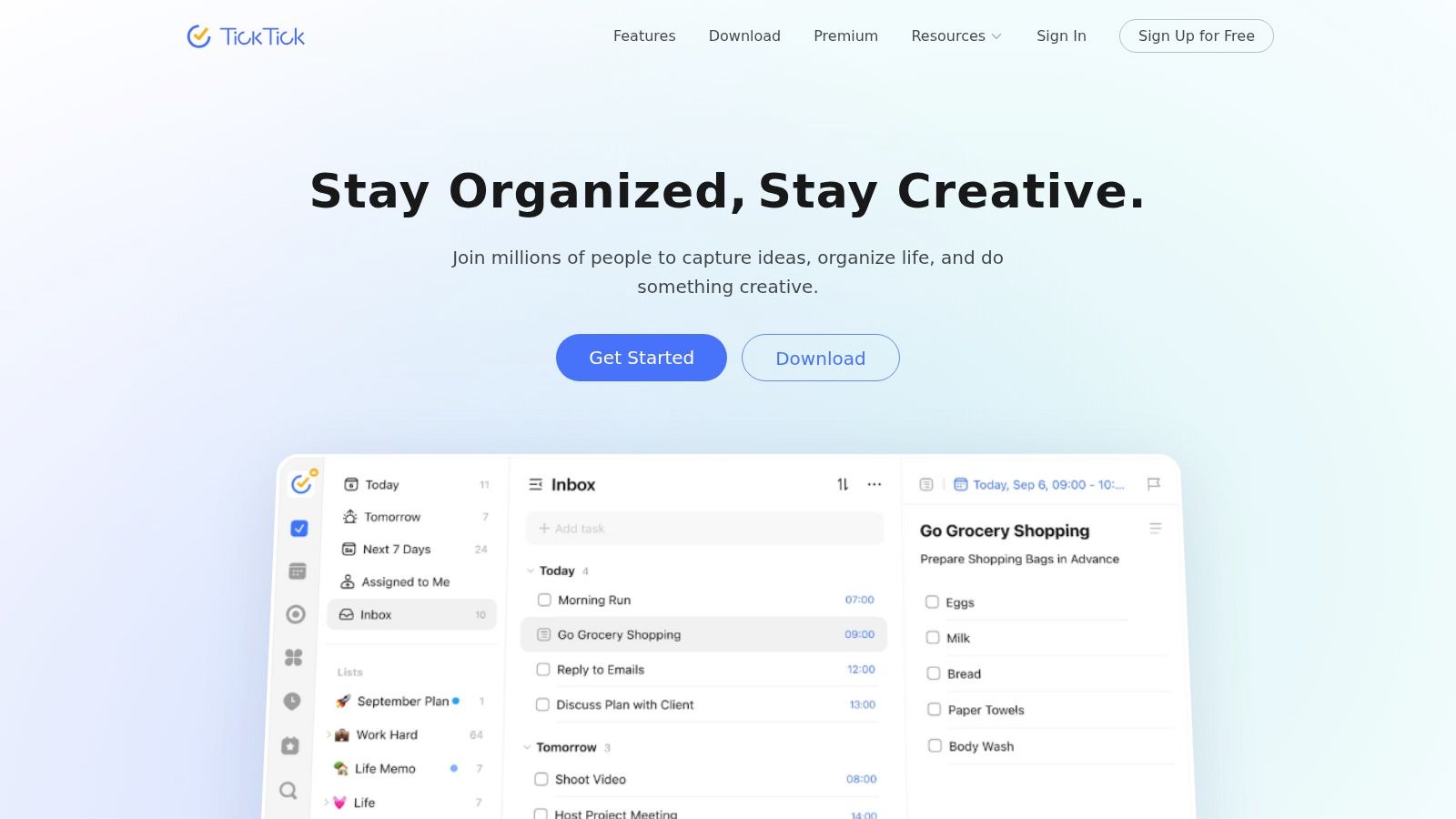
TickTick works well for a common planning problem. You capture tasks in one app, track habits in another, and set a timer somewhere else. TickTick pulls those pieces into one place, which makes it easier to stay inside the same system once the day starts.
That all-in-one design is the main reason people stick with it. You can add tasks, see them on a calendar, build simple habits, and use focus tools without much setup. If your planner usually falls apart at the handoff between planning and doing, TickTick handles that better than many free apps.
The catch is the free tier.
TickTick’s free version is useful, but it can feel tight once your planning gets more layered. It is a good fit for a solo user who wants a clean daily system with light habit tracking. It is less comfortable if you rely on advanced reminders, deeper calendar use, or a lot of customization. That matters because TickTick often looks like a full personal operating system, while the free plan works better as a focused task planner with extras.
I usually recommend TickTick free to people who want structure without building a system from scratch. I would not recommend it as quickly to someone who already knows they need power-user features. In that case, the free tier can feel like a trial run rather than a long-term home.
Where TickTick works best
TickTick is strongest for daily execution. The app helps you capture incoming tasks fast, narrow down what matters today, and keep repeat behaviors visible enough to maintain. That combination makes it especially practical for students, solo professionals, and anyone trying to rebuild consistency after a messy planning streak.
Its weaker spot is ceiling, not usability. Once your setup depends on more nuanced scheduling or finer control over how tasks behave, the free plan starts showing its limits.
- Best for: solo users who want tasks, habits, and focus tools in one app.
- Less ideal for: planners who need advanced reminder logic, heavier customization, or a richer free calendar setup.
- Free-tier issue: the app is easy to like quickly, but easier to outgrow than it first appears.
TickTick works best when you use it to run your day, not to model every possible part of your life.
Quick Setup Tip
Start with only three pieces: Inbox, Today, and Habits. Put every new task in Inbox, choose up to five items for Today each morning, and track just one habit for the first week. That setup gives you an immediate win and keeps the free version useful before feature creep gets in the way.
7. Any.do
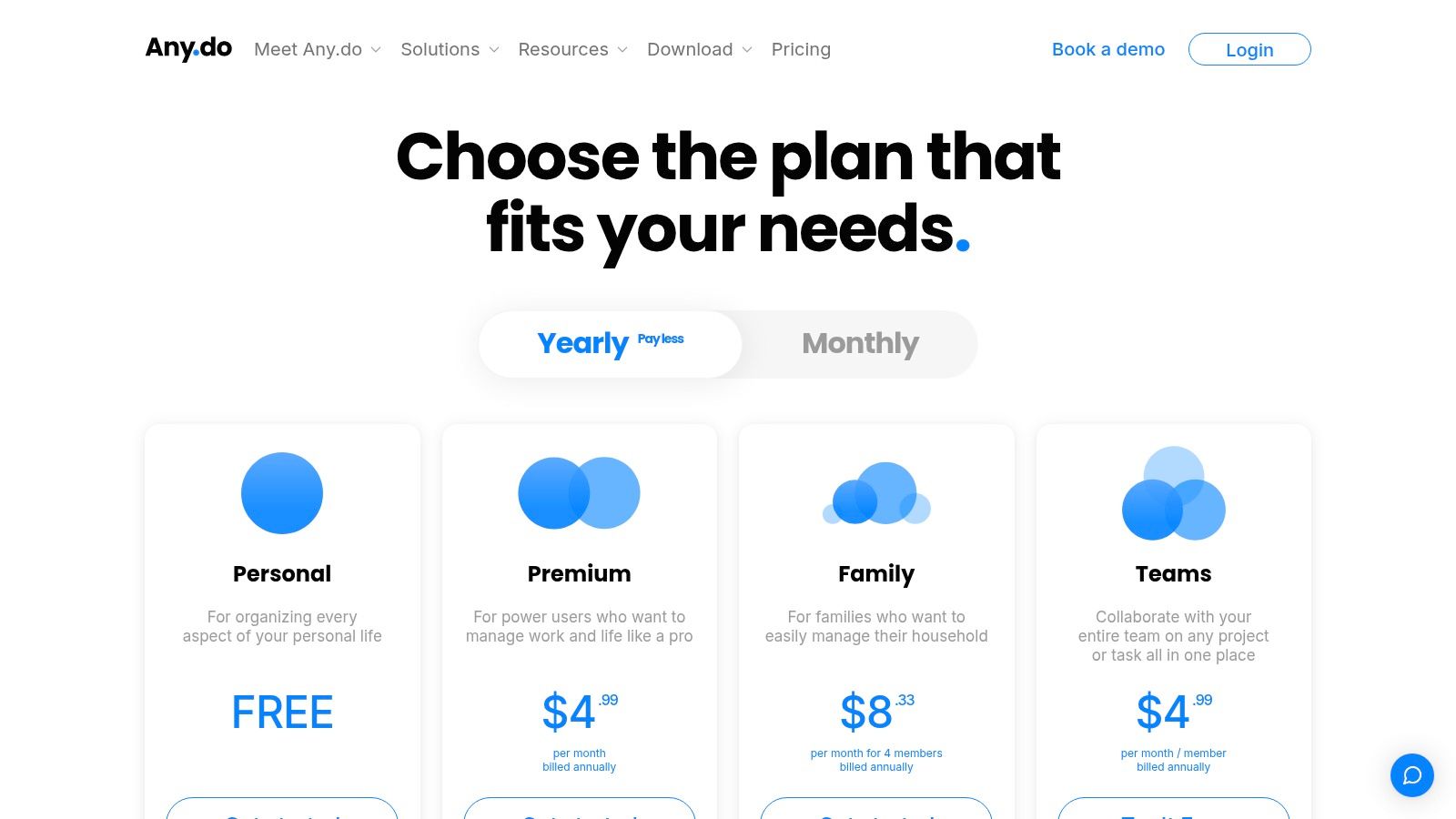
If you want the best planner apps free shortlist narrowed to “what feels complete without paying,” Any.do deserves serious attention. It has a cleaner onboarding experience than many rivals, and it doesn’t make the free plan feel like a hollow demo.
The interface is polished, which helps more than people think. A planner that feels easy to open tends to get used more consistently than one with stronger features hidden behind friction.
Why its free plan stands out
According to Any.do’s 2026 free planner comparison, the free plan includes unlimited tasks across unlimited lists, unlimited shared lists, time-based reminders, Google Calendar and Outlook integration, Plan My Day, cross-platform access on iOS, Android, and web, WhatsApp capture, and Siri and Google Assistant voice integration. That’s a broad free offering.
In practice, the main strength is that it covers the core planner stack well. Tasks, reminders, daily review, and calendar connection are all there. That makes it easier to recommend to people who want one app to handle both personal planning and shared household coordination.
The trade-off is that some advanced reminder behavior and recurring logic still sit outside the free tier. Power users may also find the desktop and web experience lighter than more complex work-management tools.
If you’ve bounced off more complicated apps, Any.do is one of the few free planners that can feel useful on the same day you install it.
Quick Setup Tip
Turn on calendar sync first, then add only the tasks due in the next three days. After that, run one Plan My Day session. You’ll get a realistic daily view faster than if you dump your whole backlog into the app at once.
8. Asana
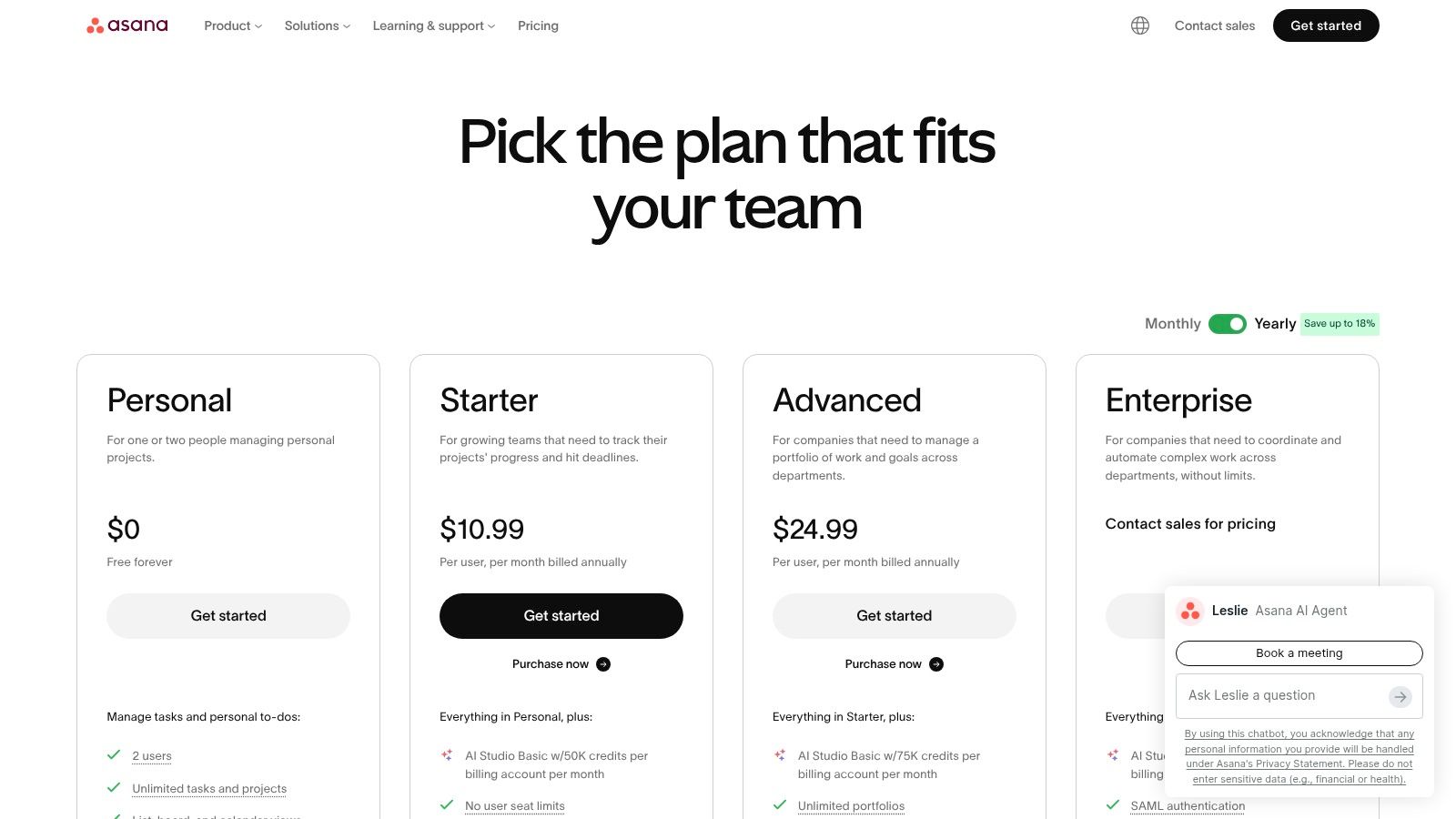
Asana isn’t the first app I’d hand to someone who just wants a grocery list and a cleaner morning. It is one I’d suggest to anyone juggling personal projects, freelance work, side business tasks, or shared planning with a partner.
That’s because Asana brings more structure than a basic planner. You can see tasks in list, board, and calendar formats, and that matters when responsibilities start crossing over between life and work.
Who should use it free
Asana’s free tier works best when your planning has real projects behind it. Renovating a room, launching a side gig, planning a family move, organizing a school fundraiser. Those are situations where a plain to-do list starts feeling thin.
The downside is that Asana can feel heavy for small everyday planning. If all you need is “pay bill, buy milk, call dentist,” it’s more framework than necessary. Its advanced planning layer is also where the paid tiers start becoming more tempting.
- Strong fit: multi-step projects, shared responsibilities, side work.
- Weak fit: lightweight day planning and quick personal capture.
- Free-tier limit: enough for basic structure, but not for every advanced workflow people associate with Asana.
Quick Setup Tip
Set up one project called Personal HQ and create sections for This Week, Next, and Waiting. Don’t start with multiple projects unless you already know you need them. One central space keeps Asana helpful instead of formal.
9. ClickUp
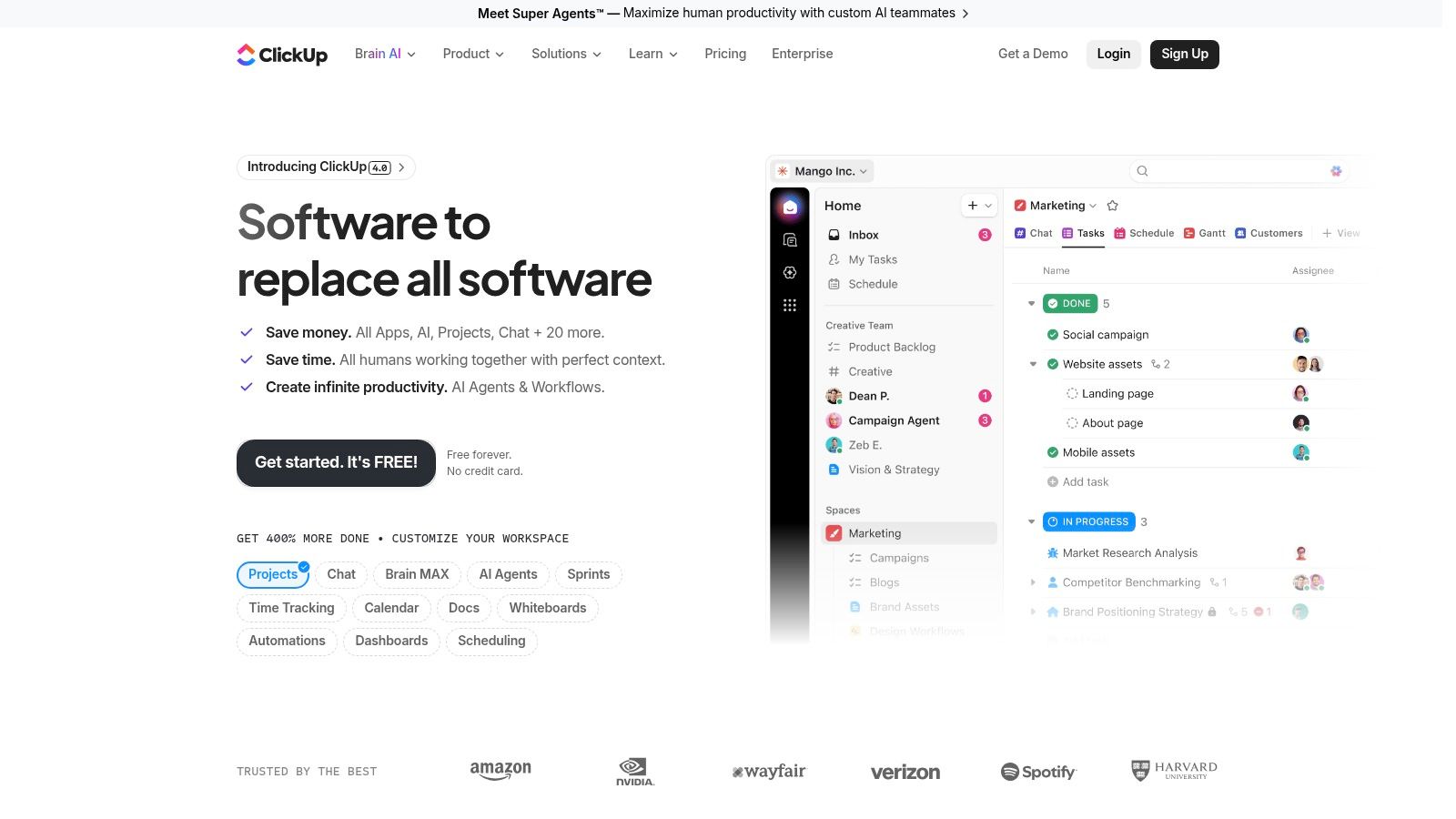
ClickUp fits the person whose day is split across errands, client work, notes, and project deadlines, and who is tired of keeping that information in four different apps.
That range is also the problem. ClickUp asks you to make choices early: spaces, folders, lists, views, statuses, priorities. If you like building your own system, the free plan gives you enough room to make it useful. If you want to open an app and start planning in two minutes, the setup can feel like extra work before you get any value.
Where the free plan works, and where it starts to pinch
ClickUp’s free tier is strongest for people managing layered responsibilities rather than simple daily to-dos. It handles projects, recurring tasks, notes, and calendar-style planning in one place, which can replace a messy mix of separate tools.
The trade-off is friction. Some of ClickUp’s best-known features sit behind paid plans or become more useful only after real customization. The free version is still capable, but it is easy to build a system that looks impressive and feels tiring to maintain. That is the practical limit with ClickUp free. The app can do a lot, but it often asks for more setup discipline than lighter planner apps.
A good fit is someone planning freelance deliverables, household projects, and personal admin in one dashboard. A weak fit is someone who mainly needs a fast capture tool for daily errands and reminders.
Quick Setup Tip
Start with one List called Life Admin and create only three statuses: Next, This Week, and Done. Use List view for planning and Calendar view only for date-based tasks. Ignore dashboards, docs, goals, and custom fields until you have used the app for a full week. That first win matters more than building a perfect system on day one.
10. Remember The Milk
Remember The Milk doesn’t try to win on novelty. It wins by being simple, fast, and familiar. That’s still valuable.
A lot of modern planning apps want to become your whole operating system. Remember The Milk sticks closer to the original promise of task management: capture what you need to do, organize it, and stop forgetting it.
Why some people still prefer it
Its free tier is clear enough for people who want lightweight planning without learning a new planning philosophy. Tags, smart lists, priorities, and natural-language entry cover a lot of real-world needs. If you’ve tried newer tools and found them bloated, this older style can be refreshing.
The trade-off is polish and breadth. It feels more utilitarian than newer competitors, and if you want modern collaboration, richer visual planning, or a more guided daily workflow, it may feel dated.
That said, not everyone needs a planner that looks modern. Some people just need one that stays out of the way.
The best free planner isn’t always the most advanced one. Sometimes it’s the one you’ll still be using in six months.
Quick Setup Tip
Create smart lists around contexts, not projects. Try Errands, Calls, Home, and Computer. That makes the app useful in real moments, like standing in a store or having ten free minutes between pickups.
Top 10 Free Planner Apps, Feature Comparison
| Product | Core features | UX ★ | Price/Value 💰 | Best for 👥 | Unique selling points ✨🏆 |
|---|---|---|---|---|---|
| Google Calendar | Shared calendars, events, reminders, appointment pages, Gmail/Meet integration | ★★★★★ | 💰 Free; Workspace adds business features | 👥 Everyone, families & schedulers | ✨ Ubiquitous sync & ecosystem integration 🏆 |
| Microsoft To Do | List‑centric tasks, “My Day”, subtasks, reminders, Outlook sync | ★★★★☆ | 💰 Free, great value for Microsoft users | 👥 Microsoft/Windows users & solo planners | ✨ Tight Outlook/365 integration 🏆 |
| Todoist | Natural‑language entry, projects, labels, filters, fast capture | ★★★★★ | 💰 Free basic; Premium for reminders & teams | 👥 Task‑focused users & freelancers | ✨ Speedy capture + strong integrations 🏆 |
| Notion | Databases, templates, multiple views, pages & sharing | ★★★★☆ | 💰 Free personal; paid for team/admin features | 👥 Customizers, knowledge workers & builders | ✨ Extremely customizable workspace 🏆 |
| Trello | Boards, lists, cards, checklists, Power‑Ups & automations | ★★★★☆ | 💰 Free tier; paid for advanced views/automation | 👥 Visual planners, families & small teams | ✨ Intuitive Kanban visual planning 🏆 |
| TickTick | Tasks with NL dates, calendar view, habit tracker, Pomodoro | ★★★★☆ | 💰 Free; Premium unlocks more features | 👥 Habit trackers & mobile‑first users | ✨ Built‑in Pomodoro + habit tracking 🏆 |
| Any.do | To‑dos, subtasks, calendar sync, “Plan my day”, shared lists | ★★★★☆ | 💰 Free; Premium/Family tiers | 👥 Families & users who want a polished UI | ✨ Day‑planning flow & real‑time sharing 🏆 |
| Asana | Lists & boards, assignees, calendar, basic automations | ★★★★☆ | 💰 Free Basic; paid for timelines/reporting | 👥 Small teams, side projects & structured plans | ✨ Scales into team workflows & reporting 🏆 |
| ClickUp | Tasks, docs, goals, multiple views, automations | ★★★★☆ | 💰 Generous Free Forever; paid to remove limits | 👥 Power users & those wanting an all‑in‑one hub | ✨ Integrated tasks+docs+goals in one app 🏆 |
| Remember The Milk | Smart lists, tags, NL dates, cross‑platform sync, sharing | ★★★☆☆ | 💰 Free; Pro subscription for extras | 👥 Users who prefer lightweight, fast lists | ✨ Fast, reliable classic to‑do app 🏆 |
Final Thoughts
The best planner apps free don’t all solve the same problem. Google Calendar is great when time is the main thing slipping. Microsoft To Do is strong when you want calm, list-based planning without upsell pressure. Todoist is polished and quick. Notion is flexible. Trello is visual. TickTick blends tasks with habits. Any.do feels unusually complete for free. Asana and ClickUp help more when life starts looking like project management. Remember The Milk stays appealing because it keeps the basics intact.
The practical choice comes down to what kind of friction you’re trying to remove.
If you miss appointments, start with Google Calendar. If you forget tasks, start with Microsoft To Do or Any.do. If your life is full of moving parts that need custom structure, try Notion or ClickUp, but be honest about whether you’ll maintain them. If you share planning with a partner or family, lean toward apps that make shared lists and shared calendars easy from day one.
One pattern is clear. Free planner apps have become the default entry point, and the strongest options now compete on feature depth, cross-device sync, collaboration, and planning support, not just on being free. That’s why testing the free tier matters more than reading feature lists. An app can look perfect on paper and still annoy you every morning.
It’s also worth paying attention to a factor many planner roundups gloss over: how well your information survives. If you care about offline access, exportability, and keeping important personal information available long term, don’t judge only by reminders and calendar views. That issue matters even more for families, household records, and saved reference material.
For example, if part of your planning life revolves around meals, groceries, and preserving recipes you use, a general planner may not be the best long-term home for that information. A specialized app like OrganizEat can fit that part of the system more naturally because it’s built for saving recipes, organizing them, planning meals on a calendar, and keeping them accessible even if the original social post or webpage disappears.
If you also manage content or social publishing alongside your schedule, taap.bio’s breakdown of content planning tools is a useful next read.
If meal planning is one of the biggest pieces of your weekly organization, OrganizEat gives you a practical way to keep recipes, meal plans, and grocery lists together in one place, with cross-device access and offline-friendly recipe storage built around real home use.