



You find a recipe you want to cook tonight. It looks great, the ingredient list is manageable, and everyone at home will eat it. Then the practical question shows up: how much protein is in it, how heavy is it on carbs, and what happens if you split it into four servings instead of six?
That's where a recipe nutrition calculator with scanner starts to feel less like a gadget and more like a kitchen shortcut. Instead of typing every ingredient by hand or guessing based on similar dishes, you can scan, import, or paste what you already have and turn it into nutrition info you can readily use.
The helpful part isn't just speed. It's understanding what the tool is doing, when to trust it, and when to double-check it. Once you know that, you can use almost any app more effectively and avoid the common mistakes that make meal tracking frustrating.
Table of Contents
- Your Guide to Instant Recipe Nutrition
- How Calculators Turn Ingredients Into Data
- Decoding the Different Scanner Technologies
- What Every Home Cook Should Know About Accuracy
- Real-World Workflows for Your Kitchen
- Building a Smarter Recipe Organizer
Your Guide to Instant Recipe Nutrition
You're standing in the kitchen with a cookbook open, your phone in one hand, and dinner halfway started. You want to know the calories or protein per serving before you make the whole dish, but the recipe is written for a person, not a calculator. A recipe nutrition calculator with scanner fixes that gap by turning what you already have, a printed recipe, a handwritten card, a barcode, or a photo, into nutrition data you can use.
The useful part is not the scan itself. The useful part is what happens after the scan. The app captures the ingredient list, matches those ingredients to food database entries, then estimates calories, macros, and other nutrition details based on the amounts and serving size. If you want a practical example of that kind of workflow, this guide to a recipe calorie checker for healthy cooking shows how ingredient entry and serving adjustments shape the final numbers.
The scanner works like the front door. It gets the recipe into the system faster. The calculator handles the core calculations inside.
That distinction matters because many home cooks expect the camera part to be the smart part. It usually isn't. A barcode scan can identify a packaged food. Text scanning can pull ingredients off a page. Image recognition can guess what it sees in a photo. But none of those steps mean much if the app makes it hard to correct “1 can tomatoes” to the right can size, or split a dish into the servings you plan to eat. A tool that scans quickly but fights you during editing will feel helpful for a few minutes and frustrating after that.
Confusion usually shows up in three places:
- What gets scanned: A package barcode, printed text, handwriting, or a food photo.
- What gets calculated: An estimate based on ingredient data, not a lab test of the finished meal.
- Why results differ: Specific ingredients, clear quantities, and accurate serving counts produce better estimates.
Once you see the system this way, you can judge any app more clearly. Instead of asking which one sounds smartest, you can ask better questions: Does it read the kind of recipes I use? Can I fix mistakes quickly? Does it make serving changes easy? That is what helps you choose a tool that fits your kitchen, rather than one that only looks impressive in a demo.
How Calculators Turn Ingredients Into Data
You snap a photo of a handwritten recipe, and a few seconds later the app shows calories, protein, carbs, and fat per serving. That result can feel almost magical. The underlying work, though, is much more ordinary and much more useful to understand.
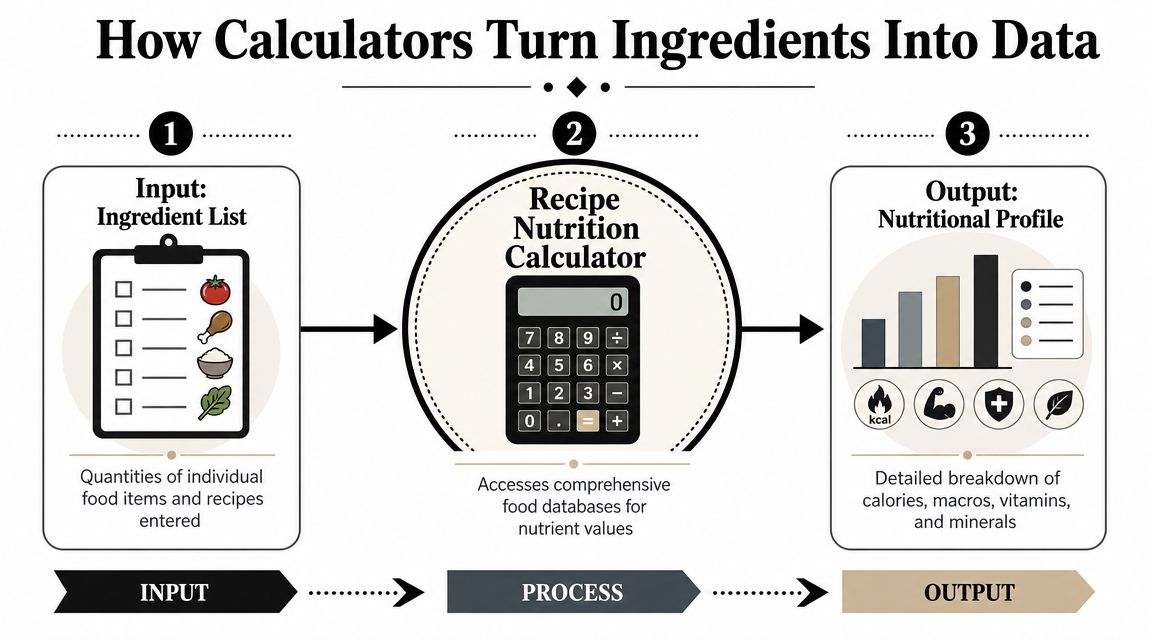
A calculator has one main job. It takes recipe lines written for humans and converts them into structured entries a database can total.
That sounds technical, but the process is pretty practical. Your ingredient list might say:
- 1 cup rice
- 2 chicken breasts
- 1 tablespoon olive oil
- 1 onion
A person reads that list and fills in the gaps automatically. A calculator cannot. It has to decide what kind of rice you mean, what size chicken breasts are being counted, how much onion is represented, and which nutrition record best matches each item. Tools covered in this overview of recipe calorie checking for healthy cooking do this by combining ingredient parsing, database matching, and serving math.
The easiest way to picture it is a filing system. A recipe calculator works like a fast librarian. You hand it messy kitchen notes, and it tries to file each ingredient into the right nutrition drawer.
For each line, the app usually goes through four small decisions:
- Read the ingredient text.
- Separate the food name from the amount and unit.
- Match that food to a nutrition database entry.
- Add the totals for the whole recipe.
Take “1 cup flour.” The app does not just save that line as text. It tries to connect “flour” to a known food entry and pair “1 cup” with a measurable quantity. Once that match is made, the calculator can pull calories and nutrients for that amount. Then it repeats the same process for every other ingredient.
This is also why scanning is only the first step. If a tool uses OCR, it first needs to read the words from a page or photo. A helpful plain-English explanation of that step is automating data entry with OCR. OCR is the reading part. Nutrition calculation is the matching and math part that happens after.
Small wording differences matter more than many home cooks expect.
“Cheddar cheese” is easier to match than “cheese.” “14-ounce can diced tomatoes” is more useful than “1 can tomatoes.” “2 tablespoons olive oil” gives the calculator more to work with than “some oil for cooking.” The better the ingredient line, the less guessing the app has to do.
Why servings change everything
Once the app totals the full recipe, it still has one more job. It needs to divide that dish into portions you can use at dinner.
That is where many nutrition results start to look confusing. The pot of chili has one full-recipe total. Your bowl has a per-serving total based on how many servings you entered. If you change the recipe from four servings to six, the ingredients stay the same, but the number for each serving drops because the app is dividing the same total across more plates.
Three labels help keep this straight:
- Whole recipe values show everything in the dish.
- Per-serving values depend on the number of servings you enter.
- Actual portion eaten depends on how much ends up on the plate.
A pasta bake divided into four generous servings will show a different per-serving result than the same pan divided into six smaller portions. Nothing changed in the oven. Only the division changed.
Once you understand that flow, scan, read, match, total, divide, it gets much easier to judge any calculator. You are not just looking for a flashy scanner. You are looking for a tool that reads ingredients clearly, lets you correct weak matches, and handles serving sizes without making you fight the app.
Decoding the Different Scanner Technologies
The word “scanner” can mean a few different things, and that's where a lot of shoppers get tripped up. One app may scan barcodes well but struggle with cookbook pages. Another may read printed text but not identify fresh produce from a photo.
A useful way to compare them is to focus on the job each one does best.
Barcode scanning for packaged foods
Barcode scanning is the easiest one to understand. You point your phone at a packaged item, the app reads the barcode, and then it pulls the matching product information from its database.
This works well for pantry items with fixed labels, such as boxed pasta, canned beans, jars of sauce, or frozen ingredients. If you're building a recipe with several branded products, barcode scanning can save a lot of typing.
Its limitation is obvious once you notice it. Fresh spinach, a loose onion, and a scoop of yogurt from a larger tub don't have a usable barcode at the moment you're cooking. Barcode scanning is strong for packaged inputs, not whole-recipe understanding.
OCR for printed and handwritten recipes
OCR stands for optical character recognition. In plain language, it means the app looks at a photo of text and tries to turn the letters into editable words.
If that sounds technical, think of it this way. OCR is like giving your phone reading glasses. It looks at a cookbook page or recipe card and says, “That line appears to say 2 cups oats.”
For a plain-English look at how this works outside the kitchen too, this explanation of automating data entry with OCR is a useful reference.
OCR matters because recipe analysis became much more accessible once tools could process pasted recipe text quickly instead of forcing people to estimate labels manually. One widely cited example notes that users can copy an ingredient list from an online recipe, paste it into a text box, click one button, and get a complete nutrition label with a per-serving calorie breakdown and full recipe analysis, as described in this guide to getting nutrition facts from a recipe. If you want to see how this idea overlaps with recipe apps, this roundup of apps with built-in OCR for recipes is a practical next step.
OCR shines when you want to digitize:
- Cookbook pages
- Magazine clippings
- Handwritten family recipes
- Screenshots from blogs or social posts
The catch is that OCR only reads what it can see clearly. Smudged cards, unusual fonts, messy handwriting, and poor lighting can all create errors.
AI recognition for fresh ingredients and mixed inputs
AI-based scanning tries to identify food from images rather than text alone. That might mean recognizing an apple on the counter, spotting broccoli in a prep photo, or helping classify foods from a meal image.
This sounds futuristic because it is more interpretive than barcode scanning or OCR. A barcode is exact. Printed text is usually stable. A photo of ingredients is messy. Lighting changes, angles change, and many foods look similar.
That's why AI recognition is often most useful as a helper rather than the sole source of truth. It can speed up entry, suggest likely ingredients, or reduce manual searching. But home cooks should still expect to confirm or edit what the app detected.
Here's a side-by-side view.
| Technology | How It Works | Best For | Potential Issues |
|---|---|---|---|
| Barcode scanning | Reads a product barcode and matches it to a database entry | Packaged pantry and grocery items | Useless for most fresh ingredients or handwritten recipes |
| OCR text scanning | Converts a photo of printed or handwritten text into editable recipe text | Cookbook pages, recipe cards, screenshots | Can misread poor handwriting, faded text, or cluttered layouts |
| AI ingredient recognition | Interprets food from an image and suggests likely ingredient matches | Fresh ingredients and mixed kitchen inputs | Can confuse similar foods and usually needs manual review |
Choose the scanner based on your source material, not the marketing label. A barcode scanner won’t rescue a stained recipe card, and OCR won’t identify a loose tomato on your counter.
What Every Home Cook Should Know About Accuracy
The most common misunderstanding is thinking a recipe nutrition calculator with scanner gives a perfect answer. It doesn’t. It gives an estimate based on the information you provide and the quality of the app’s matching process.
That’s not a flaw. It’s just the nature of home cooking. Your chili, your skillet chicken, and your banana bread aren’t factory-made products with controlled production lines.
Where accuracy goes off track
A few things usually cause the biggest swings.
First, recipes are often vague. “A handful of cheese” sounds normal to a person and confusing to software. The same goes for “some butter,” “one medium onion,” or “a drizzle of oil.” The app has to translate those phrases into measurable amounts, and that introduces guesswork.
Second, ingredient matching can be too broad. “Ground beef” is not always enough detail. Neither is “yogurt” or “bread.” If the app selects a generic item and you meant a more specific one, the estimate can drift.
Third, cooking changes food. A calculator can total the listed ingredients, but it may not fully reflect how much liquid cooks off, how much oil remains in the pan, or how much sauce gets left behind in the bowl.
The app can only be as exact as the recipe line it reads. Vague input creates vague output.
How to get better estimates at home
You don’t need to become a nutrition scientist to improve your results. Small habits make a big difference.
- Use weight when you can: Grams and ounces are usually clearer than cups for many solid ingredients.
- Be specific with ingredient types: If there are clear choices, pick the one that matches what you used.
- Set the serving count carefully: This affects every per-serving value the app shows.
- Review scanned results before saving: Scanners save time, but they also make mistakes.
- Clean up fuzzy recipe language: Replace “some nuts” with a measured amount if you know it.
A practical kitchen example helps. If your recipe card says “2 cups shredded cheese,” and your app scans it correctly, that’s a decent starting point. If the card says “top with cheese,” the calculator has to fill in the blanks. You’ll get a number, but it may reflect the app’s assumption more than your actual casserole.
Another smart habit is treating scanned results as decision support, not final judgment. They’re good for comparing versions of a recipe, spotting heavy ingredients, and planning portions. They’re less useful as a promise that every bowl, slice, or spoonful is identical.
Real-World Workflows for Your Kitchen
The easiest way to understand this technology is to place it in everyday kitchen routines. Different people use the same tool in completely different ways.
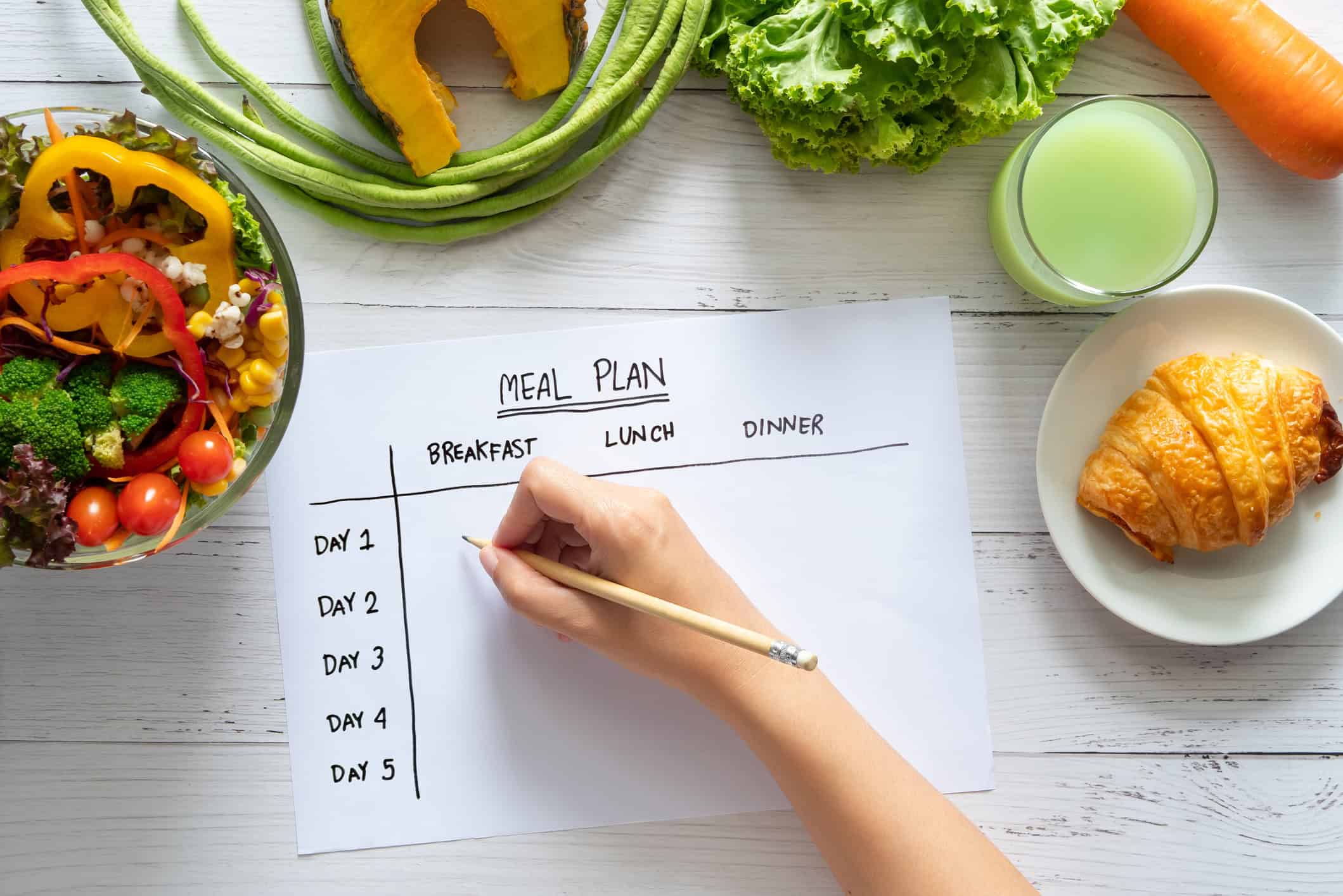
The meal planner
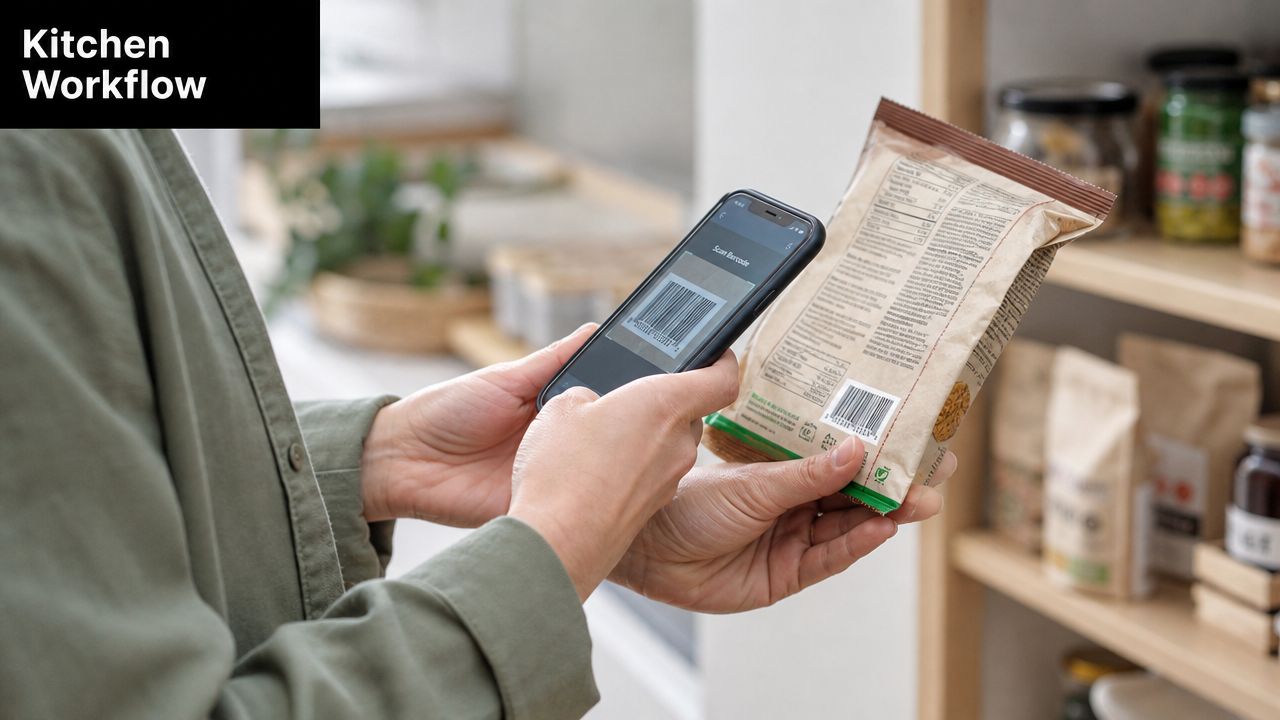
A meal planner often starts at the store, not at the stove. While comparing ingredients for the week, they can scan packaged items and quickly see which one fits their goals better.
Back home, the workflow gets even simpler:
- Scan packaged ingredients from the pantry.
- Add fresh ingredients manually or through image-based recognition if the app supports it.
- Set servings for lunches or dinners.
- Save the recipe for repeat use.
This turns nutrition tracking into part of planning, not a separate chore after dinner.
The family recipe archivist
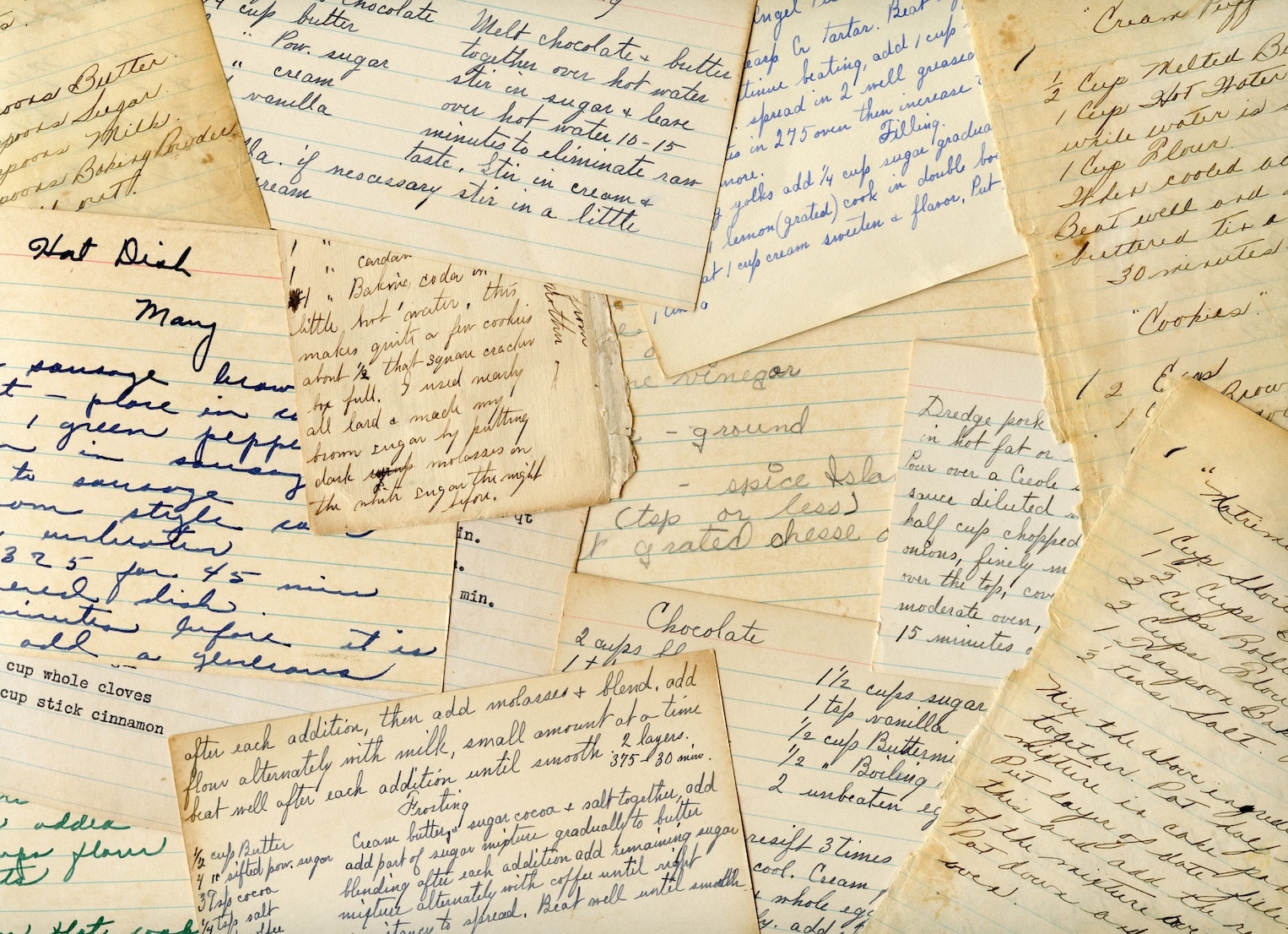
The family archivist has a different problem. They’re not trying to compare pasta sauces in the aisle. They’re trying to preserve stained recipe cards, old church cookbooks, and handwritten notes from relatives.
OCR is perfect for that kind of work. You snap a photo, let the app read the text, correct any mistakes, and save a digital version. Then you can attach nutrition information to the recipe without retyping every line from scratch.
That’s especially helpful when older recipes use fuzzy phrases like “small tin,” “teacup,” or “butter the size of an egg.” A modern app won’t solve all of that automatically, but it gives you a place to standardize the recipe as you preserve it.
A short video makes the scan-first workflow easier to picture:
The food blogger
Food bloggers care about speed, but they also care about presentation. If you publish recipes regularly, adding nutrition details can become one of those repetitive tasks that eats up time.
A scanner-based workflow helps in two places:
- During testing: You can log ingredient changes as the recipe evolves.
- Before publishing: You can generate a structured nutrition view without rebuilding the recipe by hand.
This is also where editing matters most. Bloggers often tweak serving sizes, swap ingredients, or refine wording after testing. A tool that scans quickly but resists edits will slow the whole process down.
A good workflow feels like this: capture once, correct quickly, save for reuse.
Building a Smarter Recipe Organizer
A nutrition calculator becomes much more useful when it lives inside the same place you already save recipes. If scanning, editing, organizing, and cooking happen in separate apps, friction creeps back in.
What good scanner design looks like
A smart recipe organizer should support more than one capture method, because home cooks don’t collect recipes in one neat format. Some come from social media. Some come from books. Some come from pantry labels and family cards.
The most practical setup includes:
- Barcode support for packaged goods
- OCR support for cookbook pages and handwritten cards
- Flexible editing after scanning
- Nutrition fields that connect to the saved recipe
- Clear storage and privacy practices so users know what happens to their data
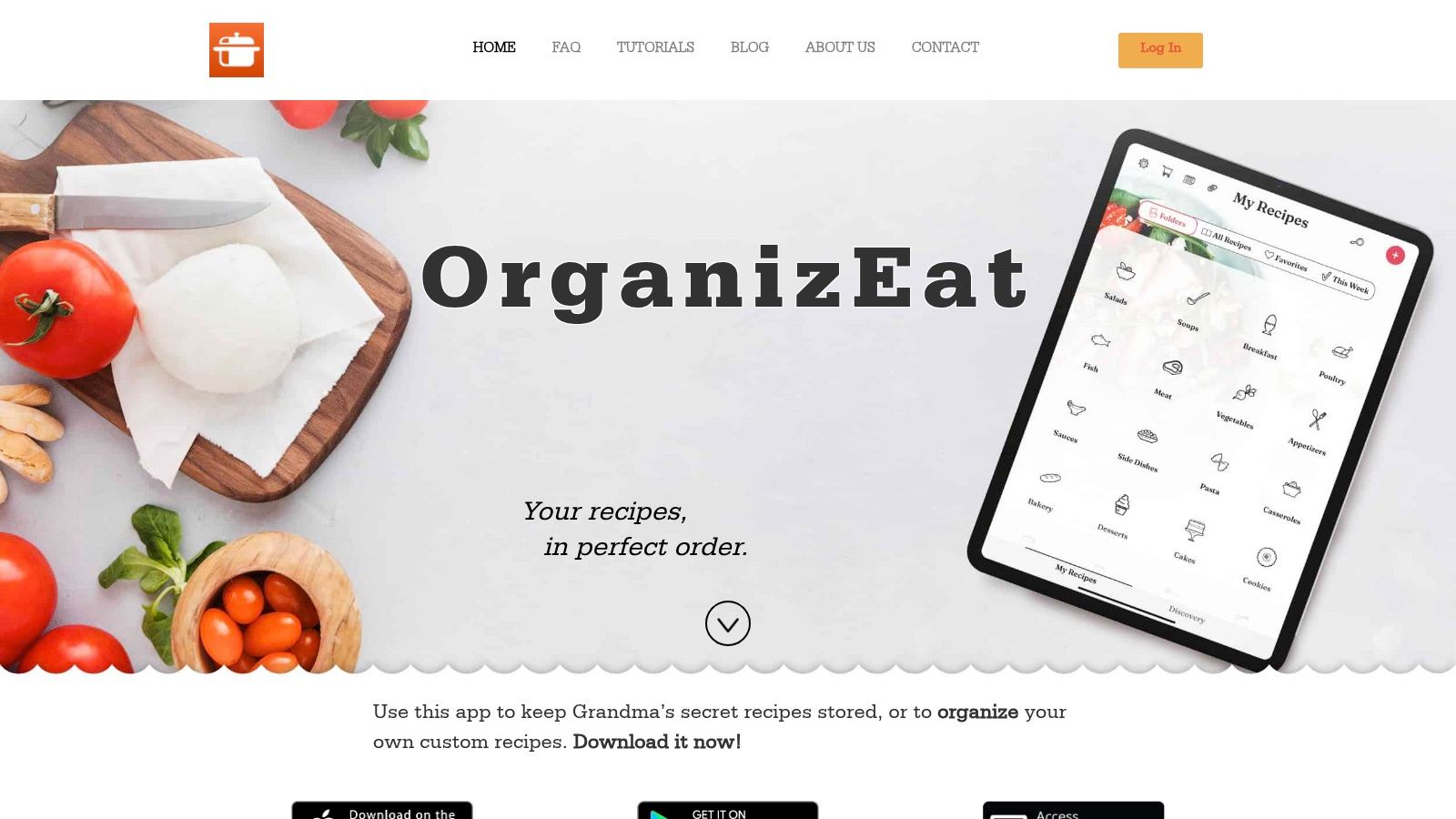
One example in this space is OrganizEat, which lets users capture recipes from photos and physical sources, organize them into a digital library, and manage recipe details in one place. That kind of integration is often more useful than a standalone nutrition tool because the recipe stays connected to the rest of your cooking workflow. If you’re thinking broadly about that setup, this ultimate guide to digital recipe management is a good companion read.
Why integration matters more than novelty
The flashy feature isn’t always the one you’ll use most. Sometimes the winning feature is a scan button that works reliably and a recipe card you can fix in seconds.
That matters even more as shopping and meal planning tools become more automated. If you’re curious how product selection and assisted purchasing are evolving, this breakdown of an AI shopping agent gives useful context for where food and grocery workflows may head next.
A recipe organizer with scanner support should reduce kitchen friction, not create a new layer of cleanup. If the app reads “parsley” as “cilantro,” you should be able to correct it instantly. If it captures a cookbook page, it should help you save that recipe in a format you’ll use again. If it stores personal food habits or recipe notes, it should be clear about how that information is handled.
The smartest version of this technology isn’t the one that feels most futuristic. It’s the one that helps you cook, plan, and save recipes with less effort.
If you want one place to store recipe photos, cookbook scans, social media finds, and organized cooking notes, OrganizEat gives you a practical home base for building a recipe collection you can use every day.
**Image by freepik