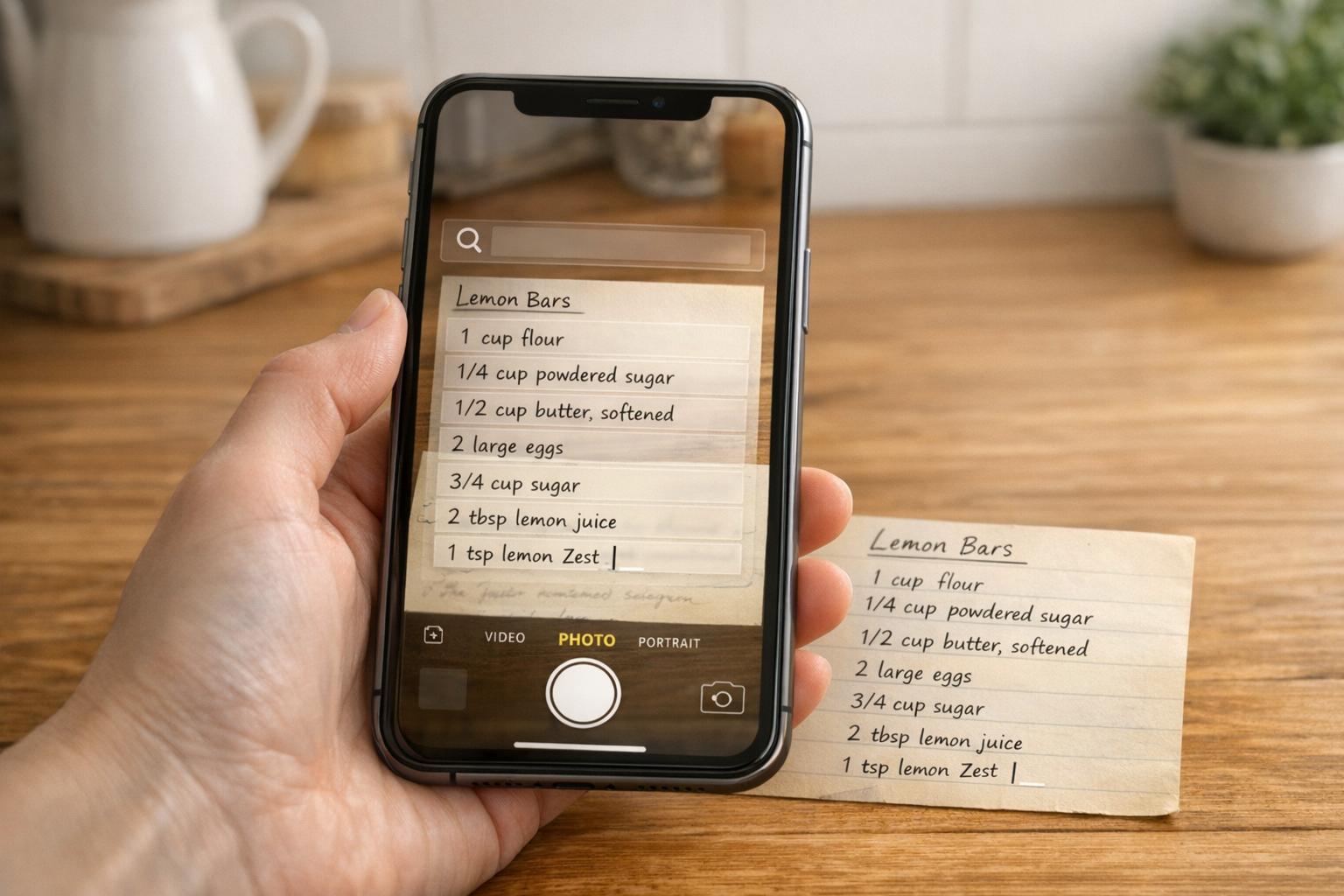



Scanning recipes from photos has never been easier, thanks to OCR (Optical Character Recognition) technology. These apps convert handwritten or printed recipes into editable text, making them searchable and easy to organize. Whether you’re preserving family recipes or digitizing cookbook pages, these tools save time and effort. Here’s a quick rundown of the top apps for recipe scanning:
- OrganizEat: Photo-first storage with meal planning and grocery lists. Syncs across devices. Costs $39.99/year.
- Recipe Keeper: One-time purchase option with robust OCR and meal planning. Syncs for free after purchase.
- RecipeChef: AI-powered OCR with nutritional analysis and shopping lists. Subscription-based.
- Adobe Scan: Accurate OCR with cloud storage and cleaning tools for scans. Free with optional premium upgrades.
- Microsoft Lens: Retired in 2026; replaced by OneDrive‘s scanning features.
- CamScanner: Versatile scanner with OCR for 41 languages. Free and premium options available.
- Google Lens: Free, simple OCR for text extraction. Lacks recipe-specific features.
Quick Comparison:
| App | OCR Accuracy | Platforms | Cost | Key Features |
|---|---|---|---|---|
| OrganizEat | High (printed/handwritten) | iOS, Android, Web | $39.99/year | Meal planner, cloud sync, grocery lists |
| Recipe Keeper | High (printed/handwritten) | iOS, Android, Windows | ~$20-$30 (one-time) | Free sync, meal planning, Alexa support |
| RecipeChef | High (printed) | iOS, Android | Subscription-based | Nutritional analysis, AI adjustments |
| Adobe Scan | High (printed) | iOS, Android | Free/$9.99+ premium | Cloud storage, PDF export |
| Microsoft Lens | High (printed) | Retired (2026) | Free | Integrated with OneDrive |
| CamScanner | Moderate (handwritten) | iOS, Android | Free/$53 annually | Batch scan, OCR for 41 languages |
| Google Lens | High (printed) | iOS, Android, Desktop | Free | Text extraction, Google Translate |
Whether you need advanced features like meal planning or just a simple text extractor, there’s an app for every need and budget. Read on for detailed reviews of each app.
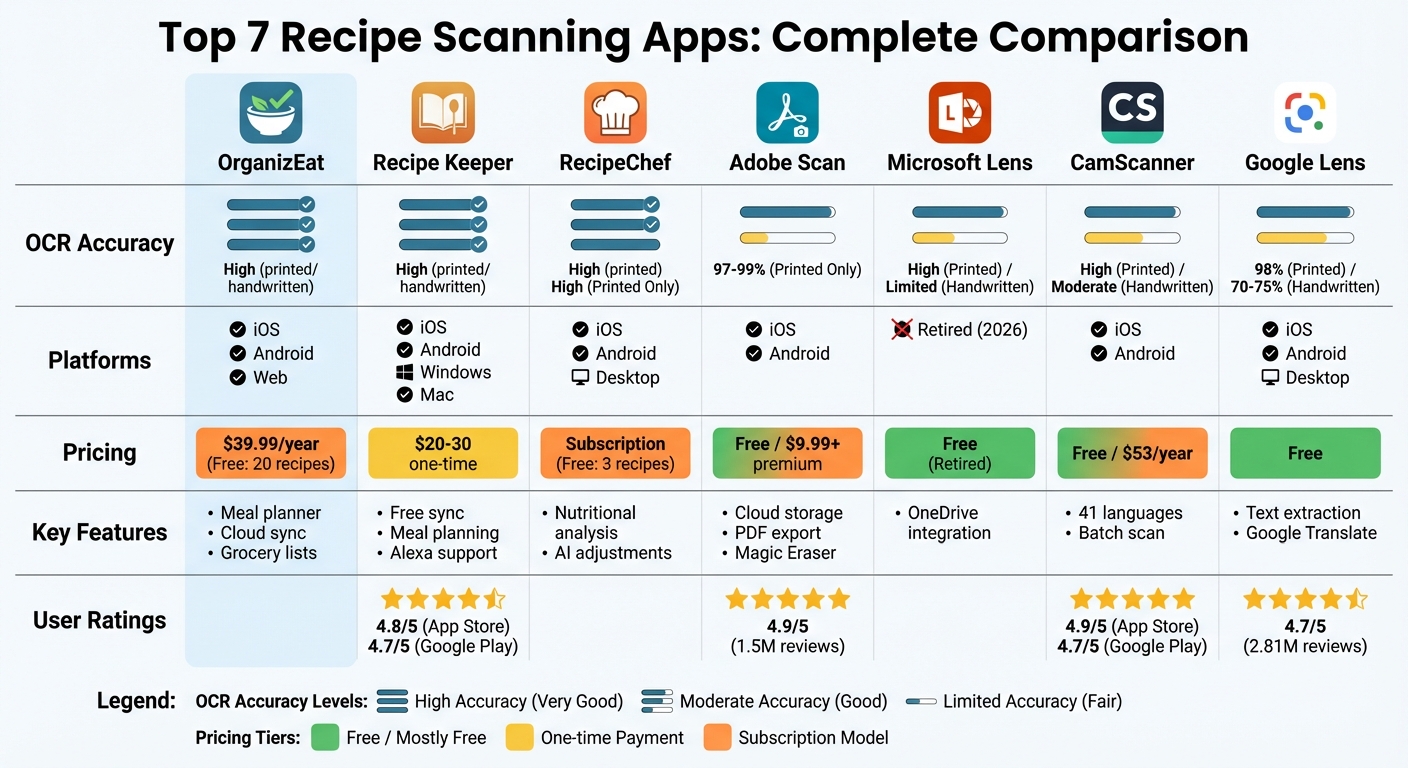
Recipe Scanning Apps Comparison: Features, Pricing, and OCR Accuracy
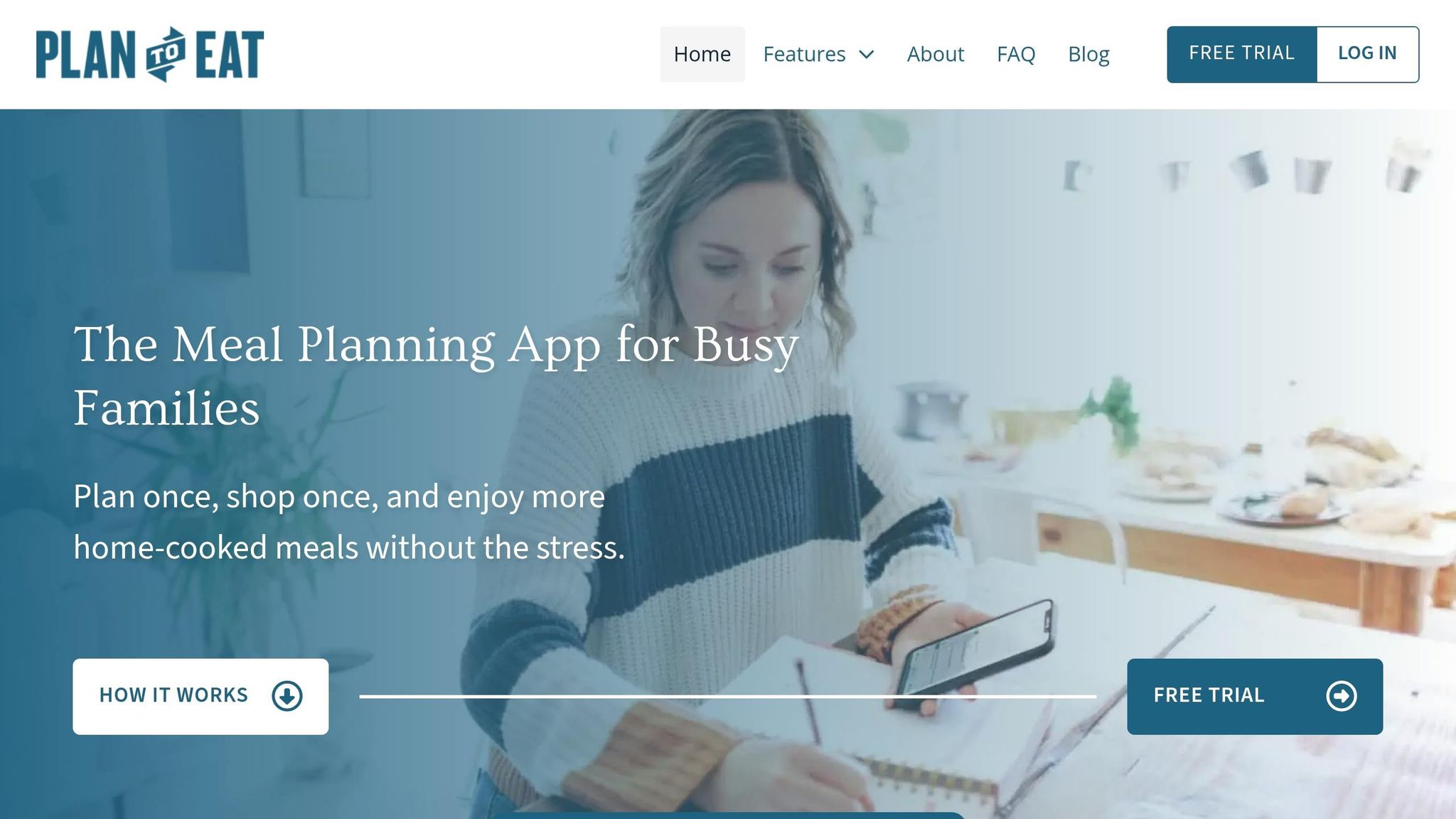
Super User Features: Import recipes from a photo | Plan to Eat
sbb-itb-6688478
1. OrganizEat
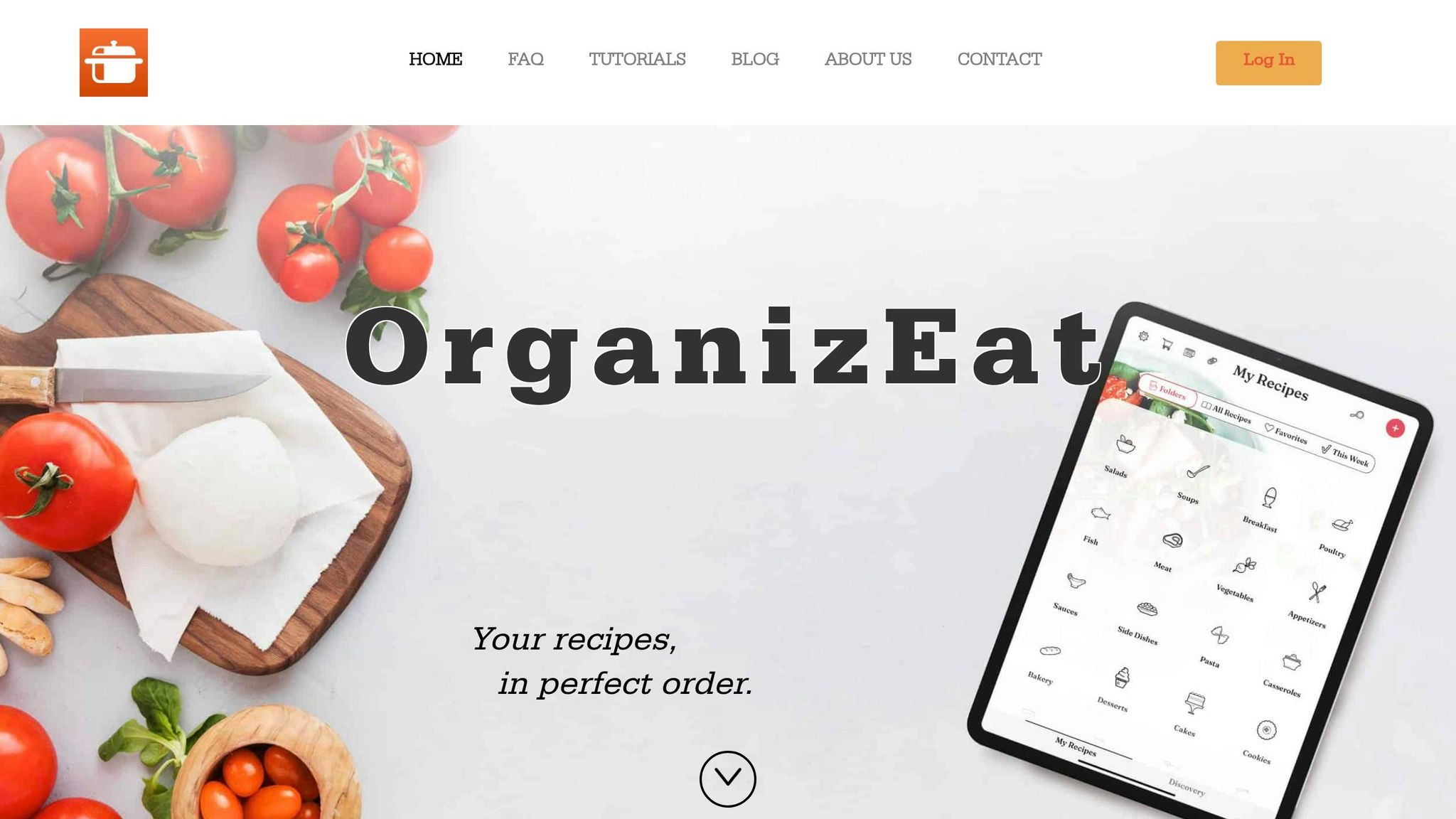
OrganizEat offers a simple way to digitize your physical recipes with a photo-first approach. Instead of typing out every detail, you can snap pictures of handwritten recipe cards, cookbook pages, or even screenshots, and the app stores them as complete recipe entries. Think of it as a digital recipe binder that keeps your treasured recipes organized and searchable, all while preserving their original visual format. Let’s dive into how OrganizEat handles text extraction and accessibility.
OCR Accuracy for Recipe Text Extraction
OrganizEat features a recipe scanner powered by OCR (Optical Character Recognition) technology, which can pull text from your recipe photos when needed. For recipes found online, the app uses the JSON-LD standard to automatically extract structured data from over 200 websites. This means you get neatly formatted recipes without the hassle of manual copying. Whether you’re scanning handwritten notes or grabbing recipes from the web, OrganizEat ensures your collection is easy to navigate.
Cloud Syncing and Multi-Device Support
The app works seamlessly across iOS, Android, and web browsers. Once you create an account, you can sync your recipes to the cloud with a simple button. This ensures your collection is accessible on any device where you’re logged in. Plus, once downloaded, recipes remain available offline, making it ideal for times when you’re cooking in remote areas without internet access. A single subscription covers all platforms, and as of October 1, 2022, mobile subscribers also gain access to the computer version at no extra charge. This multi-device integration makes managing your recipes effortless.
Additional Recipe Management Features
OrganizEat goes beyond just storing recipes. It includes a meal planner with a monthly calendar and a grocery list that automatically consolidates duplicate items. The Cooking Mode prevents your screen from dimming while you follow a recipe, and you can organize your collection with folders and tags. Sharing options are also flexible – you can share your entire recipe collection with family members (view-only) or send individual recipes via email, text, or as a PDF export.
Pricing Model
The free version of OrganizEat allows you to store up to 20 recipes, with a limit of 3 photos per recipe. For those who need more storage, the premium subscription costs $39.99/year and supports up to 4,000 recipes per account. The Extra Premium option lets you add up to 8 photos per recipe. Legacy mobile users who want to access the computer version must pay an additional $11.99/year.
2. Recipe Keeper
Recipe Keeper is trusted by more than 2,000,000 users and boasts an impressive 50,000 5-star ratings across app stores. Its standout feature is the ability to digitize physical recipes through photo scanning, powered by OCR technology that works with printed cookbooks, magazines, and even handwritten notes.
OCR Accuracy for Recipe Text Extraction
Recipe Keeper’s OCR technology is highly effective, particularly with printed materials, requiring only minor corrections. It can handle tricky layouts like two-column ingredient lists and separate recipe sections. Users have noted that even handwritten recipes, including cursive ones, are imported with only a few small errors. Digital PDF imports are nearly flawless, while photo scans may occasionally need a quick review. The app also supports recipe extraction from websites and social media platforms, such as TikTok and Instagram, by processing screenshots or direct links. This precision complements its seamless syncing across devices.
Cloud Syncing and Multi-Device Support
Recipe Keeper syncs effortlessly across iOS, Android, Windows, and Mac devices, with offline access included. However, you’ll need to purchase the app separately for each platform – for instance, buying it on an iPhone doesn’t unlock it on a Windows PC. That said, within a single ecosystem like Apple’s, one purchase covers all devices linked to the same Apple ID.
Additional Recipe Management Features
The app also includes a meal planner that can create weekly or monthly menus based on your preferences. Its shopping list feature organizes ingredients by supermarket aisle and allows for multiple lists tailored to different stores. A cooking mode prevents your screen from locking while you cook, and Amazon Alexa integration offers hands-free, step-by-step instructions.
Pricing Model
The pricing is simple: The free version stores up to 20 recipes. Upgrading to Premium is a one-time purchase – approximately $20 for mobile and $30 for Windows/Mac as of early 2026. Tudorspan Limited, the app’s developer, states, “We provide the syncing for free after purchasing Recipe Keeper, unlike many similar apps that charge annual subscriptions for syncing recipes across devices”.
Recipe Keeper’s popularity is reflected in its ratings: 4.8/5 stars from over 27,000 reviews on the App Store and 4.7/5 stars from more than 18,600 reviews on Google Play.
3. RecipeChef
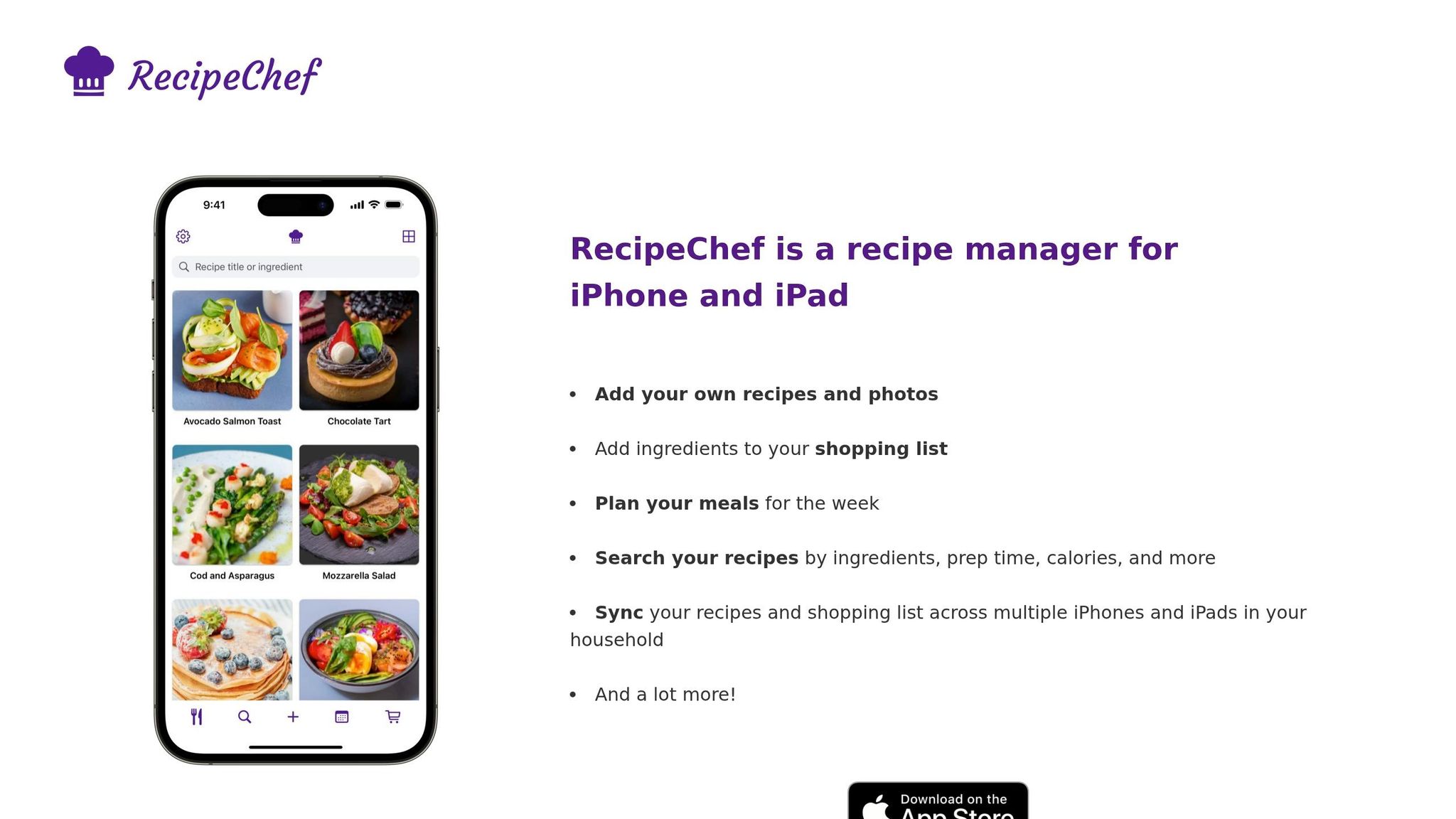
RecipeChef is designed to make recipe management easier and more health-focused by combining AI-driven optical character recognition (OCR) with automatic macro tracking. Available on desktop, iOS, and Android, it ensures your recipe collection is always accessible, no matter where you are.
OCR Precision for Recipes
RecipeChef uses AI specifically trained on cooking-related data to extract recipe details from photos, screenshots, and URLs. This focus on culinary content allows it to accurately identify ingredient quantities, cooking temperatures, and step-by-step instructions.
Sync Across Devices
With cloud syncing, RecipeChef keeps your digital cookbook up to date across all your devices. Whether you’re meal planning on your desktop, shopping with your phone, or cooking with a tablet, everything stays in sync without extra effort.
Smart Recipe Tools
RecipeChef doesn’t just store recipes – it analyzes them. The app automatically calculates macros and calories, breaking down nutrients like protein, fats, and carbs. Its AI chat feature allows you to tweak recipes instantly, whether you’re adjusting for dietary restrictions or adding more protein. Plus, the built-in shopping list organizes ingredients by category, and the meal planning tool helps you cut down on food waste.
Pricing Options
The free version of RecipeChef lets you save up to three recipes – no credit card required. For unlimited storage, you can upgrade to the paid version.
4. Adobe Scan
Adobe Scan transforms physical recipe cards and cookbook pages into searchable digital files. With over 100 million downloads on Google Play and a stellar 4.9/5 rating from 1.5 million users on the App Store, it’s a go-to choice for scanning needs.
OCR Accuracy for Recipe Text Extraction
Adobe Scan’s OCR (Optical Character Recognition) technology delivers impressive accuracy, achieving rates between 97% and 99%. To get the best results, Adobe recommends capturing images at a minimum resolution of 300 dpi, with 600 dpi being ideal for faded or older recipe cards. The app supports text recognition in 19 languages, including English, French, Spanish, and German.
The app also features tools to enhance scans. Its "Straighten" tool automatically flattens curved or tilted pages, which is perfect for thick cookbooks that won’t stay open flat. For cleaning up old recipe cards, the "Magic Eraser" removes stains, creases, and even finger marks, making decades-old documents look fresh again. While Adobe Scan can process handwritten recipes, some manual edits may be necessary due to the complexities of handwriting recognition.
With these features, Adobe Scan makes it easier to preserve and digitize recipes for future use.
Cloud Syncing and Multi-Device Support
Scans are automatically saved to Adobe Document Cloud, ensuring they’re accessible across your phone, tablet, and computer. You can also organize recipes into custom folders – like "Desserts", "Quick Dinners", or "Vegetarian" – to keep your digital cookbook tidy. Thanks to its OCR capabilities, finding a recipe is as simple as searching for a keyword like "chicken". This functionality makes managing your digital recipes a breeze.
Pricing Model
Adobe Scan offers both free and premium options. The free version includes basic scanning features, OCR for up to 5 pages, and cloud storage. For users who need more, the premium subscription expands OCR capacity to 100 pages, allows combining multiple scans into a single PDF, and provides export options to Word, Excel, or PowerPoint. Premium users also gain access to extra security features, like password protection for their files.
| Feature | Free Version | Premium Version |
|---|---|---|
| OCR Capacity | Up to 5 pages | Up to 100 pages |
| Cloud Storage | Included | Included |
| File Combining | No | Yes |
| Export Formats | PDF, JPEG | PDF, JPEG, Word, Excel, PowerPoint |
| Password Protection | No | Yes |
5. Microsoft Lens
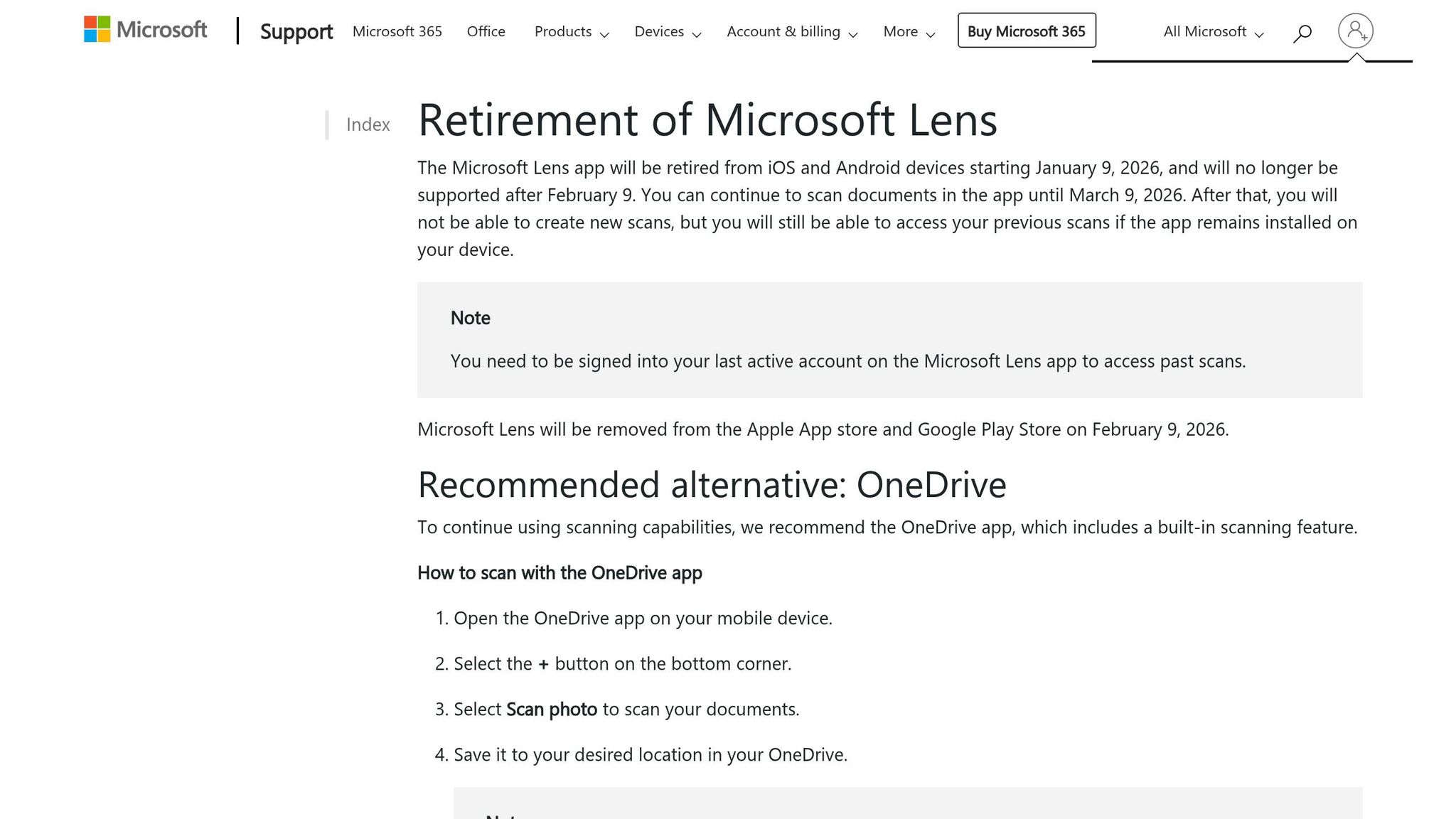
Important Update: Microsoft Lens was officially retired on January 9, 2026, with all scanning features disabled by March 9, 2026. Microsoft now encourages users to switch to the OneDrive mobile app, which includes built-in scanning and OCR capabilities. While the app is no longer available, its features highlight the progress made in recipe scanning technology. Modern alternatives like the OrganizEat recipe keeper app continue this evolution by offering specialized tools for digital organization.
OCR Accuracy for Recipe Text Extraction
Microsoft Lens stood out for its reliable OCR performance, particularly when processing dense text from cookbooks and magazines. However, it faced challenges with more intricate layouts, such as stylized certificates. For handwritten family recipes, the app performed impressively, achieving high accuracy in text extraction.
"Microsoft Lens’ OCR feature is so good that it’s hard to believe that you can use this for free." – Pranay Parab, Freelance Writer, Lifehacker
When tested on cookbook pages, its results were largely accurate. Kristina Lauren, a Digital Marketing Blogger at Zapier, shared her experience:
"The book wound up being the most accurate: there were a handful of errors with some of the words, but for the most part, the text was correct enough to decipher"
The app supported OCR for printed text in 30 languages and printed tables in 21 languages. However, its recognition of handwritten text was limited to English.
Cloud Syncing and Multi-Device Support
Microsoft Lens offered seamless integration with Microsoft’s ecosystem. Scans were automatically saved to OneDrive, OneNote, Word, or PowerPoint, making them accessible across devices via the cloud. While existing scans remain available for users who sign in, creating new scans is no longer possible.
The OneDrive mobile app, recommended as a replacement, also saves scans directly to the cloud. However, unlike Microsoft Lens, it does not allow scans to be saved locally on your device.
Pricing Model
Microsoft Lens was completely free to use, with no hidden costs, premium tiers, or advertisements. The OneDrive app replacement offers a free scanning and cloud storage option, with premium subscriptions available for users needing extra storage space.
6. CamScanner
CamScanner is a document scanning app trusted by millions globally. While it wasn’t created specifically for recipes, its advanced scanning capabilities make it a great tool for digitizing cookbook pages and handwritten family recipes. With over 500 million downloads on Google Play and more than 500,000 new daily registrations, it’s clear that this app has a massive following.
OCR Accuracy for Recipe Text Extraction
CamScanner’s OCR (Optical Character Recognition) technology supports 41 languages, including English, Chinese, Japanese, and Korean. Though it’s not exclusively designed for recipes, it does a reliable job of converting both printed cookbook pages and handwritten notes into editable text. However, its accuracy can falter with more complex text. For instance, in testing, it occasionally misread words, turning "grapes" into "gfapes" or "California" into "Cahfomia". Despite this, simple recipe text typically requires only minor corrections.
"My favorite feature is the ability to pull text out of handwritten notes. I quickly scan my handwritten notes, and they become searchable, editable text." – happy GP user, Educator
The app’s AI-powered scanning tools enhance clarity by removing backgrounds and flattening curved pages from cookbooks. This makes the text easier to read. Scans can be exported as TXT or Word files, simplifying the process of editing, sharing, and meal planning.
Cloud Syncing and Multi-Device Support
CamScanner ensures your digitized recipes are always accessible by syncing them in real time across smartphones, tablets, and computers. A recent desktop update even added offline editing. You can also automatically upload scanned recipes to third-party platforms like Google Drive, Dropbox, Evernote, and OneDrive.
The app includes useful file management tools, such as folder organization, document tagging, and password protection – perfect for keeping cherished family recipes secure. For larger projects, like digitizing an entire cookbook, the "Batch Scan" mode allows you to capture multiple pages quickly and combine them into a single PDF.
Pricing Model
CamScanner’s pricing options cater to a range of needs. The free version offers basic scanning and OCR but includes ads and places a "Scanned with CamScanner" watermark on documents. The app is highly rated, boasting a 4.9/5 score from 1.8 million ratings on the Apple App Store and 4.7/5 from over 4.9 million reviews on Google Play.
Premium subscriptions begin at about $2.99 per month (promotional pricing) and go up to around $53 annually. This upgrade removes watermarks and ads, increases cloud storage, enables batch OCR, and adds features like digital signatures. Some users have mentioned that subscription prompts in the free version can feel intrusive, and there have been occasional glitches with Dropbox auto-uploads.
7. Google Lens
If you’re looking for a simple, no-cost way to quickly capture recipes without the bells and whistles of full recipe management, Google Lens is a solid choice. This free visual search and OCR tool is integrated into Google Photos and also available as a standalone app. While it’s not specifically designed for recipes, its precise text recognition makes it ideal for digitizing cookbooks and handwritten recipe cards. With a 4.7/5 star rating from over 2.81 million reviews on Google Play, it’s clear that many users rely on it for fast text capture.
OCR Accuracy for Recipe Text Extraction
Google Lens excels in OCR accuracy, making it a dependable tool for extracting text from even the trickiest handwriting or densely packed cookbook pages. It quickly identifies and highlights text, allowing you to copy and paste it into apps like Google Docs or your favorite recipe manager. To digitize a recipe, all you need to do is snap a photo, tap the Lens icon in Google Photos, select the text, and copy it. This approach works effortlessly with cookbooks, handwritten notes, and even screenshots. Plus, the built-in Google Translate feature is a bonus for capturing recipes from cookbooks written in other languages. These capabilities make Google Lens a flexible and efficient option for initial recipe capture.
Cloud Syncing and Multi-Device Support
While Google Lens is great for capturing text, it doesn’t offer built-in cloud syncing or multi-device access for recipes. To share or store your recipes across devices, you’ll need to manually paste the extracted text into a cloud-based service like Google Docs or Google Keep. The app is accessible on Android, iOS, and even through Google Chrome on desktop, making it versatile for different platforms.
Pricing Model
Google Lens is entirely free – there are no premium tiers or subscriptions to worry about. While it doesn’t include advanced recipe-specific features like meal planning, grocery lists, or organizational tools, its cost-free OCR functionality makes it a handy tool for digitizing recipes. If you already use a dedicated recipe manager, Google Lens can serve as a quick and easy way to extract text from your photos. For more tips on optimizing your digital cookbook, check out our recipe organization tutorials.
Feature Comparison Table
This table breaks down the features of seven apps designed for digitizing recipes, focusing on OCR performance, platform compatibility, pricing, and recipe management tools.
| App | OCR Accuracy (Printed/Handwritten) | Platform Availability | Pricing | Recipe Management Features |
|---|---|---|---|---|
| OrganizEat | High for printed / Photo-first approach | iOS, Android | Free (up to 20 recipes); $34.99/year or $7.99/month for unlimited | Snap ‘n Store, web import, custom entries, grocery lists, meal planner, cooking mode, cloud backup, device syncing, recipe sharing |
| Recipe Keeper | High for printed / Moderate for handwritten | iOS, Android, macOS, Windows | One-time purchase: ~$11.99 (mobile Pro), ~$24.99 (desktop) | OCR scanning, web clipper, custom categories, grocery lists, meal planning, cloud sync |
| RecipeChef | High for printed / Moderate for handwritten | iOS, Android | Subscription-based | AI-driven capture, ingredient parsing, structured recipe storage |
| Adobe Scan | High for printed / Moderate for handwritten | iOS, Android | Free (basic); Premium features via Adobe subscription | Document scanning, OCR text extraction, cloud storage (Adobe Cloud) |
| Microsoft Lens | High for printed / Moderate for handwritten | iOS, Android, Windows | Free | Document scanning, OCR, integration with Microsoft 365 apps |
| CamScanner | High for printed / Moderate for handwritten | iOS, Android | Free (with ads); Premium subscription available | Document scanning, OCR, cloud storage, annotation tools |
| Google Lens | ~98.0% for printed / 70–75% for handwritten | iOS, Android, desktop (via Chrome) | Free | Text extraction, visual search, translation, no built-in recipe storage |
This comparison outlines each app’s strengths and limitations, helping users choose the best tool for their recipe digitization needs.
Conclusion
Turning your recipe collection into a digital library makes it easier to manage and access your favorite dishes. By digitizing handwritten cards, cookbook pages, and social media screenshots, you create a searchable and organized system. Tools like OCR (Optical Character Recognition) make scanned text editable and interactive, while features like automatic edge detection ensure cleaner, more professional results than standard phone photos. As Jill Duffy from PCMag points out:
"First, an image is unlikely to be as clear as a scan, so you run the risk of illegible text. Second, you can’t search the text, which could make it extremely difficult to find what you need later, much less edit it".
When deciding on the best app for your needs, consider how you plan to use it and where your recipes are currently stored. If you want to preserve family recipes in their original handwriting, apps like OrganizEat focus on photo-based scanning, eliminating the need to type everything out. For recipes saved from social media, look for tools with transcription features that simplify the conversion process.
Cost is another factor to weigh. Some apps offer one-time purchases, which avoid ongoing fees, while subscription models often include cloud storage and regular updates. Think about whether you need cross-platform compatibility across iOS, Android, and Windows, or if a single-device solution works for you.
Beyond scanning, many apps include features that make cooking more efficient. Meal planners, automated grocery lists sorted by aisle, unit converters, and hands-free modes can turn your recipes into practical tools for everyday use. Cloud backup ensures your collection is safe from device loss and accessible across multiple devices.
To find the right app, test its scanning capabilities with a free trial, make sure it aligns with your devices and sources, and check how well it fits into your cooking routine. With the right choice, you’ll have a system that keeps your recipes organized and ready to use for years to come.
FAQs
How can I get better OCR results from a recipe photo?
To get better OCR results, make sure your photo is taken in a well-lit area with even lighting to prevent shadows or glare. Hold the camera steady and position it directly above the recipe to avoid blurry or incomplete captures. Apps with advanced OCR tools can help improve accuracy, especially if they let you edit and correct text after scanning. Taking these steps can significantly improve text recognition and readability.
What’s the easiest way to organize scanned recipes and find them later?
Using a recipe app with OCR (Optical Character Recognition) and cloud sync features, like OrganizEat, is a simple and effective solution. Just take a photo of your recipe, and the app will digitize it, making it searchable and easy to organize. You can add tags or notes to keep your collection well-structured, and with cloud storage, your recipes are accessible anytime, from any device. It’s a hassle-free way to manage and find your favorite recipes.
Can I scan recipes and still access them offline across my devices?
Scanned recipes can be accessed offline on all your devices if the app supports features like cloud backup and device syncing. With OrganizEat, these functionalities are built-in, allowing you to view your recipes anytime, even without an internet connection.