



Your Chrome bookmarks probably didn't become a mess all at once. It usually happens one saved recipe at a time. A weeknight pasta from one site, a holiday cookie roundup from another, a YouTube cooking tutorial you meant to revisit, plus random non-food links mixed in because saving it “for later” was faster than organizing it.
Then one day you click your bookmarks bar and realize your so-called Favorites folder is doing the opposite of what it promised. It's hiding the good stuff.
That's where Chrome export favorites becomes useful. Not just as a backup step, but as the moment you stop treating bookmarks like a storage attic and start treating them like ingredients you want to use. Exporting gives you a portable copy of your saved links, and even better, it gives you a chance to sort, clean, move, and rescue recipe links before they disappear into browser clutter.
Table of Contents
- Why Your Chrome Bookmarks Need a Fresh Start
- How to Export Chrome Favorites on Your Computer
- Managing Chrome Favorites on Android and iOS
- Advanced Exporting with Google Takeout and Folders
- What to Do With Your Exported Bookmarks File
- Troubleshooting and Tips for Recipe Collectors
Why Your Chrome Bookmarks Need a Fresh Start
A cluttered bookmarks bar looks harmless until you need something quickly. Then it feels exactly like a kitchen drawer stuffed with batteries, rubber bands, and mystery keys. You know the useful thing is in there somewhere. You just can't get to it without digging.
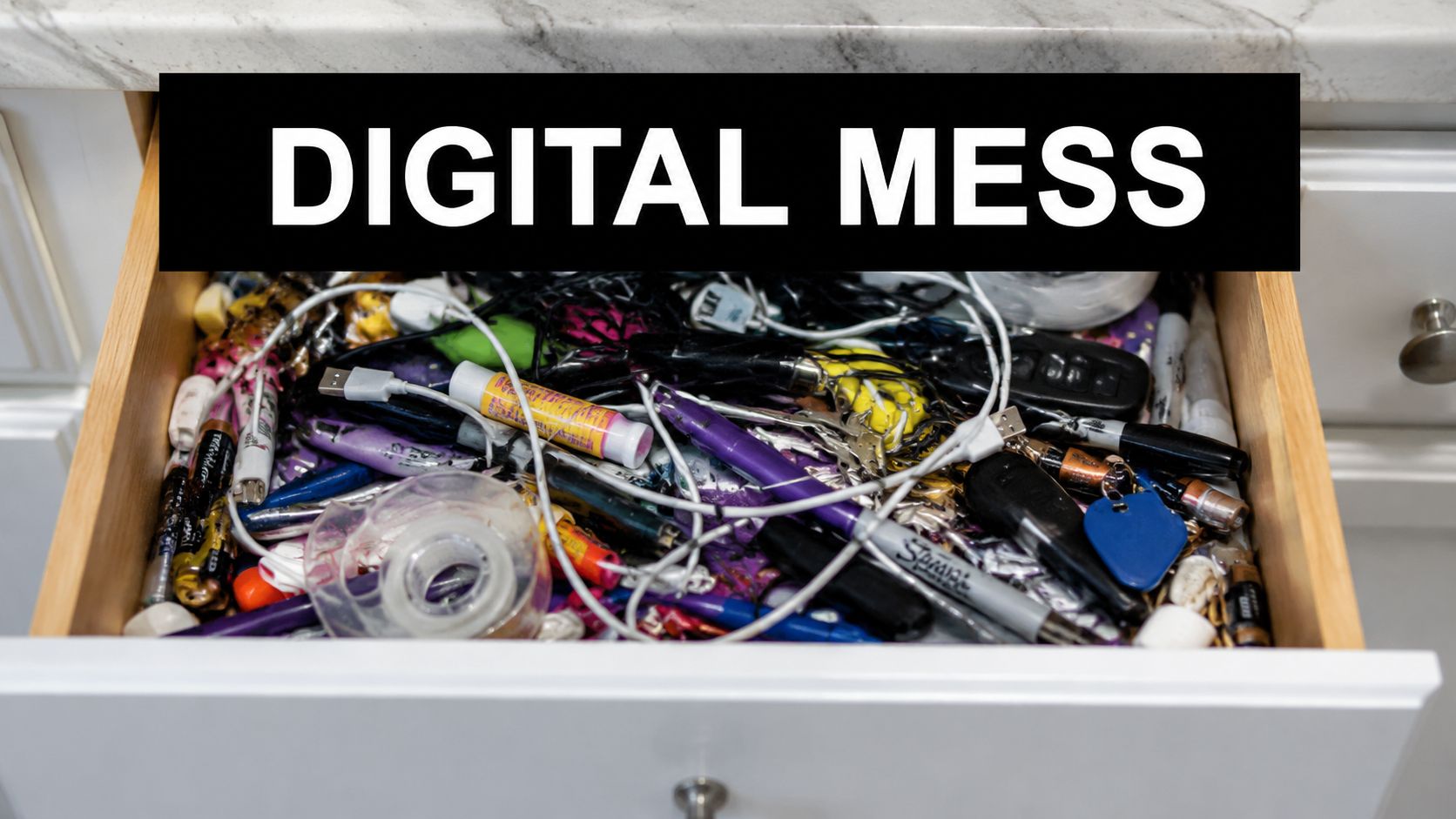
Recipe bookmarks get messy faster than most other links. People don't save “recipes” as one neat category. They save dinner ideas, birthday cakes, air fryer tricks, Thanksgiving side dishes, and that banana bread page everyone in the family swears by. Soon the folder called Recipes becomes five layers deep, full of duplicates, dead links, and site names that don't tell you what the recipe was.
That's why exporting favorites isn't just a technical housekeeping task. It's the first practical move toward getting your recipe life under control. If you've ever meant to cook from your saved links but ended up searching the web all over again, your bookmark system isn't helping you anymore.
Clutter hides the recipes you actually care about
The biggest problem isn't volume. It's friction.
When bookmarks are disorganized, a few things happen:
- Good recipes get buried: The links you'd use disappear under impulse saves.
- You save the same dish twice: If you can't find it, you bookmark it again.
- Older favorites become fragile: A recipe page can change, move, or vanish while it sits forgotten.
- Planning gets harder: Meal prep and shopping both slow down when your recipe collection isn't easy to scan.
A lot of home cooks already feel this problem in their kitchens, not just in their browser. Digital clutter turns into dinner-time stress.
If you're in that cycle, it helps to think about browser cleanup the same way you'd think about pantry cleanup. You're not throwing away useful things. You're making them visible again. The same logic shows up in why decluttering recipes saves time. Less friction means you cook from what you've already saved instead of hunting from scratch.
Practical rule: If you wouldn't want to search for a recipe link while hungry, your bookmarks need a reset.
How to Export Chrome Favorites on Your Computer
On desktop, Chrome makes export fairly straightforward. The useful part isn't the clicking itself. It's what you get at the end: a file you control.
What Chrome actually creates when you export
When you export bookmarks from Chrome, the browser saves them as an HTML file. That standardized format can be imported into most other browsers or back into Chrome, which is what makes your saved links portable across platforms and profiles, as described in this overview of Chrome bookmark export.
That matters more than it sounds. An HTML export isn't tied to one laptop, one browser profile, or one moment in time. It's a plain, durable handoff file. For recipe collectors, that means your saved links aren't trapped inside a messy bookmarks bar.
The desktop steps that work
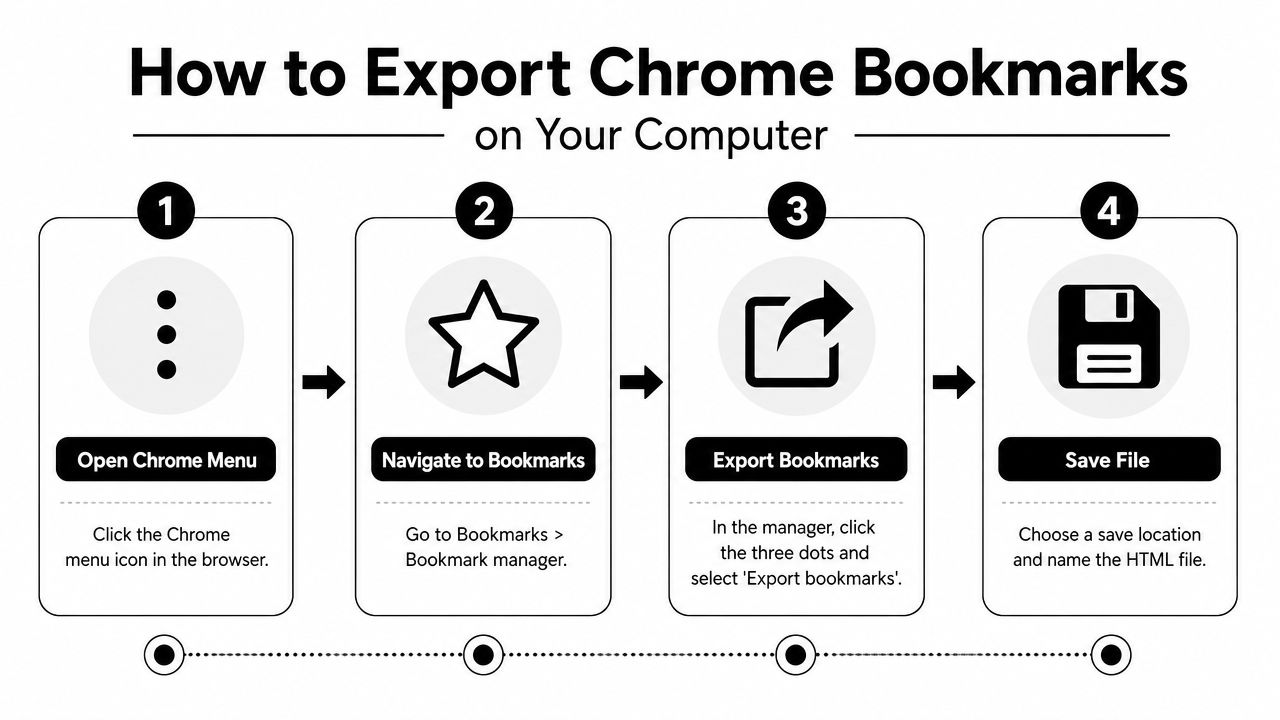
If you want the cleanest path for Chrome export favorites on a computer, use Bookmark Manager.
- Open Chrome on your desktop.
- Click the three-dot menu in the upper-right corner.
- Go to Bookmarks and lists, then Bookmark manager.
- Inside Bookmark Manager, click the More menu.
- Choose Export bookmarks.
- Pick a save location on your computer and save the file.
Google documents this desktop route through Bookmark Manager, and it also notes that imported bookmarks may later show up in a folder such as Imported or Other bookmarks, depending on how you bring them back in through Chrome, as shown in Google's Chrome bookmarks help page.
A few practical choices make this easier later:
- Name the file clearly: Something like
Recipes-bookmarks-backup.htmlis better than a generic file name you'll forget. - Save it somewhere intentional: Desktop is fine short term. A folder like Documents or a personal archive folder is better long term.
- Export before major cleanup: If you plan to delete old bookmarks, make the backup first.
Here's the visual walkthrough if you prefer to see the clicks before doing them yourself.
What works and what doesn't
What works well is the basic export itself. Chrome has kept this process simple for a long time, and institutional guides reflect the same workflow. UCSF's browser guidance points users to Bookmark Manager with Ctrl+Shift+O and then to Export bookmarks, while Edge offers a similar Export favorites path, which shows how normal this file-based backup model has become across browsers, as outlined in UCSF's import and export bookmark instructions.
What doesn't work well is expecting the export to solve your organization problem by itself. The file preserves hierarchy, titles, and URLs, but it doesn't magically turn “Dinner stuff” and “Yum maybe” into a useful recipe system. Export is the release valve. Organization still has to happen after that.
Exporting is backup plus freedom. It is not organization by itself.
Managing Chrome Favorites on Android and iOS
You save a recipe on your phone while waiting in the school pickup line, another while cooking, and a third at 11 p.m. from social media. A week later, you sit down to clean things up and realize the Chrome app gives you plenty of ways to save bookmarks, but no clear way to turn them into a file you can use.
That is the sticking point on mobile. Android and iPhone are good at capture. They are not where Chrome gives you the best control for backup, bulk sorting, or cleanup.
Why you can't find the export button on mobile
Chrome on phones and tablets lets you add, edit, and move bookmarks, but the actual export workflow lives on desktop. So if you have been tapping through menus on your phone looking for “Export bookmarks,” you are not missing something obvious. Chrome does not make that part easy in the mobile app.
For recipe collectors, that matters because mobile is usually where the clutter starts. You save quickly, often with vague titles, and tell yourself you'll sort it out later. Later only gets easier once those bookmarks show up on a computer, where you can review them in batches and decide what is worth keeping.
The workaround that actually saves time
The practical method is to use your phone for saving and your computer for exporting.
Start here:
- Confirm sync is on in Chrome on your phone. Make sure bookmarks are tied to the same Google account you use on your computer.
- Open Chrome on your desktop or laptop using that account. Give sync a minute if you have saved a lot recently.
- Check for the bookmarks you care about. For a recipe cleanup session, look at recent saves first so you do not export before everything appears.
- Export from the computer. Use the desktop steps from the earlier section after you confirm the mobile bookmarks have arrived.
This sounds a little clunky, but in practice it is less frustrating than trying to force phone-only workflow onto a task Chrome clearly handles better on desktop.
If you use an iPad in the kitchen, a split system works well. Save recipe links in the moment, then do your actual sorting later on a laptop with a bigger screen and better folder control. If some of your recipes are saved as files instead of bookmarks, this guide on downloading PDF files to iPad helps keep those from becoming a second pile of digital clutter.
Best use by device
| Device | Best use |
|---|---|
| Android or iPhone | Save bookmarks while browsing, cooking, or scrolling |
| Desktop or laptop | Export bookmarks, review duplicates, rename vague titles, and sort recipe folders |
That division matters for a reason. Exporting is only the first step. If your real goal is to rescue recipe links from years of random saves, the computer is where that cleanup becomes manageable.
Advanced Exporting with Google Takeout and Folders
Once you've done a basic export, the next question is usually about scope. Do you want everything, or do you only want the recipe portion that matters right now?
When a full archive makes sense
A full archive is useful when you're changing computers, cleaning up an overloaded browser profile, or creating a broad personal backup. Some people also use Google Takeout when they want a larger export habit for their Google account data, not just bookmarks.
That can be smart if you treat it like a fire-safe copy of your digital life. But for recipes, a full export is often more than you need. If your bookmarks include work links, shopping tools, travel ideas, and random articles, a single all-in file can turn recipe cleanup into another sorting chore.
How to get closer to a selective export
Most standard bookmark advice fails to address a critical aspect. A significant user need that mainstream guidance misses is selective export. Chrome's default behavior exports all bookmarks, while many people want only one folder, such as recipe links they've been collecting, which often pushes them toward workarounds or third-party extensions, as noted in this discussion of selective bookmark export needs.
For home cooks, that gap is a big deal. You may not want your entire browser history in bookmark form. You may only want:
- Holiday Recipes
- Weeknight Dinners
- Family Favorites
- Baking Projects
- Recipes to Try This Month
Chrome doesn't give you a clean built-in “export just this folder” button. So the best workaround is preparation before export.
A practical folder-first method
If selective export is your goal, this tends to work best:
Create a clean recipe folder structure inside Chrome first.
Move recipe bookmarks out of mixed folders and into named categories you'll recognize later.Do one full export anyway.
Chrome will preserve the folder hierarchy inside the HTML file.Use that structure after export.
If you're importing somewhere else, the target app may let you choose what to keep. If not, a full export still gives you a cleaner source file than a chaotic bookmarks list.Keep one untouched backup copy.
If you edit or trim a file later, you'll want the original version available.
The easiest selective export starts before you export. Folder cleanup inside Chrome does most of the heavy lifting.
If you use multiple Chrome profiles, be especially careful. Export from the profile that contains your personal recipe bookmarks. It's easy to open the wrong profile and end up backing up the wrong set of links.
What to Do With Your Exported Bookmarks File
This is the part most bookmark guides skip. They get you to the HTML file, then stop. But the file itself isn't the finish line. It's the handoff.
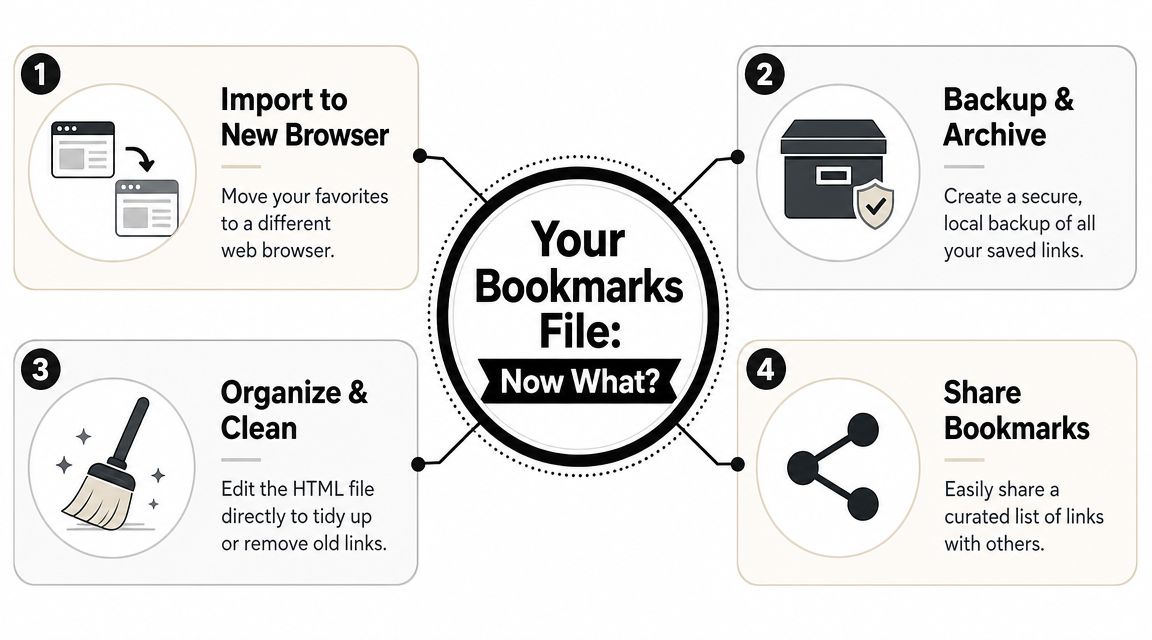
The four useful paths after export
The exported file is designed for portability, but how useful it is depends on what the next app or browser can do with it. Guides often miss the details of moving bookmarks between Chrome profiles or sharing them with other people, which is part of why exported files often feel less helpful than users expected, as discussed in this browser favorites transfer PDF.
In real use, users typically do one of four things with the file.
| Use case | What it's good for | Trade-off |
|---|---|---|
| Import into another browser | Moving from Chrome to Edge, Firefox, or Safari | Folder behavior may change after import |
| Restore into Chrome | Recovering bookmarks after a reset or new setup | Can reintroduce old clutter |
| Keep as a backup | Saving a portable archive outside sync | It's static until you export again |
| Share a curated set | Giving family or friends a useful link collection | Works best when the file is already cleaned up |
If your only goal is safety, storing the HTML file in a secure personal folder may be enough. If your goal is usability, you'll probably want to do more.
Why recipe collectors should go beyond browser storage
Browser bookmarks are good at one thing: quick saving. They're not good at giving recipes a permanent home.
A browser saves links. It doesn't preserve the cooking context around those links. It won't help much with grocery planning, family sharing, handwritten recipe cards, or that annoying moment when a recipe page changes and the version you loved is gone. For recipe collectors, the better move is usually to treat exported bookmarks as raw material, then move the recipe content into a system built for keeping recipes, not just pointing at them.
That's especially helpful when your saved links came from many places. Blog posts, social videos, PDF files, and old family pages don't belong in a single browser folder forever. They need a more durable home. If you've been trying to turn scattered web pages into something usable, this article on how to convert web recipes into personal digital collections is a good next step.
A bookmark file is a transport format. For recipes, it's rarely the final format you want to live with.
Troubleshooting and Tips for Recipe Collectors
You export your Chrome favorites, open the file, and expect progress. Instead, you get a messy pile of old food blogs, duplicate pumpkin bread links, restaurant menus you saved once, and recipes you forgot about two years ago. The export worked. The problem is that now you can see the clutter clearly.
That's common with recipe bookmarks. The hard part usually isn't getting the HTML file out of Chrome. It's sorting out which links still deserve a place in your cooking life.
Common export problems and simple fixes
A few problems show up again and again, and most of them have straightforward fixes:
- The exported file looks empty: Double-check which Chrome profile you used. A lot of people save bookmarks under one Google account and browse under another.
- Imported bookmarks seem to disappear: Look in folders like Imported, Bookmarks bar, or Other bookmarks. Chrome often files them there instead of mixing them into your existing folders.
- The file looks broken in a text editor: That usually means you opened the HTML file in the wrong app. It's meant for browser import, not for reading line by line.
- You exported far more than expected: That usually points to years of quick saves with no cleanup. Export first if you need a backup, then trim the collection with a calmer eye.
If anything feels wrong, re-exporting is usually faster than trying to patch a file you don't trust.
A better long-term system for saved recipes
Recipe collectors run into a different problem than general bookmark users. You are not just saving websites. You are trying to save future dinners, holiday staples, and the banana bread your family asked for twice last month.
That's why browser bookmarks hit a limit. They are fast for capture, but weak for keeping a recipe collection organized in a way that matches real cooking habits. A long folder list inside Chrome does not help much when you need one reliable weeknight meal, one make-ahead dessert, and one recipe you know turned out well.
A setup that works better usually includes a few simple rules:
- Cut obvious noise first: Remove dead links, duplicates, and one-off saves you no longer care about.
- Sort by how you cook: Use folders or categories like weeknight dinners, baking, holidays, meal prep, or family favorites.
- Separate ideas from proven recipes: Keep inspiration apart from recipes you've made and want to keep.
- Save important recipes somewhere more stable: If a recipe matters, store it in a place where you can find it even if the original page changes or disappears.
That last step is the one many guides skip. Exporting your bookmarks is only the handoff. True improvement manifests after the export, when you turn a browser dump into a recipe collection you can search, trust, and return to.
Recipe links are fragile. Sites get redesigned. Blog posts get deleted. Social posts vanish. If you have ever gone back for a favorite soup or cookie recipe and found a broken page, you already know the trade-off. Browser bookmarks are convenient, but they are not a long-term recipe box.
If you're ready to get your recipes out of bookmark chaos and into one organized place, take a look at OrganizEat. It helps you save recipes from the web, social media, handwritten cards, and photos into a searchable personal collection you can cook from.