
Your iPad is probably already doing part of your workday, schoolwork, reading, and downtime. The problem isn't finding apps. It's finding free apps for iPads that are useful before they hit a paywall, lock key features behind subscriptions, or feel clumsy on a larger screen.
That matters because free apps set the default expectation on Apple devices. One market report projects the iPad productivity app market will grow from USD 16.16 billion in 2026 to USD 44.81 billion by 2035, and notes that free apps dominate the App Store ecosystem at 95.41% of apps, or 1,827,336 listings, which explains why most users start with free options before considering upgrades (iPad productivity app market outlook). In practice, that means you can build a strong no-cost toolkit if you pick by use case instead of downloading whatever is trending.
If your goal is schoolwork, family organization, media playback, or quick creative work, the apps below cover the basics well. If you're trying to stretch a household tech budget further, this guide pairs nicely with these ways to boost student productivity with free tools.
Table of Contents
- 1. Microsoft OneNote
- 2. Libby
- 3. Canva
- 4. Notion
- 5. Google Keep
- 6. VLC for Mobile
- 7. Zoom
- 8. Spotify
- 9. CapCut
- 10. Pinterest
- Top 10 Free iPad Apps, Feature Comparison
- Final Thoughts
1. Microsoft OneNote
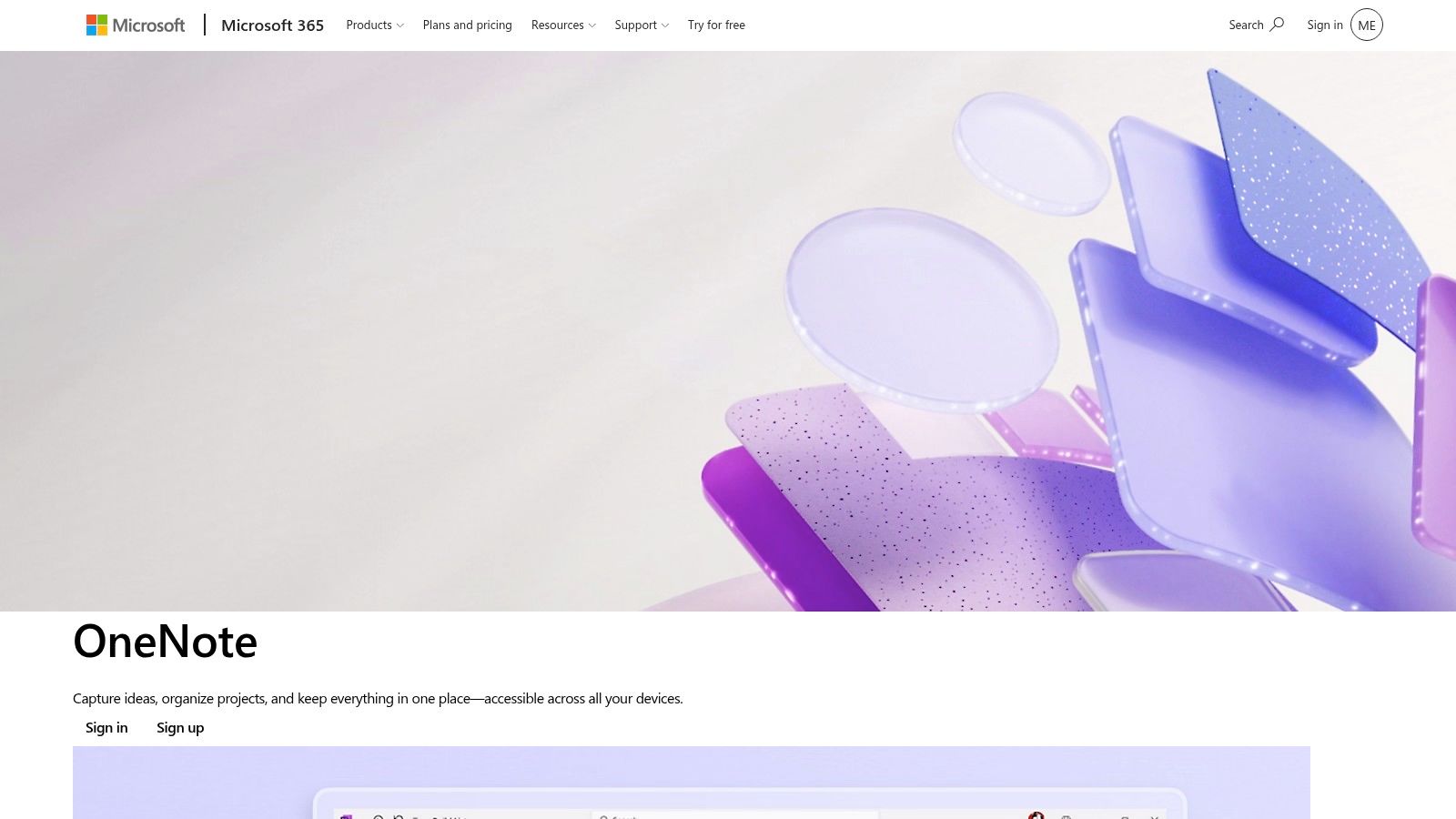
OneNote is the note app I recommend when someone wants one place for typed notes, handwritten pages, clipped research, images, and rough planning. On iPad, that mixed-canvas approach still feels more natural than many apps that force you to choose between handwriting and structured documents.
It's especially good for students, meeting-heavy jobs, and anyone who thinks in layers. You can keep class notes in one section, project notes in another, then drop sketches, PDFs, and checklists into the same notebook without rebuilding your workflow each time.
Why it works on iPad
The iPad version handles Apple Pencil inking well, and the page model gives you more freedom than rigid document apps. You can type in one area, handwrite next to it, then add an image or audio note without switching tools.
What works:
- Mixed input on one page: typed text, handwriting, pasted screenshots, and drawings can live together.
- Strong organization: notebooks, sections, and pages make sense for school terms, clients, or household planning.
- Cross-device sync: your notes move between iPad, phone, and desktop through a Microsoft account and OneDrive.
What doesn't:
- Large notebooks can drag: very dense notebooks can feel slower to sync.
- Cloud dependence is real: OneNote is best when you're comfortable using Microsoft's ecosystem.
- Some advanced enterprise setups sit elsewhere: the free app covers a lot, but some business environments expect Microsoft 365 around it.
Practical rule: Use OneNote for active work, not archive dumping. If you throw every old PDF and screenshot into one notebook, search stays good but sync gets heavier.
If you want a free app for iPads that can serve as a notebook, planner, and idea board at once, OneNote is still one of the most capable options. You can get it from Microsoft OneNote.
2. Libby
Libby solves a very specific problem well. You want books, audiobooks, and magazines on your iPad without buying every title individually. If you have a participating library card, Libby turns the iPad into a surprisingly strong reading and listening device.
For families, it's one of the best-value free apps for iPads because the content itself feels premium even though the app doesn't cost anything. You borrow what you want, download it for offline use, and titles return automatically, so there's no pile of overdue fines waiting for you.
Best use case
Libby is best when your iPad is your couch reader, travel reader, or shared family media device. It supports multiple library cards, which helps if your household uses more than one library system.
A few practical notes:
- Borrowing is simple: holds and checkouts are easy to manage.
- Offline reading matters: downloaded titles are reliable on flights and road trips.
- Catalog depth varies: your experience depends heavily on your library's licensing choices.
That last point is the main trade-off. Libby itself is excellent, but the wait time for popular books can test your patience. I've found it works best when you use holds aggressively and keep a few less-hyped titles downloaded so the app is always useful.
If you've just moved to a larger tablet setup, it also helps to know how to transfer apps from iPhone to iPad so your reading and listening setup feels consistent across devices.
Libby isn't flashy, and that's part of the appeal. It gives the iPad a real library role instead of making it one more screen fighting for attention. You can download it from Libby by OverDrive.
3. Canva
Canva is the app I'd hand to someone who needs a flyer, class presentation graphic, birthday invite, menu, social post, or quick reel cover in the next half hour. It removes most of the friction that scares people away from design tools.
On iPad, the drag-and-drop interface feels comfortable because you have enough screen space to move elements around without constantly zooming in and out. That makes it a practical fit for school projects, small business graphics, family events, and quick visual planning.
Where the free version is strong
The free tier is strong enough for everyday work if you're willing to customize templates instead of relying on whatever looks good at first glance. Canva's library of free templates, fonts, and graphics gets you to a polished result fast.
Where it shines:
- Fast output: you can make decent-looking visuals without design training.
- Good repurposing: resizing and adapting ideas for different formats is simple.
- Cloud sync: you can start on iPad and finish in a browser later.
Where it falls short:
- Premium assets appear everywhere: you'll sometimes build momentum, then realize a graphic or template element is locked.
- Template sameness is real: if you don't tweak spacing, colors, and fonts, your design can look generic.
A simple workaround is to treat Canva templates as wireframes. Replace the fonts, swap a few elements, and use your own photo or color pairing. That usually gets you out of the obvious-template look quickly.
For free apps for iPads that support real output instead of passive consumption, Canva earns its spot. You can try it at Canva.
4. Notion
Notion is for people who don't just want notes. They want a system. On iPad, that can mean a personal dashboard, class hub, reading tracker, content calendar, home management space, or shared family wiki.
The upside is flexibility. The downside is also flexibility. If you love building your own structure, Notion can replace several single-purpose apps. If you just need to jot things down quickly, it can feel like too much app.
What to build with it
Notion works best when you give it a job. A student planner, a household dashboard, a freelance client tracker, or a recipe research board all fit well because the app combines text blocks, databases, tables, and embedded media.
Useful strengths:
- Block-based pages: easy to rearrange as a project changes.
- Collaboration: good for shared planning with family or teammates.
- Cross-device sync: works well when your iPad is only one part of your workflow.
Its weak spots show up on older iPads or in heavy workspaces. Big databases and crowded pages can feel slower than lighter note apps. New users also spend a lot of time polishing systems they don't need.
For planning-heavy use, this roundup of options for an iPad planner setup pairs well with Notion because it helps you decide whether you need a full workspace or a simpler planning app.
My practical take is simple. Build one home page, two or three linked databases at most, and use templates sparingly. That keeps Notion useful instead of turning it into a hobby. You can start with Notion.
5. Google Keep
Google Keep is the opposite of Notion in the best way. You open it, write the thing down, and move on. That's why it stays useful.
For free apps for iPads, Keep fills the quick-capture role better than many prettier apps. Grocery ideas, reminder notes, packing lists, article titles, voice memos, and one-off checklists all land there without ceremony.
When Keep beats bigger note apps
Keep wins when speed matters more than structure. Labels, colors, pinned notes, reminders, and checklist mode give you enough organization without making you build folders or page trees.
Here's where it works well:
- Fast capture: ideal for short notes and errands.
- Visual scanning: colors and pinned notes make the app easy to skim.
- Google ecosystem fit: handy if you already use Drive, Docs, Gmail, and Calendar.
The trade-off is clear. Keep isn't for long-form writing, deep formatting, or a polished archive. If your notes need hierarchy, formatting, and page relationships, you'll outgrow it.
I like Keep best as a front door. Capture fast on iPad, then move the note into Docs, OneNote, or another system only if it becomes something bigger. You can use it at Google Keep.
6. VLC for Mobile
Every iPad needs one app that just plays the file. That's VLC. If you've ever downloaded a lecture recording, ripped home video, subtitle file, or odd media format and found that the default player made things harder than they should be, VLC earns its place immediately.
It's not trying to be elegant. It's trying to be reliable. That's the right priority for a utility app.
Why people keep VLC installed
VLC handles local media, network streams, subtitles, and a wide range of file formats without asking you to convert everything first. That matters if your iPad doubles as a travel device, classroom screen, or offline media library.
What makes it practical:
- Wide format support: useful for mixed personal media collections.
- Offline playback: great for flights, commutes, and stored lessons.
- Network and cloud access: helpful if your files live elsewhere.
The interface is plain, and casual users may not love the settings menu. But plain is better than broken. VLC's job is to open the file and play it properly, and it does that better than many apps with nicer branding.
Keep VLC installed even if you don't use it weekly. It's the app that saves time the day another player refuses to open a file you need.
For a no-cost utility that earns its storage space, VLC is easy to recommend. You can download it from VLC for Mobile.
7. Zoom
A meeting starts in two minutes, someone sends a Zoom link, and the iPad is the device closest to you. That is exactly why Zoom stays on a lot of tablets. It covers the practical cases fast: class, work check-ins, tutoring, telehealth, and family calls with relatives who use the same app every time.
Zoom works well on iPad because the larger display gives you enough room to follow faces, chat, and shared screens without the cramped feel of a phone. If you mark up content or use whiteboards, Apple Pencil support adds real value instead of feeling like a gimmick.
Best use case for the free version
Zoom earns its spot in a free iPad toolkit if you need reliable video meetings but do not host long sessions all day. The app handles the core features people run into, including breakout rooms, screen sharing, waiting rooms, and host controls when your meeting setup allows them.
The free Basic plan has a clear trade-off. Group meetings cap out at 40 minutes. For office standups, tutoring blocks, interview calls, or quick parent-teacher conversations, that is usually enough. For recurring workshops or longer classes, the cutoff gets annoying fast.
A practical tip is to treat Zoom as your compatibility app, even if another meeting tool is your favorite. In real use, the best video app is often the one everyone else already agreed to use. Keeping Zoom installed saves last-minute setup problems and gives your iPad one more job it can handle well.
You can download it from Zoom Workplace.
8. Spotify
Spotify belongs on this list because it solves background audio better than most alternatives. Music for cooking, study playlists, podcasts while you clean, a shared family speaker queue, or ambient listening while you work. The iPad is often a home hub, and Spotify fits that role well.
The free version is enough for casual listening if you can live with ads and some restrictions. If you already know that offline listening matters to you, you'll feel the edge of Premium quickly, but plenty of users never need to cross that line.
Best free listening setup
Spotify's strengths on iPad are discovery, playlist management, and device handoff through Spotify Connect. That last piece matters more than people think. Starting audio on the iPad and moving control to another device is one of the platform's most useful conveniences.
A few honest trade-offs:
- Discovery is excellent: curated playlists and recommendations keep the app fresh.
- The ecosystem is broad: it works nicely around the house.
- Ads break flow: that's the cost of free listening.
- Offline playback isn't included: if you travel often, that limitation shows up fast.
Spotify is best when your iPad acts as a control center, not just a pair of headphones with a screen. For everyday listening without paying upfront, that's enough to make it one of the better free apps for iPads. You can use it at Spotify.
9. CapCut
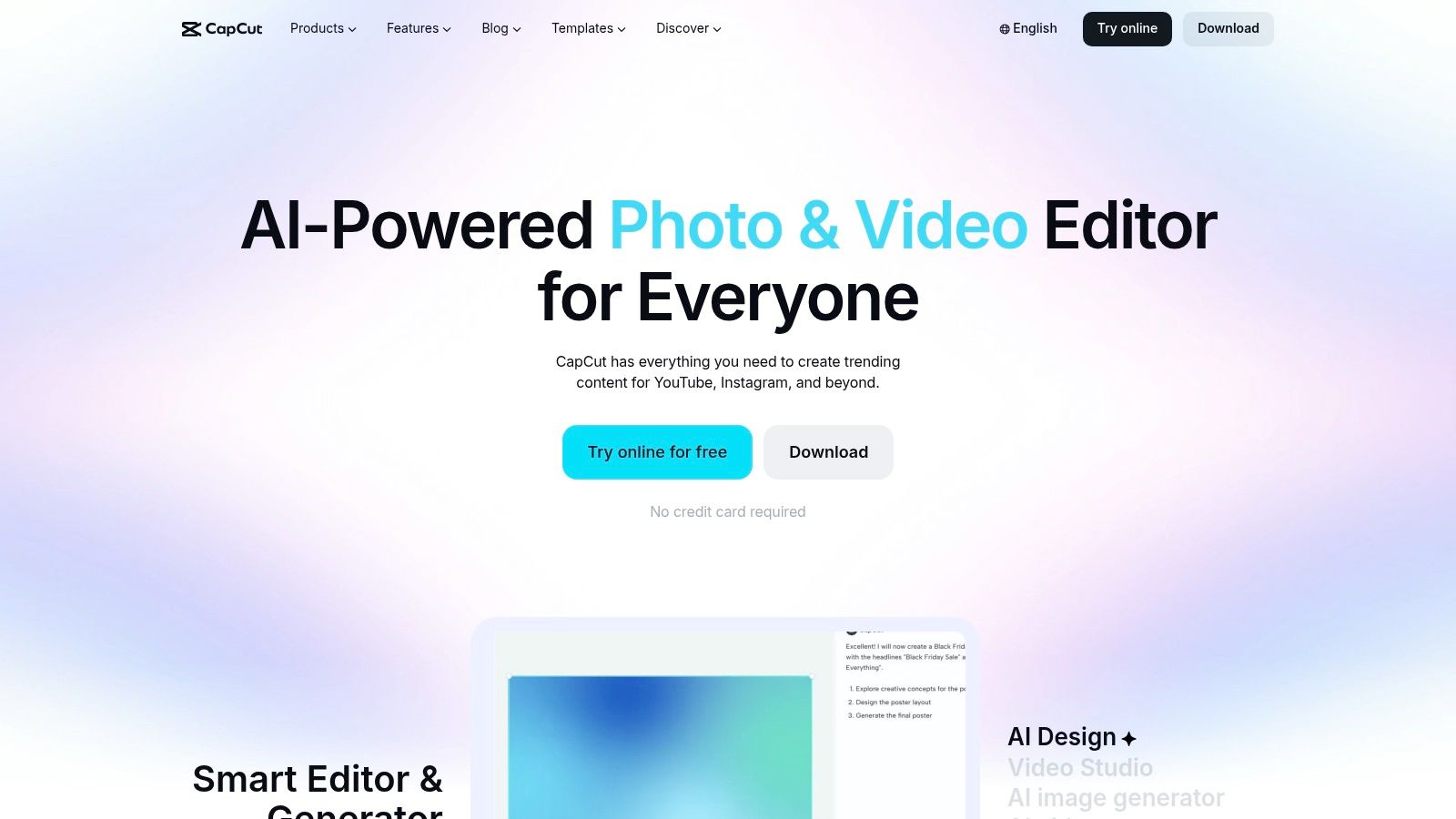
CapCut is what I recommend when someone wants to edit short video on an iPad without spending days learning a desktop editor. It's approachable fast, and the iPad screen gives you enough room to manage clips, overlays, captions, and timing without feeling cramped.
That makes it a good fit for students, small business owners, casual creators, and families making simple video montages. It's one of the few free apps for iPads that feels productive right away.
What makes it practical on iPad
CapCut's free workflow is strongest for short-form content. Trimming, templates, auto-captions, effects, keyframes, chroma key, and stabilization cover a lot of common editing needs without much setup.
What I like:
- Fast starts: templates and defaults help you move quickly.
- Useful editing depth: enough controls to do more than basic trimming.
- Good screen fit: timelines are easier to handle on iPad than on a phone.
What to watch:
- Some features push you toward Pro: especially cloud or premium asset use.
- It's tuned toward social output: great for clips, less ideal for more demanding long-form editing workflows.
If you're editing class projects, product clips, recipe videos, or family highlight reels, CapCut gives you a lot before you hit obvious limits. You can try it at CapCut.
10. Pinterest
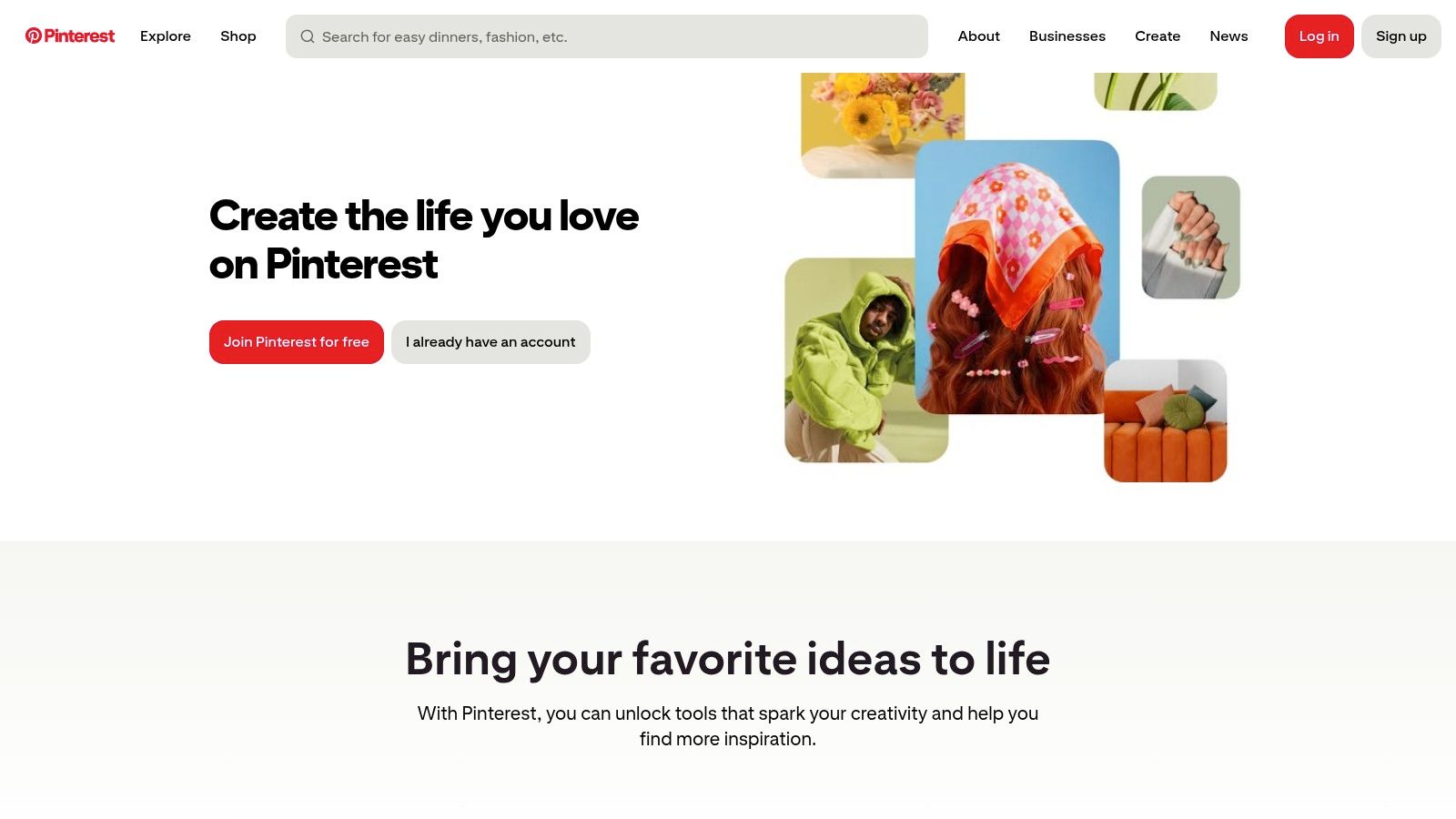
Pinterest is easy to underestimate because people treat it like entertainment. Used well, it's a visual research tool. On iPad, that larger canvas makes boards, recipes, room ideas, seasonal plans, outfit references, and project inspiration much easier to sort through than on a phone.
For home cooks and families especially, Pinterest works best as a staging area. You collect ideas first, then move the keepers into a system that's better for long-term organization.
How to use it without getting lost in the feed
The right way to use Pinterest is to build boards with intent. Create boards for weeknight dinners, holiday baking, kids' lunch ideas, kitchen storage, or party menus instead of one giant catch-all board that becomes impossible to revisit.
Here's the practical method:
- Use sections inside boards: split by season, event, or meal type.
- Save selectively: don't pin everything that looks good in the moment.
- Expect some dead ends: off-app links can be outdated or broken.
For photo-heavy household planning, it also helps to have a second app for sharing finished ideas and memories. This guide to the best app for sharing photos is useful if your iPad also doubles as the family planning screen.
Pinterest is strongest at discovery, not completion. If you treat it like a search-and-save layer instead of a final storage system, it becomes much more useful. You can use it at Pinterest.
Top 10 Free iPad Apps, Feature Comparison
| App | Core features | UX (★) | Recipe-fit ✨ | Target 👥 | Price 💰 |
|---|---|---|---|---|---|
| Microsoft OneNote | Notebooks, pages, ink+text, web clipper, cloud sync | ★★★★, robust inking & search | ✨ Good for clipping & handwritten recipes; not recipe‑specific 🏆 Apple Pencil inking | 👥 Note‑takers & cooks who prefer free‑form organization | 💰 Free; Microsoft 365 for enterprise features |
| Libby (OverDrive) | Borrow ebooks/audiobooks, holds, offline downloads | ★★★★, easy borrowing & large catalogs | ✨ Access to digital cookbooks & food mags; limited organization | 👥 Library patrons & readers | 💰 Free with library card, no late fees 🏆 |
| Canva | Templates, drag‑drop editor, assets library, cloud sync | ★★★★, fast visual creation | ✨ Great for recipe cards, menus, social post visuals | 👥 Food bloggers, creators & small businesses | 💰 Free / Pro for premium assets |
| Notion | Block pages, databases, templates, collaboration | ★★★★, extremely flexible; steep learning curve | ✨ Build relational recipe DBs & meal planners; highly customizable | 👥 Power users, families & collaborative teams | 💰 Free / Paid tiers for advanced features |
| Google Keep | Quick notes, checklists, labels, OCR, reminders | ★★★★, lightning‑fast capture | ✨ Handy for quick grocery lists & shopping checklists | 👥 Casual users & shoppers | 💰 Free |
| VLC for Mobile | Broad codec support, local/network/cloud playback, subtitles | ★★★★, reliable, ad‑free playback | ✨ Play/download cooking videos offline | 👥 Media consumers & video learners | 💰 Free, open‑source |
| Zoom | HD video, screen share, whiteboard, breakout rooms | ★★★★, ubiquitous & reliable | ✨ Good for live cooking classes & remote co‑cooking | 👥 Hosts, educators, virtual class attendees | 💰 Free basic; Pro for extended meetings |
| Spotify | Music & podcasts, playlists, discovery, cross‑device play | ★★★★, strong discovery & curation | ✨ Curated cooking playlists & food podcasts | 👥 Listeners who want kitchen ambiance | 💰 Free w/ ads; Premium for offline |
| CapCut | Templates, auto‑captions, keyframes, chroma key | ★★★★, fast, social‑first editing | ✨ Edit short recipe videos for TikTok/Reels | 👥 Short‑form content creators & food videographers | 💰 Free / Pro for advanced tools |
| Visual search, boards & sections, links to creators | ★★★★, excellent inspiration discovery | ✨ Top source for recipe ideas, meal planning & boards 🏆 | 👥 Recipe hunters, planners & DIY cooks | 💰 Free |
Final Thoughts
An iPad gets cluttered fast. One app for notes turns into three. A design tool sits next to a second design tool you never open. A “must-have apps” list becomes a folder full of trials, paywalls, and duplicates.
The better approach is to build around jobs, not app categories. Pick the free apps that cover how you use the device: capture notes, read, design, plan, watch, meet, listen, edit, and save ideas. That is why this list works better as a toolkit than a roundup. Each app fills a clear role, and several free versions are good enough to keep long term if you stay within their limits.
Those limits matter. Libby and VLC are generous for many users. Canva, CapCut, Notion, and Spotify are more conditional. They are useful at no cost, but the pressure points show up in premium templates, exports, storage, offline listening, or advanced features. The practical move is simple: choose the app whose free tier matches your main task, not the one with the longest feature list.
That matters even more for families, students, and teachers trying to avoid surprise costs. Some apps sound free until device rules, account requirements, or school access change the functionality you can access. One commonly discussed example is Microsoft Office on iPad, where “free” can mean different things depending on screen size and account access, a point that comes up often in user discussions about iPad setup trade-offs (community discussion of iPad app restrictions).
Start small.
One note app, one reading app, one media player, one meeting app, and one creative tool is enough for the first week. After that, add only what fills a real gap. That keeps your home screen clean, reduces overlap, and makes the free versions easier to evaluate before you commit time to any one system.
A good free iPad setup should feel practical. You open the app, do the job, and move on.
If your iPad is also where you save dinner ideas, cookbook photos, social media recipes, and grocery plans, OrganizEat is worth a look. It gives recipes a proper long-term home, with imports from social platforms and websites, offline access, scanned handwritten cards, grocery lists, meal planning, and family sharing across devices.