




You open your iPhone expecting a simple “Create Group” button, because all you want is one tidy list for family, school pickup, a neighborhood potluck, or a project chat. Instead, you get half-solutions. Messages lets you text several people at once. Contacts shows names, but not the kind of editable group one might expect. Then someone with Android joins, the chat turns green, and the features change again.
That’s why iphone create groups is more confusing than it should be. On iPhone, there are really two different kinds of groups that people mean when they say “group,” and Apple treats them as separate things. Once you know which one you need, the setup gets much easier and the annoying dead ends start to make sense.
Table of Contents
- Why Creating Groups on iPhone Is So Confusing
- The iCloud Method for Permanent Contact Groups
- Managing Group Chats Directly in Messages
- Using Third-Party Apps for On-Device Grouping
- Troubleshooting Common iPhone Group Issues
Why Creating Groups on iPhone Is So Confusing
The frustration usually starts with the wrong mental model. People assume a group is a single thing. On iPhone, it isn’t. Apple separates group conversations in Messages from contact groups managed outside the iPhone’s native contact editing flow.
That split is why one task feels easy and the other feels hidden. Apple’s Messages app has long supported starting a conversation with multiple recipients, and Apple’s current guidance shows the process is simple: open Messages, tap Compose, enter multiple recipients, and send the first message in the chat through Apple’s group conversations guide. But that does not create a reusable contact list.
Two different systems with similar names
A Message Group is for talking. You create it in Messages, use it like a live conversation, and manage it as a chat thread.
A Contact Group is for organizing people. It’s the thing you want when you keep sending the same email to a set of people, or when you want a reusable list instead of typing names over and over. If you like keeping digital life clean and category-based, the same mindset shows up in other organization apps, but iPhone itself doesn’t present contact grouping very clearly on-device.
Practical rule: If your goal is “talk to these people right now,” use Messages. If your goal is “reuse this same set of people later,” think contact group.
Message Groups vs Contact Groups At a Glance
| Capability | Message Group (in the Messages App) | Contact Group (via iCloud) |
|---|---|---|
| Main purpose | Ongoing chat | Reusable list of contacts |
| Where you create it | Messages app | iCloud Contacts on the web or a Mac |
| Best for | Family chat, team thread, event planning | Emailing a set of people, organizing contacts |
| Editable on iPhone | Chat management only | View/select only, not native full editing |
| Saved as conversation | Yes | No, it’s a contact list |
| Common frustration | Features change based on message type | People expect to create it directly in Contacts on iPhone |
Most failed attempts happen because users create one type and expect it to behave like the other. A named Messages thread is not a distribution list. A contact group does not automatically become a smart Messages shortcut. Once that clicks, the rest of the process stops feeling random.
The iCloud Method for Permanent Contact Groups
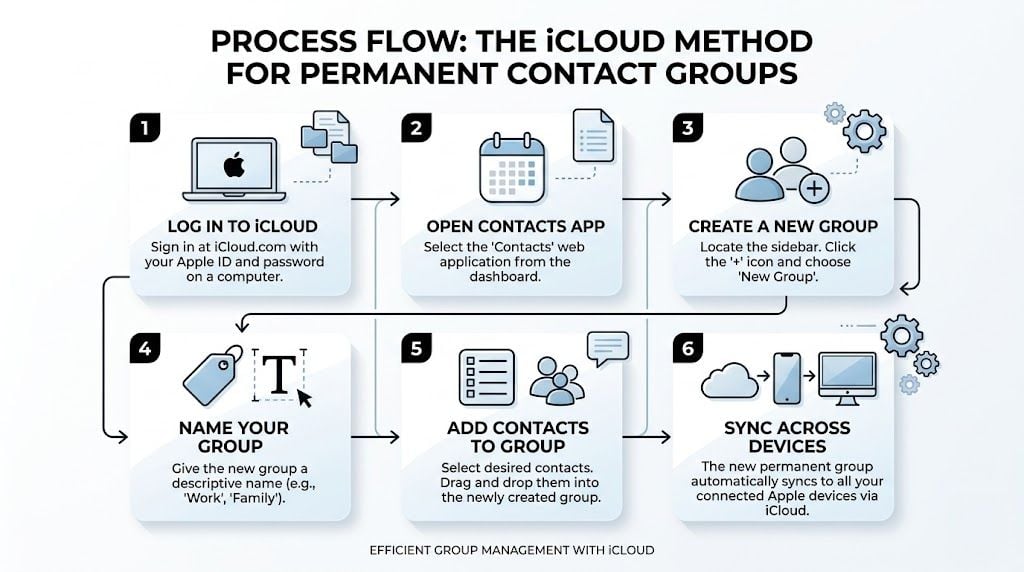
If you need a real, reusable group, this is the method that solves the problem. The key limitation is simple: iPhone itself does not natively create editable contact groups. The usual workaround is iCloud Contacts on the web or a Mac, and on iPhone you can only view or select those groups from the Contacts app by tapping Groups, as described in this guide to managing groups on iPhone.
What this method is actually for
Use this when you want something stable, like:
- Family lists for reunion emails or shared updates
- School contacts for parents, teachers, or activity organizers
- Volunteer groups that you message or email repeatedly
- Book club or team lists that shouldn’t require retyping every time
This is the version of iphone create groups that people usually expect to find in Contacts, but Apple has pushed the creation step to iCloud or Mac instead.
How to create the group
Open a browser on a computer and sign in to your iCloud account. Then open Contacts.
From there, create a new group or list, give it a clear name, and add the people you want. If you’re using a Mac, you can do the same from the Contacts app there. The naming matters more than people think. “Family” sounds obvious now, but “Family Smith-Jones” or “Soccer Carpool” is easier to spot later when you have several lists.
A clean workflow looks like this:
-
Sign in to iCloud
Open iCloud in a browser and go to Contacts. -
Create the list
Add a new group or list and give it a specific name. -
Add existing contacts
Move people from your main contact collection into that group. -
Let sync do the work
If iCloud Contacts is enabled on your iPhone, the list should appear there after syncing.
The smartest naming convention is boring and specific. “Wednesday Book Club” beats “Friends” every time.
How to use the group on your iPhone
Once the group exists, go to the Contacts app on your iPhone and tap Groups. That’s where you can view or select the lists that were created elsewhere.
This is the part many guides skip. You’re not really “building the group on iPhone.” You’re using a group on iPhone that was created through iCloud or a Mac. That distinction explains why so many people tap around the Contacts app and feel like the feature is missing.
A few practical notes help here:
- For email workflows, contact groups make the most sense because they’re reusable.
- For texting, they can help you quickly identify the right people, but they don’t behave like a permanent messaging shortcut in the way many users expect.
- For mixed personal and household use, create narrower groups instead of giant ones. “Immediate Family” and “Extended Family” are easier to manage than one oversized list.
If your need is recurring and organized, this is usually the better long-term setup. It’s less flashy than Messages, but it’s the version that keeps paying off.
Managing Group Chats Directly in Messages
You open Messages, add a few people, send the first text, and it feels like you just created an iPhone group. That assumption causes a lot of frustration later.
A Messages thread is a message group, not a permanent contact group. It helps for an active conversation, but it does not create a reusable list in Contacts that you can keep using across different tasks. That difference matters more than Apple’s interface suggests.
How to start the chat
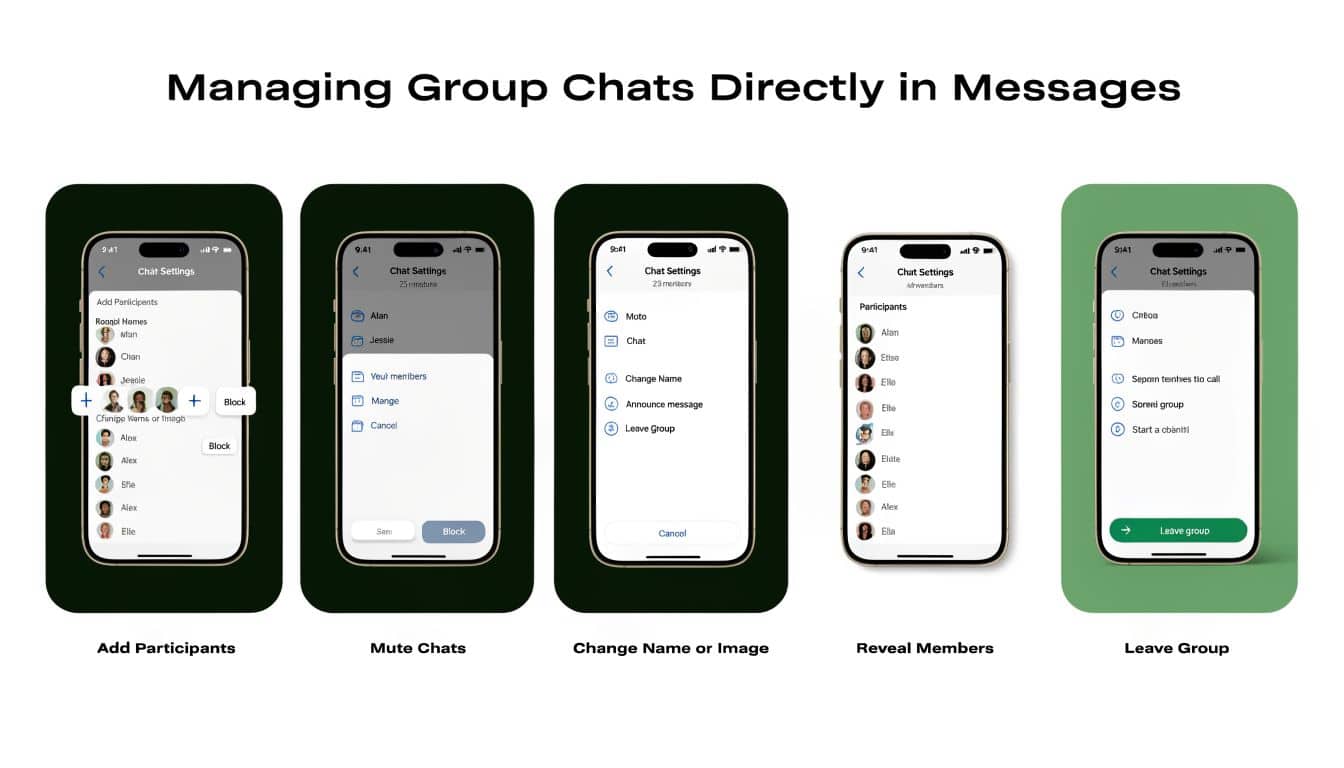
Open Messages, tap the compose button, add multiple people, and send a message. That creates the thread.
What you can do next depends on the type of conversation. An all-iMessage group gives you more control. A mixed group with even one non-iPhone user usually behaves more like a basic SMS or MMS thread, which is why features sometimes seem to disappear.
If you run a club, class, or community and want ideas on how groups use chat to boost member communication, Messages works well for quick coordination. It is weaker as an organizing system.
What Messages is good at, and where it falls short
Messages is the fast option when the goal is simple. Get the right people into one conversation and keep that thread going. For event updates, family logistics, and short-term planning, that is often enough.
The trade-off shows up when you expect permanence. Renaming a chat, adding a photo, and managing members later can work well in an iMessage group. In a green-bubble thread, those controls may be limited or missing. Users often read that as a setup mistake, but the message type is usually the actual reason.
Here’s the practical breakdown:
-
iMessage group chats
Better for ongoing conversations because they usually support a group name, image, and cleaner member controls. -
SMS or MMS group chats
Fine for basic texting, but less predictable if you want to rename the thread or manage it like a saved group. -
Adding people later
Sometimes available, sometimes not. If the option is missing, check whether the thread includes non-iMessage participants. -
Repeated outreach
Weak fit. A chat thread is still just a conversation, not a reusable contact list for future use.
One way to avoid future cleanup is to decide upfront what kind of group you need. If you want the same people together for one ongoing conversation, use Messages. If you want a reusable list for email, outreach, or structured planning, use a contact group instead. That distinction saves time.
I also recommend naming chats narrowly when iMessage allows it. “Soccer Pickup Thursday” ages better than “Team,” especially when you come back to the thread weeks later.
If you use digital tools to coordinate recurring plans, these free planner app options for organizing groups and schedules can complement Messages well. Messages handles the conversation. A planner handles the structure.
Using Third-Party Apps for On-Device Grouping
Some people don’t want to touch iCloud on a computer every time they need to sort contacts. That’s where third-party contact manager apps come in. They exist because Apple leaves a real gap here. Users want to create and edit groups directly on the phone, and native iPhone tools still don’t make that especially smooth.
Why people use them
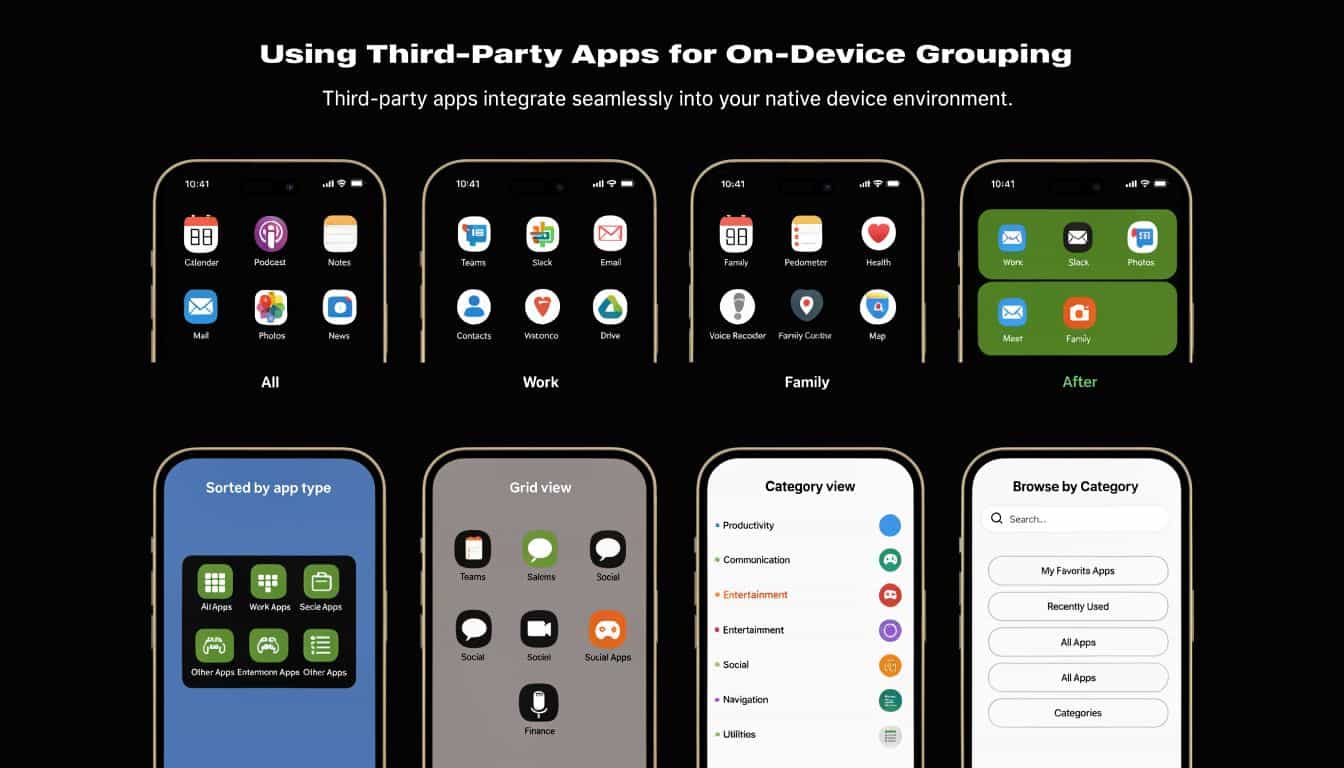
The appeal is simple. These apps often let you organize contacts on-device, without switching to a browser or Mac.
Depending on the app, you may get features like:
-
Direct group editing
Build and adjust lists from your iPhone instead of using iCloud on the web. -
Better visual organization
Some apps use labels, color coding, or cleaner sorting views. -
Smarter grouping
Advanced apps may support rules-based grouping, duplicate cleanup, or easier batch actions. -
Faster outreach
Some make it easier to prepare a group email or select a set of contacts for a new message.
If you’re already comparing digital tools for planning and organization, broad app roundups like these free planner app options can help you think through what matters most in a utility app, especially setup friction and long-term usability.
When this route makes sense
Third-party apps are best for people who manage groups often. If you update member lists regularly, juggle several family circles, or want more than Apple’s default setup offers, the convenience can be worth it.
Still, there are trade-offs:
| Consideration | What it means in practice |
|---|---|
| Privacy | The app may need access to your contacts, so read its permissions and privacy policy carefully |
| Cost | Some apps charge once, others use subscriptions |
| Reliability | A polished app can save time, but a poorly maintained one can create duplicate or messy data |
| Simplicity | Great for power users, overkill for someone who just needs one family list |
The safest mindset is to treat these apps like specialized utilities. They can be excellent, but they deserve the same scrutiny you’d give any app handling personal data.
Troubleshooting Common iPhone Group Issues
You create a “group” on iPhone, come back later to edit it, and the controls you expected are missing. That usually happens because iPhone treats two different things as groups. A temporary message thread in Messages is not the same as a permanent contact group in Contacts or iCloud. Once you separate those two ideas, the weird behavior starts to make sense.
The first troubleshooting step is to identify which kind of group you made.
Why the group behaves differently than you expected
A message group is tied to the conversation itself. Its features depend on who is in the chat, whether everyone is using Apple messaging, and how the thread was started. That is why one chat lets you name it or manage notifications cleanly, while another feels stripped down.
A contact group is different. It is a saved list of people for later use. If your real goal is to repeatedly message the same set of contacts, send group emails, or keep a family list intact over time, a contact group is usually the better fit. Many frustrations come from building a message thread when what you wanted was a reusable contact list.
Here are the problems I see most often:
-
“Why can’t I name this group?”
The thread may not support the full iMessage-style controls you expected. -
“Why did the group disappear after the conversation got messy?”
Message groups are conversations, not permanent lists. They are easier to lose track of than a saved contact group. -
“Why can’t I remove or reorganize people?”
Group management depends on the type of conversation and the mix of participants in it. -
“Why does one group act differently from another?”
Different devices, settings, and messaging methods can change what options appear.
Practical fixes that save time
Start with the fix that matches the problem.
If the issue is with a recurring set of people, stop rebuilding the same chat from scratch. Create a permanent contact group instead, then use that list when you need to reach everyone again. If the issue is only noise or clutter inside one conversation, stay in Messages and adjust that thread rather than redoing your whole setup.
A few checks solve a lot of headaches:
-
Confirm your messaging settings
If a thread depends on MMS behavior, make sure MMS Messaging is turned on in Settings. -
Use clear names for saved contact groups
“Soccer Parents” or “Building Committee” is easier to spot later than “Group 1.” -
Mute first, delete later
If the chat works but sends too many alerts, silencing notifications is usually the smarter move. -
Keep a backup of recurring members
A saved note, a contact card reference, or a permanent group list makes rebuilding much faster. -
Test with a small group
If one thread keeps acting strangely, create a fresh conversation with a few of the same people. That helps you tell whether the issue is the chat itself or the group type you chose.
The key question is simple. Are you trying to manage a conversation, or save a reusable list of people?
If you want more step-by-step help organizing digital lists and household information, browse these practical organizing tutorials.
If you like having things sorted once and easy to find later, OrganizEat brings that same clarity to recipes. It gives families and home cooks one place to save recipes from social media, websites, handwritten cards, and cookbooks, then organize everything into categories that are practical when it’s time to cook or shop.