



Dinner starts with good intentions. Then the phone screen goes dark, the cookbook won't stay open, the grocery list is on a scrap of paper, and the recipe you saved from social media has vanished behind ads and pop-ups. By the time the pan is hot, the kitchen already feels noisy.
A good Kitchen Display App changes that feeling more than it changes the device. The true shift is psychological. One clean screen. One readable recipe. One place for your plan, your ingredients, and your next step. That's what turns cooking from scattered to steady.
For home cooks, this idea used to sound like restaurant tech brought into the wrong room. It isn't. It's a smart way to turn a tablet or display you already own into a calm, practical command center.
Table of Contents
- Beyond the Recipe Binder A Modern Kitchen Command Center
- Choosing Your Display and Getting Set Up
- Building Your Digital Cookbook in Minutes
- Mastering Hands-Free Cooking Mode
- Syncing Shopping Lists and Planning Meals
- Pro Tips for a Flawless Kitchen Setup
Beyond the Recipe Binder A Modern Kitchen Command Center
The old setup usually looks the same. A stained binder on the counter. A phone propped against a salt cellar. Sticky notes with substitutions. Half a grocery list on the back of an envelope. It works, until it doesn't.
The better setup is quieter. The recipe stays open. The steps are readable from across the counter. Notes live with the recipe instead of floating around the kitchen. A kitchen display app turns an ordinary tablet into the place where cooking is done, not just where recipes are stored.
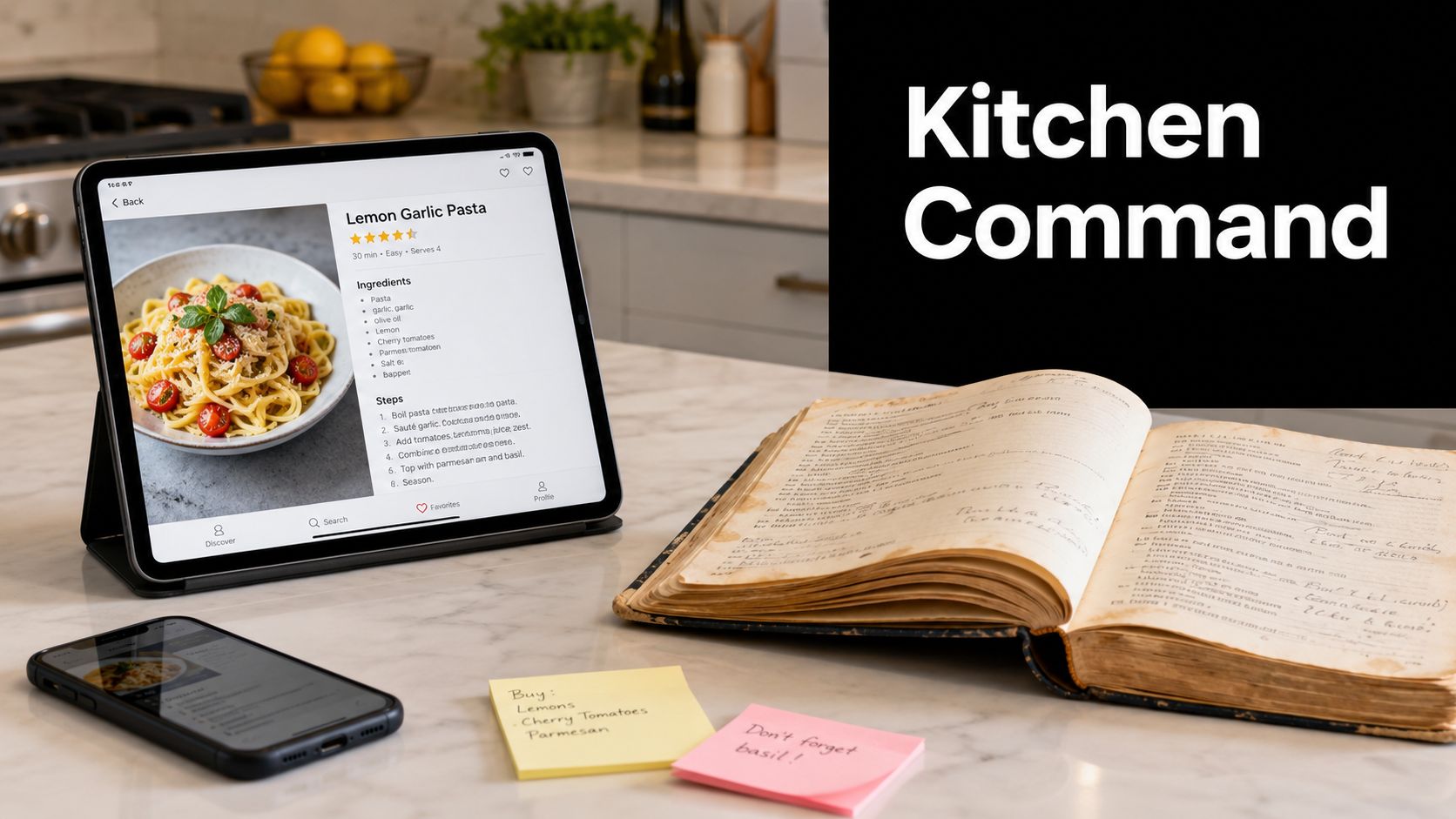
What the shift feels like in real life
Instead of tapping between browser tabs, texts, timers, and ingredient notes, you glance once and keep moving. That matters more than people think. Good cooking often comes down to preserving attention.
I've found that the calm comes from reducing decision points. You're not asking, “Where did I save that?” or “Was the oven step before or after the sauce?” The screen becomes a single source of truth for the meal.
A kitchen runs better when the recipe is visible, stable, and easy to follow at a glance.
That's also why home use is no longer a fringe idea. Recent data from 2024 to 2025 shows 43% of kitchen display system users are in non-traditional settings like home bakeries, while 57% of food bloggers and social media recipe savers want to sync their finds with operational cooking tools according to Fresh Technologies on non-traditional KDS use. Home cooks want the same clarity restaurants chase. They just want it without industrial hardware.
More than a gadget on the counter
The most useful smart kitchen tools remove friction instead of adding new rituals. That's one reason thoughtful kitchen planning matters as much as the app itself. If you're thinking about placement, charging, and how screens fit into a real cooking space, The Cabinet Coach on smart kitchens offers a helpful design-minded perspective.
A modern home kitchen command center doesn't need to look high-tech. It just needs to do three things well:
- Hold your recipes in one place: No hopping between bookmarks, screenshots, and paper cards.
- Stay visible while you cook: A screen that locks every minute isn't helping.
- Support the full meal flow: Planning, shopping, cooking, and sharing should feel connected.
That's the difference between owning recipes and using them.
Choosing Your Display and Getting Set Up
The best display is rarely the fanciest one. It's the one that fits your kitchen, survives daily use, and stays easy to see while you're moving between sink, stove, and prep area.
For most home cooks, the choice often comes down to three options: an old iPad, a basic Android tablet, or a smart display. Each works. Each has trade-offs.
Picking the right device for your kitchen
Here's the simple comparison I use:
| Device | Best for | Main advantage | Main drawback |
|---|---|---|---|
| Old iPad | Cooks who already own one | Reliable screen quality and responsive touch | Can feel expensive to dedicate to kitchen use |
| Android tablet | Budget-conscious setups | Easy to repurpose and often affordable | Quality varies more from model to model |
| Smart display | Hands-free convenience | Good for glanceable use and voice support | App flexibility can be more limited |
A repurposed tablet is usually the sweet spot. You get a larger screen than a phone, enough app flexibility for planning and cooking, and a device that doesn’t mind becoming “the kitchen one.”
Placement matters more than specs
People often focus on screen size first. Placement matters more. If the display sits too low, you hunch over it. Too far from the prep area, and you stop using it. Too close to the stove, and grease becomes a constant battle.
Use these practical placement rules:
- Keep it outside the splash zone: Steam, oil, and sauce splatter will wear down any setup.
- Set it near your main prep area: You want to glance at it while chopping, not walk over to read each step.
- Check viewing angle before mounting: Stand where you cook and confirm you can read ingredients and directions clearly.
- Plan for charging from day one: A neat cable route beats a dead battery halfway through dinner.
Practical rule: If you can’t read the next step while stirring a pan, the screen is in the wrong place.
Mount or stand
A countertop stand is the easiest starting point. It’s flexible, cheap, and simple to test before drilling anything. Under-cabinet mounts save space and look cleaner, but they work best when you already know your preferred viewing position. Wall mounts are useful in narrow kitchens where every inch of counter matters.
If you use an iPad for planning as well as cooking, it helps to think beyond the kitchen itself. A dedicated planner workflow for iPad users can make the same device useful at the counter, on the couch, and at the grocery store.
A good setup doesn’t need to be permanent on day one. Start with a stand. Cook with it for a week. Notice where your eyes naturally go. Then decide whether a mount is worth it.
Building Your Digital Cookbook in Minutes
A kitchen display app is only as useful as the library behind it. If your recipes still live in browser bookmarks, screenshots, social posts, and handwritten cards, the screen won’t feel organized for long.
The fix is to build one searchable collection. Not someday. In one sitting.
Import recipes from the web without the clutter
The fastest way to fill a digital cookbook is direct web import. Done well, it strips away ads, long life-story intros, and popup chaos, then keeps what you need: ingredients and directions.
A reliable kitchen display app must support importing recipes from over 200 websites using the JSON-LD data standard, which automatically pulls structured data like ingredients and directions to ensure accuracy without manual typing, as noted in OrganizEat’s recipe import overview.
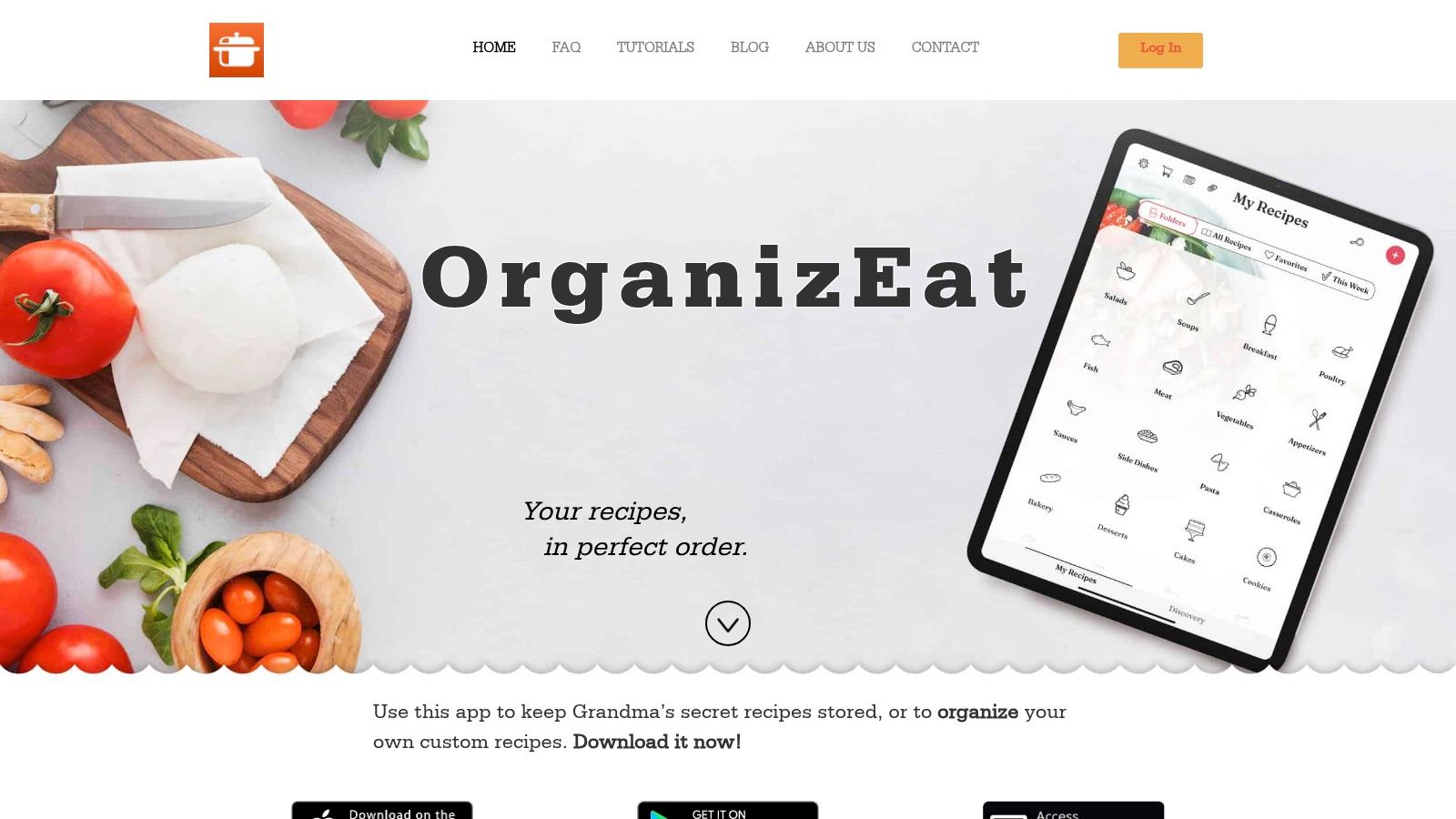
That matters because manual copying introduces mistakes. A missed tablespoon or incomplete instruction can throw off the whole meal. Structured import keeps the recipe cleaner from the start.
If you want a practical look at that workflow, this guide on turning web recipes into personal digital collections shows the mechanics clearly.
Save family recipes without flattening them
Web imports solve one problem. Family recipes solve another.
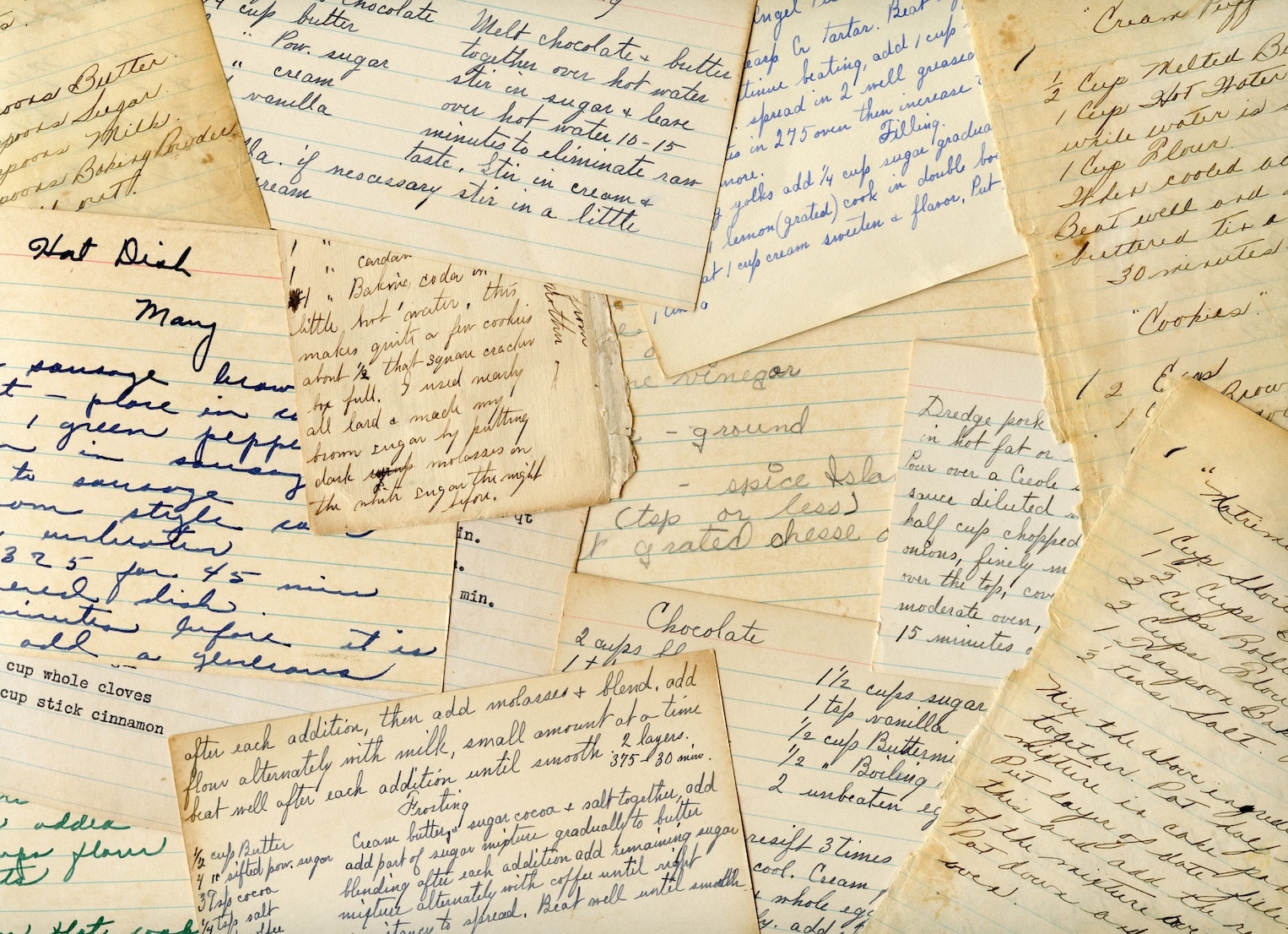
A lot of the most-used dishes in a home kitchen aren’t online at all. They’re written on index cards, clipped from magazines, or scribbled in margins. The best digital cookbook lets you photograph those originals and keep them organized without losing their character.
That’s important for two reasons:
- You preserve the original look: Grandma’s handwriting still feels like Grandma’s handwriting.
- You stop treating precious recipes like loose paper: No more drawers full of fading cards.
Don’t wait for a “perfect weekend project.” Digitizing five family recipes now beats preserving fifty someday.
Add your own recipes the simple way
Custom recipes need room for improvisation. Some cooks write exact measurements. Others write “until it smells right” and “bake until golden.” A rigid form makes that annoying. A flexible entry flow makes it useful.
The strongest setup usually combines all three methods:
- Imported recipes from websites: Great for weeknight inspiration and new ideas.
- Photo captures of handwritten or printed recipes: Best for family cooking and old favorites.
- Manual entry for originals: Ideal for your own soups, marinades, and repeat meals.
Once everything lives in one place, search becomes the superpower. Chicken thighs, no dairy, pantry dinner, birthday cake. Those aren’t separate piles anymore. They’re filters in a kitchen you can finally control.
Mastering Hands-Free Cooking Mode
The moment a kitchen display app proves itself is not when you save a recipe. It’s when your hands are covered in flour, the oven is hot, and you need the next instruction without touching a thing.
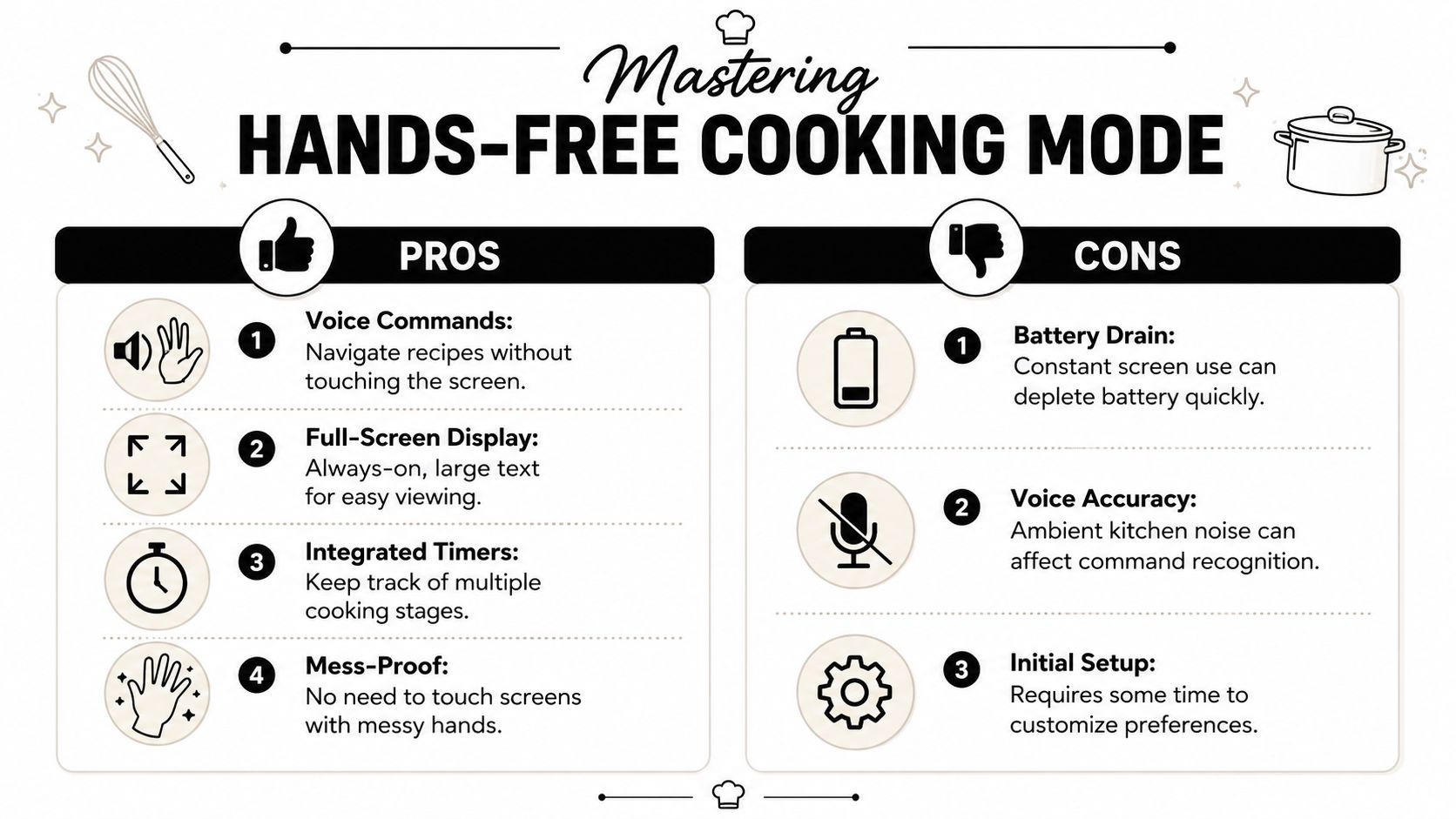
That’s where cooking mode earns its keep. A proper full-screen view with large text and an always-on display removes the tiny interruptions that make home cooking feel frantic.
One recipe, one screen, less mental noise
Think about a layered cake. You’re moving between batter, filling, oven timing, and cooling. On a phone, that usually means pinching to zoom, waking the screen, and scrolling with sticky fingers. On a good kitchen display, the step stays visible and the pace stays steady.
That change sounds small until you cook something with multiple stages. Then it feels like someone has cleared a path through the middle of the kitchen.
While commercial kitchens see up to 40% fewer order errors with display systems, home cooks can achieve a similar benefit by using a clear, hands-free display that eliminates confusion from smudged printouts or screens timing out, leading to greater recipe accuracy, according to National IT Pros on KDS accuracy and speed.
Features that actually help during cooking
The best hands-free experience usually includes a few practical pieces working together:
- Large readable text: You shouldn’t need to lean in to check whether it says teaspoon or tablespoon.
- Always-on display: The screen stays awake while you cook.
- Step-based timers: Timers tied to specific parts of the recipe reduce context switching.
- Simple navigation: Big tap targets or voice support matter when your hands are wet or greasy.
Where hands-free mode falls short
Hands-free isn’t perfect. Voice commands can mishear you in a loud kitchen. Constant screen use drains battery faster. Initial setup takes a little fiddling to get text size, sleep settings, and orientation right.
Still, those are setup problems, not daily problems. Once tuned, the display fades into the background in the best possible way.
The goal isn’t to make cooking feel digital. The goal is to remove the little interruptions that break your rhythm.
That’s why cooking mode works best for baking, holiday meals, and any dinner with overlapping tasks. It lowers the number of things you need to hold in your head at once.
Syncing Shopping Lists and Planning Meals
A kitchen display app becomes much more useful when it leaves the counter with you. The real convenience shows up on Tuesday night when you choose recipes, on Wednesday morning when you check what’s missing, and at the store when the list on your phone already reflects the plan.
That connected flow is what makes meal planning stick. If recipe selection, grocery lists, and cooking all live in separate tools, people stop maintaining the system.
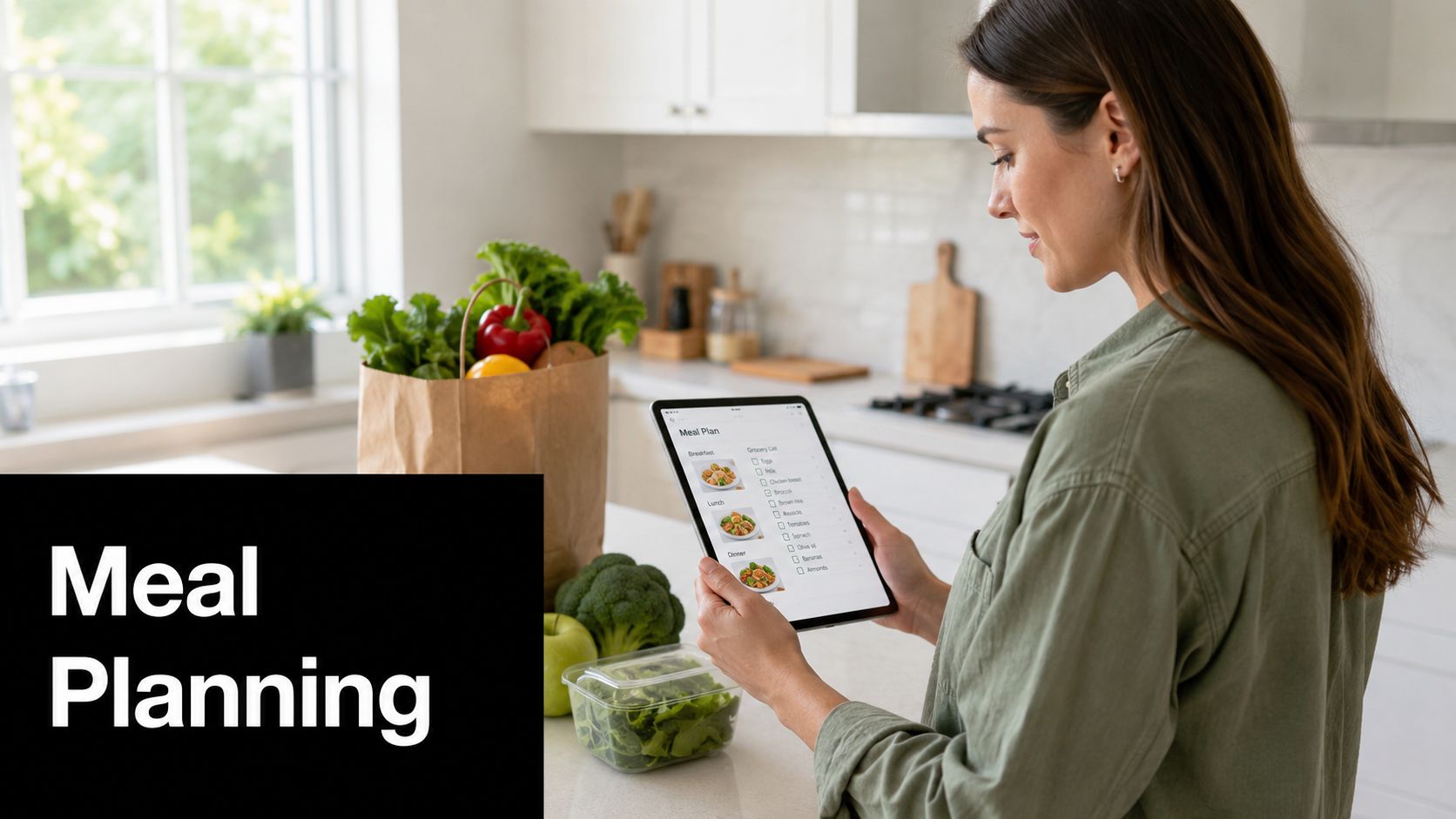
Build the list from the recipe
The most practical version of meal planning starts inside the recipe itself. You choose a dish, add ingredients to a shopping list, and then layer in the extra household items that never appear in recipe instructions. Paper towels. Milk. Lunch snacks. Dish soap.
That’s where the app stops being a recipe holder and starts acting like a kitchen system.
Just as commercial kitchens reduce ticket times by 20-30% with display systems, home cooks can use a synced planning and shopping list app to make their meal prep and grocery trips significantly more efficient, saving valuable time each week, based on Delivety’s guide to kitchen display systems.
Make the weekly plan visible
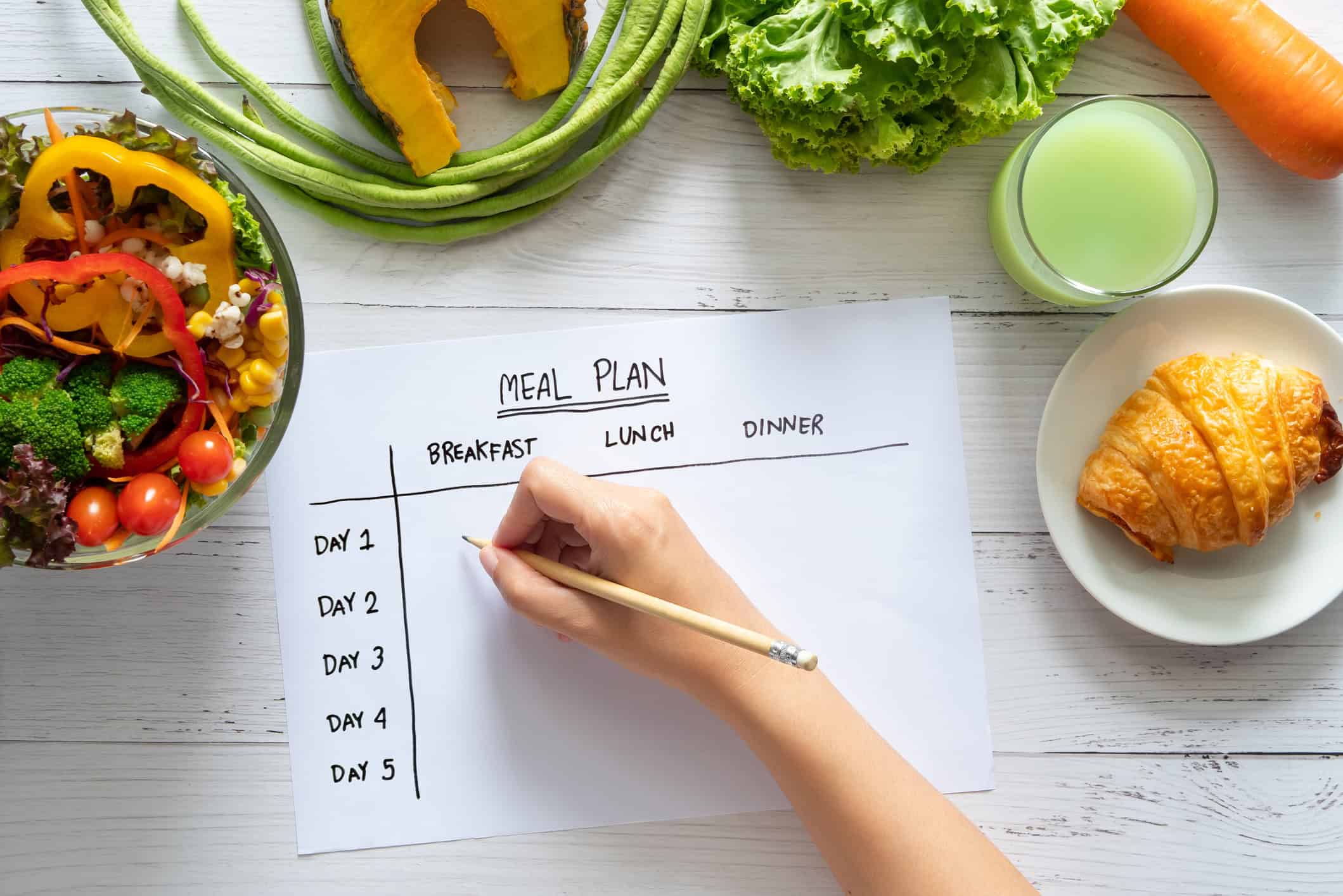
A visible meal plan reduces last-minute decision fatigue. It also helps with ingredient overlap. If one recipe uses half a bunch of cilantro and another uses the rest, that’s easier to catch on a calendar than in a pile of saved links.
Useful habits include:
- Assign meals to days: Even a loose weekly plan beats deciding at 5:30 every evening.
- Check your pantry before exporting the list: This cuts duplicate purchases.
- Keep the list synced to your phone: The kitchen tablet is for planning. The phone is for shopping.
- Group recipes by occasion: Weeknights, lunch prep, freezer meals, holidays.
If you want a more integrated approach, this article on using a meal planning app with pantry inventory is a solid next read.
Why this part matters
Cooking feels easier when the decision-making happened earlier. The display on the counter is only the final stage. The calm starts when dinner has already been chosen and the ingredients are already in the house.
Pro Tips for a Flawless Kitchen Setup
The best kitchen display app setup is not the one with the most features. It’s the one you’ll still enjoy using six months from now, after grease, weak Wi-Fi, recipe experiments, and family sharing have tested the system.
A few habits make the difference between a setup that feels polished and one that slowly becomes annoying.
Keep the screen clean and readable
Kitchen screens collect a film fast. Oil vapor, flour dust, fingerprints, and sauce splatter all dull visibility.
Use a soft microfiber cloth first. If the screen needs more than a dry wipe, lightly dampen the cloth rather than spraying the device directly. Clean after cooking, not during the rush, and avoid abrasive towels that leave fine scratches.
A readable screen is part of the workflow, not a cosmetic extra.
Prepare for the glitches that actually happen
Most problems are boring, which is good news. They’re easy to solve.
- Recipe import looks messy: Check whether the original page is structured cleanly. If it isn’t, save the core details manually and move on.
- Wi-Fi drops in the kitchen: Offline access matters more than people expect, especially in older homes or basement kitchens.
- The tablet dies mid-recipe: Leave a charging cable in place permanently. Don’t treat kitchen power as optional.
- Text is still too small: Increase display size and simplify the cooking view. Fancy layouts often read worse at a distance.
Share and maintain without friction
A kitchen setup becomes part of family life once other people can use it. That means shared recipes should be easy to open, shopping lists should stay synced, and your categories should make sense to someone besides you.
Simple naming helps. “Weeknight pasta” is more useful than “Dinner idea.” “Holiday cookies” beats “Baking.”
This home-focused, software-first approach matters because 68% of new food businesses are micro-scale, which points to growing demand for simpler tools that help manage recipes and pacing without expensive hardware, according to Johnson & Wales coverage of KDS gaps in micro-scale food businesses. That same principle applies at home. The setup that wins is the one that stays light, clear, and easy to live with.
A flawless kitchen system doesn’t feel technical. It feels dependable. You tap the recipe, cook the meal, and the kitchen stays calmer than it used to be.
If you want a simple way to turn your recipes, screenshots, handwritten cards, shopping lists, and meal plans into one calm cooking system, OrganizEat is worth a look. It gives home cooks a practical digital home for recipes, an easy cooking mode, and synced planning tools that make the whole kitchen feel more under control.