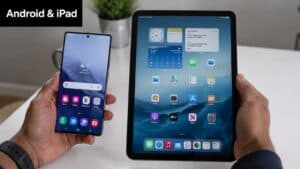


You save a recipe on your phone in the grocery line, add ingredients to a shopping list on the couch, then walk into the kitchen with your iPad and realize half your stuff isn't there. That's the moment many users start searching for how to sync iPad with phone.
The fix usually isn't hard. The hard part is knowing which kind of sync you need. If you use an iPhone, Apple gives you a deep built-in system for photos, notes, contacts, calendars, messages, and app downloads. If you use Android with an iPad, the workflow is different, but it's still workable if you choose the right bridge services. Then there's the third layer often overlooked. Your apps often have their own sync rules, and that's where grocery lists, saved recipes, and meal plans either stay beautifully in step or drift apart.
Table of Contents
- Why Syncing Your Devices Matters
- The Apple Ecosystem Syncing an iPhone with an iPad
- Bridging the Gap Syncing an Android Phone with an iPad
- Syncing Your Apps and Data Across All Devices
- Troubleshooting Common Sync Problems
- Creating Your Unified Digital Space
Why Syncing Your Devices Matters
Most sync problems start as small annoyances. A recipe photo sits on your phone but not on your iPad. A grocery edit you made before leaving work doesn't show up in the kitchen. A note with dinner ideas lives on one screen, while the other device still shows yesterday's version.
When your devices are synced properly, that friction disappears. You clip a recipe on one device, review it on another, and shop from the same list everywhere. Photos, notes, contacts, and calendars stop feeling tied to a single piece of hardware and start acting like one shared digital space.
That's become normal behavior for a lot of people. iCloud was being used by over 1.5 billion active devices as of 2020, which tells you syncing isn't some niche power-user trick anymore. It's a standard expectation for people who want their libraries and settings available across iPhone and iPad every day.
Practical rule: The best sync setup is the one you don't have to think about while cooking, shopping, or answering a text.
For home life, the payoff is simple. You can save a recipe while waiting at school pickup, open it on your iPad next to the stove, and still have your shopping list on your phone in the store. The same logic applies to calendars, too. If your household schedule gets tangled across multiple devices, this guide on explaining calendar sync for professionals does a good job breaking down how synchronization works in day-to-day use.
Some readers need Apple-to-Apple syncing. Others need Android-to-iPad. Both can work. The difference is how much the operating system handles for you and how much you'll hand off to Google or individual apps.
The Apple Ecosystem Syncing an iPhone with an iPad
If you use an iPhone and an iPad, Apple gives you the smoothest route to sync iPad with phone. But “automatic” only works when the setup is clean.
Start with the same Apple Account
The first check is boring, but it solves more problems than any fancy trick. Both devices need to be signed in with the same Apple Account. On each device, go to Settings > [your name] and confirm the account matches exactly.
If the accounts don't match, core iCloud data won't line up properly. Contacts may appear on one device but not the other. Notes can split. Photos can look random. In practice, this is the first thing I check any time someone says sync “sort of” works.
Use this quick review:
- Confirm the account name on both devices.
- Check iCloud is enabled under your Apple Account settings.
- Stay on Wi-Fi while the first sync finishes.
- Accept merge prompts carefully if Apple asks whether local data should merge with iCloud.
If you skip the merge step when it appears, you can end up with a device that looks connected but still holds data separately.
Turn on the right iCloud toggles
After the account matches, turn on the specific data types you want to sync. On both devices, open Settings > [your name] > iCloud and enable the categories you care about, such as Photos, Contacts, Calendars, Notes, and Safari.
This part matters because iCloud doesn't guess your preferences perfectly. You may want calendars and contacts synced, but not every app. For photos, check the dedicated iCloud Photos toggle. If that setting is off, photo sync won't happen even if other iCloud items are enabled.
A successful setup depends on the same Apple ID and the right toggles being on. The most common failure is the “Storage Ceiling,” which affects about 12% of users when the free 5GB iCloud quota fills up, stopping sync until storage is cleared or upgraded.
A practical checklist helps:
- Photos missing: Verify iCloud Photos is on for both devices.
- Contacts not matching: Make sure iCloud is your active contacts account, not just a secondary account.
- Calendars split across accounts: Check whether some events are being saved to Google, Exchange, or another service instead of iCloud.
- Apps not appearing: App data and app installation aren't always the same thing. Turn on Automatic Downloads in Settings > App Store if you want purchased apps to appear across devices.
If your household also shares calendars, these iPhone calendar sharing tips for families are useful because calendar sync gets messy fast when family members mix personal and shared schedules.
For app installation parity, this walkthrough on moving apps from iPhone to iPad is worth keeping handy because it clears up the difference between synced data and downloaded apps.
Use Apple continuity features the right way
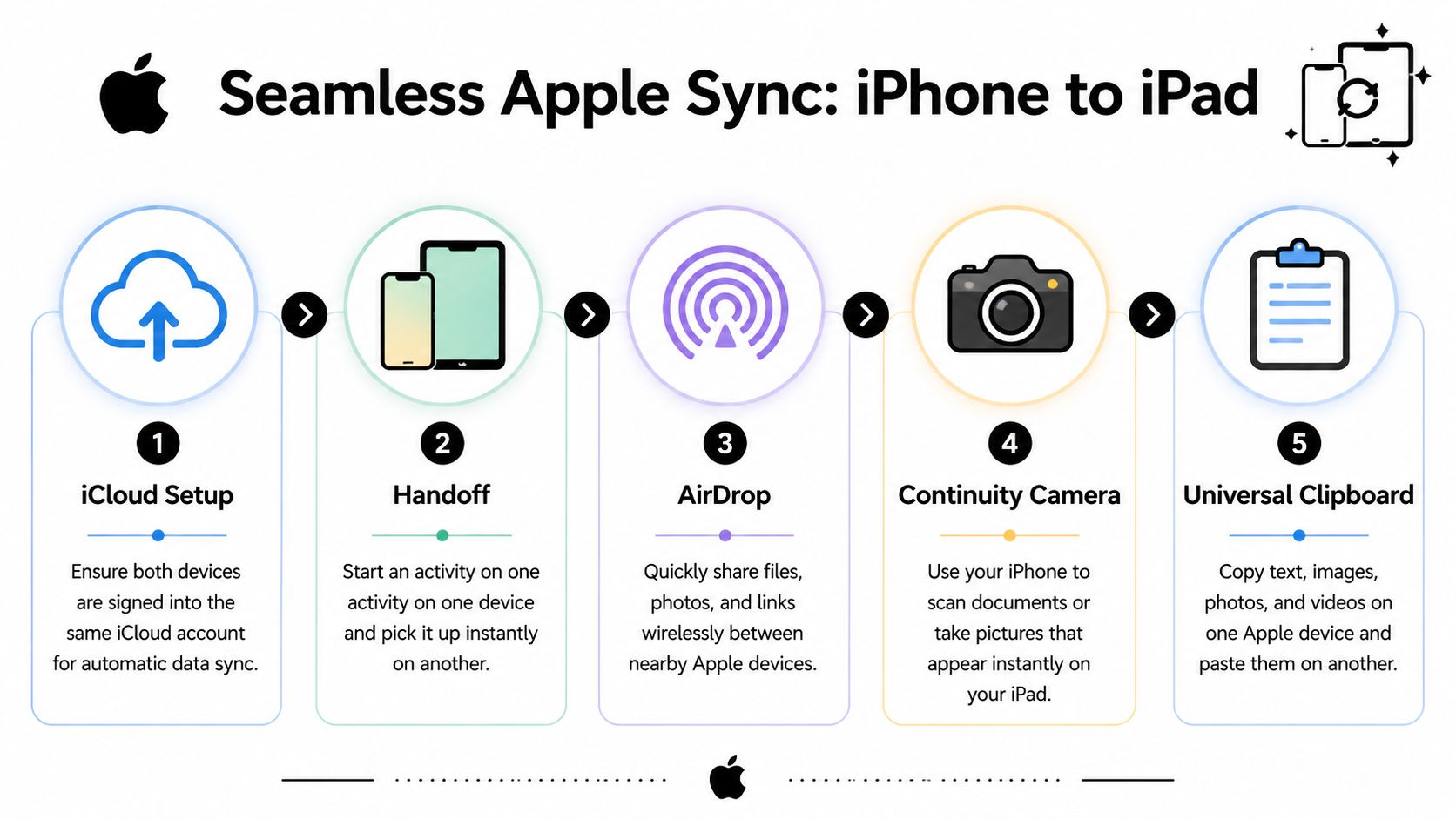
A lot of people think syncing only means cloud data. In Apple's ecosystem, it also means Continuity features that make two devices behave like a team.
Here are the ones that matter most in daily life:
- Handoff: Start reading a webpage, email, note, or supported app activity on your iPhone and continue on your iPad.
- AirDrop: Send files, photos, links, and scans directly between nearby Apple devices without waiting for cloud upload.
- Universal Clipboard: Copy a shopping list item or recipe note on one device and paste it on the other.
- Continuity Camera: Use your iPhone camera to scan documents or take a picture that appears on your iPad.
These tools don't replace iCloud. They fill the gaps when you need immediate movement between devices instead of waiting for background sync.
A final trade-off matters here. iCloud sync is excellent for living data like contacts, notes, and photo libraries. If you're setting up a new device and want a fuller migration, Apple's Quick Start direct transfer is often better for big one-time moves because it copies more of your environment in one pass. For ongoing day-to-day use, though, iCloud remains the base layer.
Bridging the Gap Syncing an Android Phone with an iPad
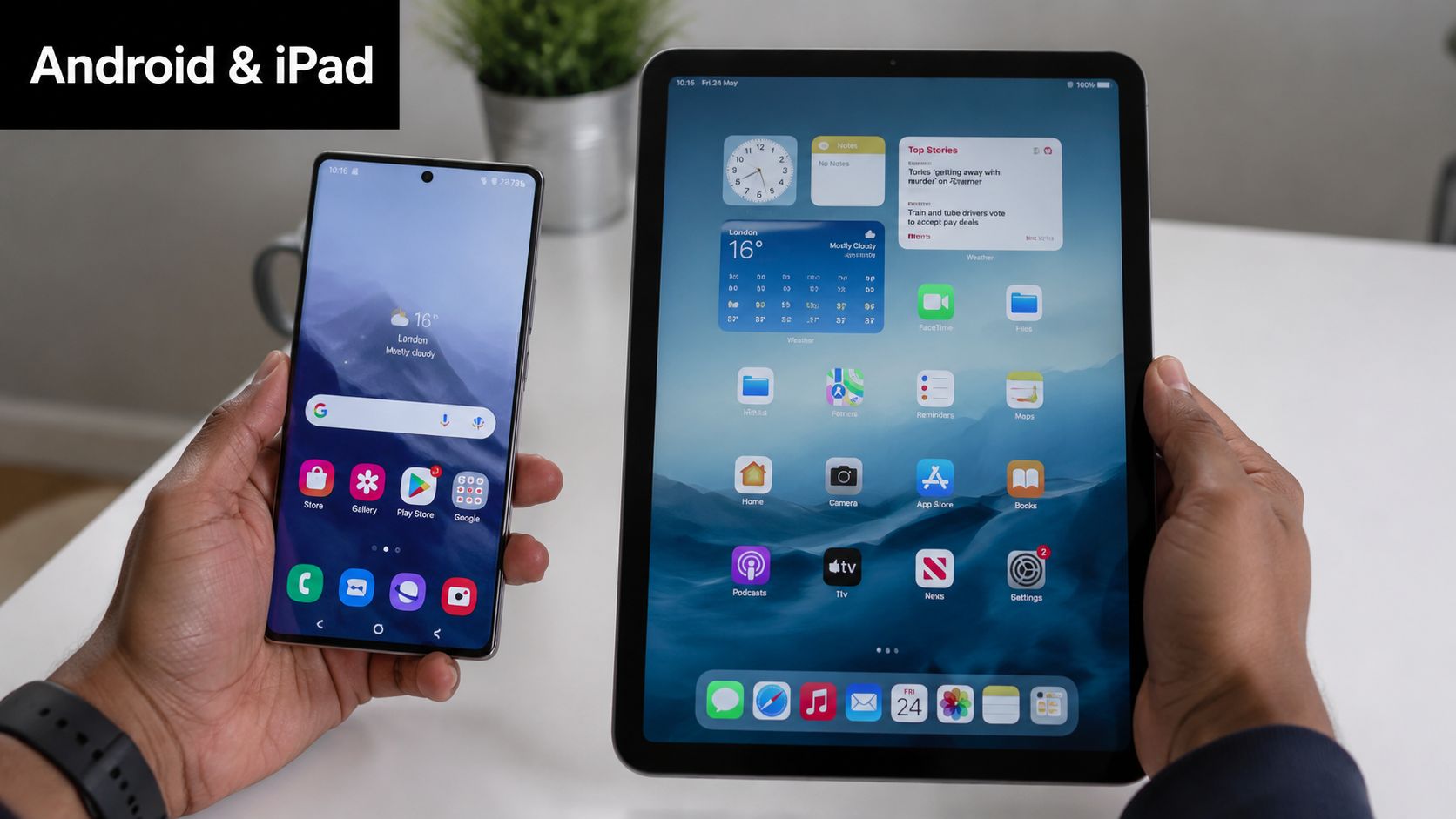
Android and iPad can work together, but you need a shared middle ground. In most cases, that middle ground is your Google Account.
Use Google as the shared hub
If your phone is Android, don't try to force the iPad into acting like a second Android device. Let Google Contacts, Google Calendar, Google Photos, and Gmail carry the data between platforms.
On the iPad, add your Google account through Apple's settings. Once connected, you can choose which services show up on the iPad. Contacts and calendars usually work smoothly because both Apple and Google support them well. Photos are often easiest through the Google Photos app rather than the Apple Photos app.
Here's the side-by-side view that helps most:
| Data Type | Primary Sync Method | Ease of Sync |
|---|---|---|
| Contacts | Google Account added to iPad settings | Easy |
| Calendar | Google Calendar account on iPad | Easy |
| Photos | Google Photos app on both devices | Moderate |
| Notes | App-specific account or manual export | Moderate |
| SMS and phone calls | No true native sync to iPad | Limited |
| App data | Sign in within each app | Varies |
What syncs well and what doesn't
The strongest Android-to-iPad workflow usually looks like this:
- For contacts and calendars: Use Google as the master source.
- For photos: Open the same library through Google Photos.
- For documents and saved files: Keep them in a cloud service you can access on both platforms.
- For recipes and lists: Use apps with their own account-based sync.
What doesn't translate cleanly is just as important. Standard Android text messages don't flow into Apple's Messages app the way iPhone messages do. App purchases don't carry over between stores. Some app data stays locked inside the original platform unless the app itself provides account sync.
That's why cross-platform users often do better with service-based tools than device-based assumptions. You're not really syncing Android to iPad directly. You're syncing both devices to the same cloud accounts.
A video walkthrough can help if you prefer seeing the setup flow visually:
When a one-time transfer makes more sense
Sometimes you don't need ongoing sync. You just need to move your stuff once because you bought an iPad and want your basics there.
That's where Apple's Move to iOS approach can help during setup, especially for contacts, messages, photos, and a limited set of transferable content. It's more of a migration tool than a living sync system. After that first move, you'll still want long-term habits built around Google services or app-specific accounts.
For daily use, the cleanest Android-plus-iPad setup is rarely fancy. Pick one source of truth for each type of data and stick to it. If your calendar lives in Google, keep it there. If your recipes live in a recipe app, don't split them across notes, screenshots, and browser bookmarks.
Syncing Your Apps and Data Across All Devices
Operating systems handle part of your digital life. Your apps handle the rest. For recipes, grocery lists, clipped screenshots, PDFs, and handwritten cards, app-level sync is often what makes your setup feel complete.
Why app-level sync matters
A lot of modern apps keep your data in an account, not just on the device. That means you sign in on your phone and iPad, and the app restores your library from its own cloud system. This is how note apps, photo editors, reading apps, and recipe organizers usually stay aligned.
That matters because not everything belongs in iCloud or Google directly. A saved recipe from social media, a scanned cookbook page, or a custom grocery list often lives inside the app you used to capture it.
Some of the most annoying sync failures aren't system failures. They happen because the app was never signed into the same account on both devices.
A practical recipe workflow
For home cooks, the cleanest setup is usually this:
- Save or capture recipes on the device that's in your hand most often.
- Let the recipe app upload them to your account.
- Open the same app on the iPad for meal planning, larger-screen reading, and cooking mode.
- Build grocery lists from the same recipe library so edits don't split across devices.
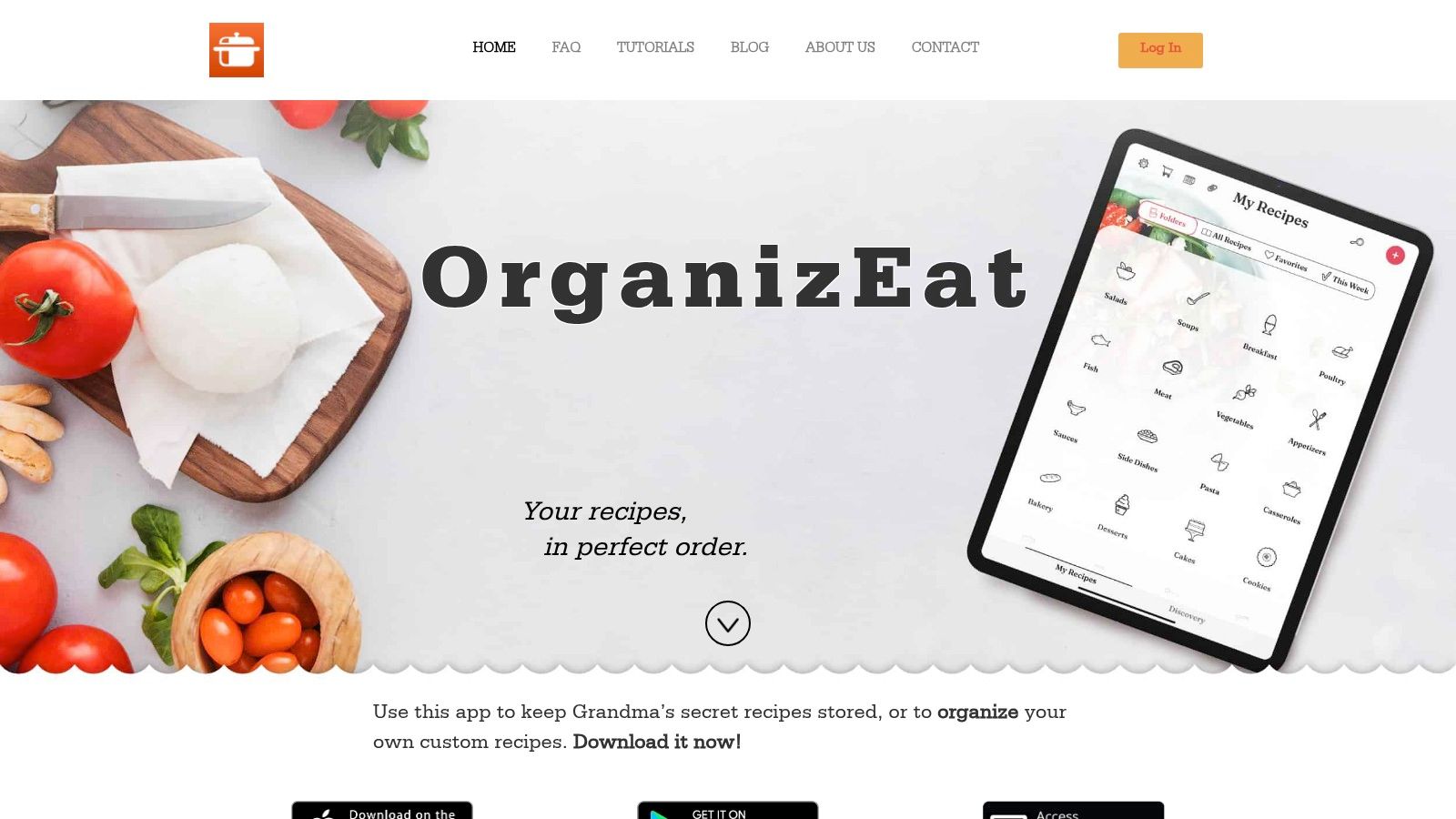
That's where one app with real cross-device sync helps. OrganizEat lets you save recipes from social platforms and websites, capture handwritten or printed recipes, and sync your library and shopping lists across iOS, Android, and the web using the same account. If you also keep PDFs in your cooking workflow, this guide on downloading PDF files to iPad is a practical companion because PDFs often become part of the same recipe archive.
A good app-level setup should answer three questions clearly:
- Where is the source of truth? Inside the app account, not just on one device.
- What happens when I edit on mobile? The change should appear on the iPad after sync completes.
- Can I still access it offline? You want local access even when the internet is weak.
How to handle offline capture without losing data
Many guides are too optimistic, as real life includes bad kitchen Wi-Fi, dead zones in stores, and recipe pages that vanish later.
A common pain point is the “offline sync paradox,” where 30% of mobile recipe app users report sync failures when capturing recipes in places with poor Wi-Fi, according to this discussion of iPhone and iPad sync issues. The practical lesson is simple. If an app can't safely hold your data locally and queue it for later upload, you're one dropped connection away from confusion.
Use this rule set when you save recipes or lists in weak connectivity:
- Confirm the item saved locally first: If the app shows the recipe or note in your library before upload finishes, that's a good sign.
- Wait for the sync indicator: Don't assume cloud backup finished just because the item appears on your phone.
- Reopen the app later on stable Wi-Fi: This often pushes any queued changes.
- Avoid deleting the original too fast: Especially for imports from social apps, screenshots, or handwritten photos.
Kitchen test: Save the recipe, open it once on the same device, then check for it on the iPad later. That sequence catches most sync misunderstandings before dinner prep starts.
The trade-off here is straightforward. System sync keeps your basic Apple or Google life connected. App sync keeps your actual working materials connected. If your daily routine depends on recipes, shopping lists, and saved food content, app-level sync deserves as much attention as iCloud settings.
Troubleshooting Common Sync Problems
When sync breaks, the pattern usually isn't random. One category fails for a specific reason. Photos stall because of storage. Messages fail because of one buried setting. App changes hang because the device never got a solid connection long enough to finish.
When only some data appears
Partial sync is the classic complaint. You see some photos, but not the newest ones. Some notes arrive, but not all. Your contacts look close enough to fool you, yet one important number is still missing.
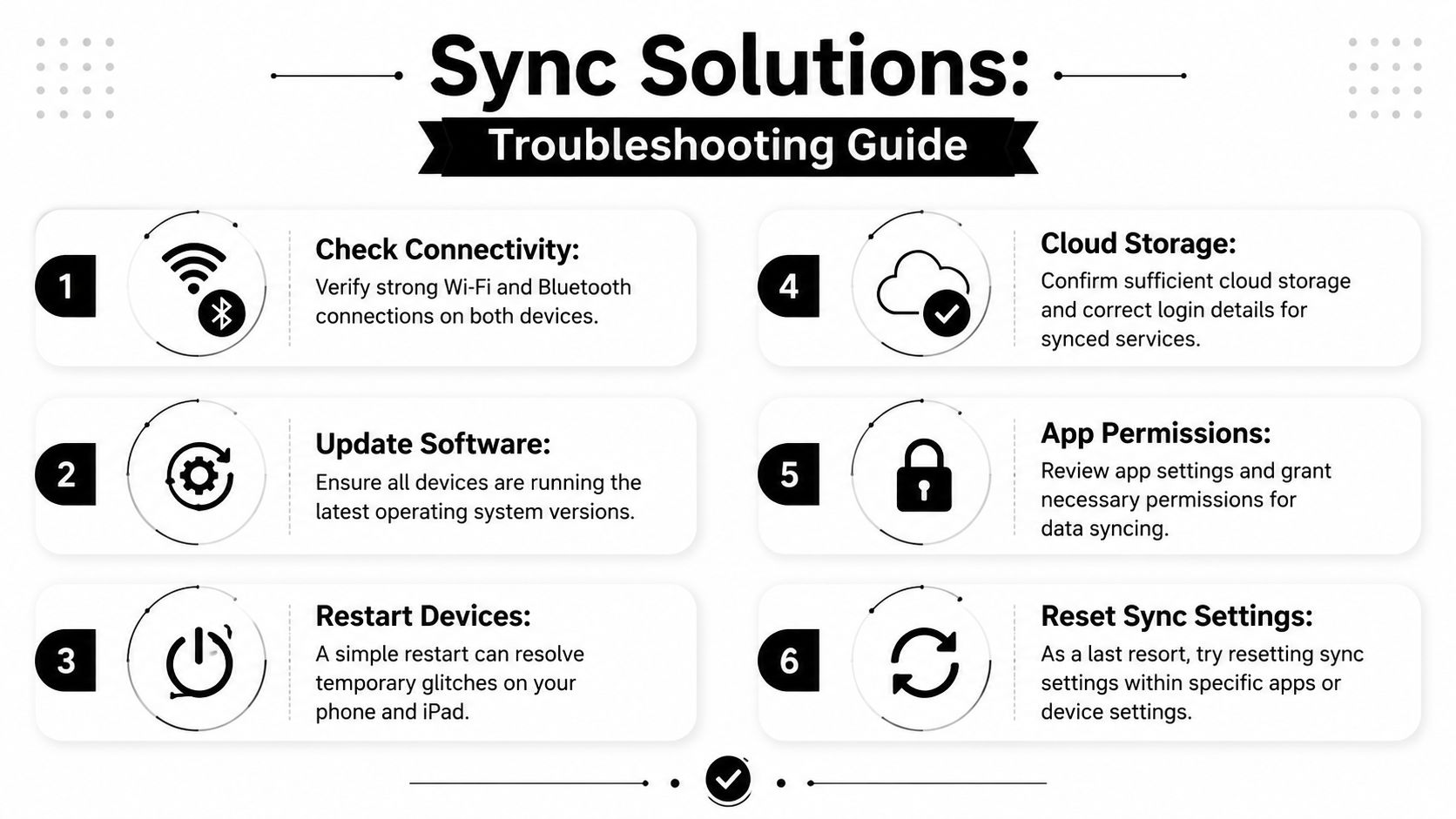
Start with the basics in this order:
- Check Wi-Fi first: A weak or unstable connection can leave uploads half-finished.
- Look at account alignment: Make sure both devices are signed into the same account for the service you expect to sync.
- Review the exact toggle: Photos, contacts, calendars, and app downloads each have separate settings.
- Check storage: If your cloud space is full, the queue can stop even though older items still appear normal.
- Restart both devices: Temporary stalls do happen.
A lot of people jump straight to signing out and back in. That's not my first move. It can help, but it can also create fresh confusion if you haven't verified the simpler causes first.
Why messages fail to sync
Messages are where many otherwise solid setups fall apart. People turn on Messages in iCloud and assume that covers everything. It doesn't.
According to Apple support communities, up to 40% of users who report messages not syncing between iPhone and iPad are unaware of the “Text Message Forwarding” toggle on the iPhone, and that separate setting causes 65% of sync failures in this category, as discussed in this Apple Support Communities thread about iPhone and iPad message syncing.
That matters if your meal planning happens in text threads. Grocery updates from a partner, delivery notices, and recipe links often move through SMS or iMessage, not your recipe app.
Use this checklist:
- On the iPhone, open Settings and go to Messages.
- Check Messages in iCloud if you want iMessage history synced.
- Open Text Message Forwarding and confirm the iPad is allowed.
- Review Send & Receive on both devices.
- Compare Start Conversations From so replies don't come from the wrong address.
If iMessage is on but Text Message Forwarding is off, your iPad can look half-configured. iMessages may appear while standard SMS threads do not.
A fast troubleshooting order
If you want one practical order of operations for almost any sync ipad with phone problem, use this:
| Step | What to check | Why it matters |
|---|---|---|
| 1 | Account sign-in | Different accounts cause split libraries |
| 2 | Wi-Fi and Bluetooth | Transfers and cloud sync need stable connections |
| 3 | Service toggles | One missing switch can block a whole category |
| 4 | Cloud storage | Full storage stalls new uploads |
| 5 | Device restart | Clears temporary glitches |
| 6 | App-specific settings | Some apps need their own sync turned on |
This order saves time because it starts with the highest-probability fixes. It also keeps you from doing dramatic resets before you've checked the settings that most often break.
Creating Your Unified Digital Space
A good sync setup should feel boring in the best way. Your phone and iPad should agree with each other without constant babysitting. Recipes should be where you saved them. Lists should update where you need them. Your calendar, notes, and photos should stop behaving like they belong to separate lives.
For iPhone and iPad users, iCloud is still the main foundation. For Android phone and iPad users, Google usually becomes the bridge. For the rest of your daily working material, app accounts often matter more than the operating system.
Keep the long-term setup simple:
- Choose one primary account per data type: Don't split contacts, calendars, or notes across multiple services unless you have a reason.
- Check sync settings after major device changes: New iPads, restored phones, or account changes often reset assumptions.
- Protect the system: Use strong unique passwords and turn on two-factor authentication for your Apple, Google, and app accounts.
- Test your setup occasionally: Add a note, create a list item, or save a recipe and make sure it appears on the other device.
If you plan meals digitally, a larger screen helps more than people expect. A planner built for iPad can make the whole workflow calmer, especially if you're juggling recipes, shopping, and family scheduling. This guide to a planner for iPad shows what that can look like in practice.
Your goal isn't perfect tech for its own sake. It's opening the right device at the right moment and finding exactly what you need.
If your biggest sync headache is recipes, grocery lists, and meal plans rather than just contacts and photos, OrganizEat gives you one place to save recipes from social media, websites, handwritten cards, and PDFs, then access the same library across your phone, iPad, and web account with cloud backup and offline access.