




Your phone buzzes. Your partner asks who's handling pickup. A school email mentions picture day. Someone already promised Saturday morning to soccer, while someone else booked a dentist appointment at the same time. None of this feels dramatic on its own, but stacked together, it's how family scheduling turns into a daily leak of energy.
That's why iPhone calendar sharing for family use works so well when it's set up properly. It takes the random texts, forgotten details, and duplicate plans and puts them into one place everyone can see. The built-in Apple tools are good enough for most households. The trick isn't just turning them on. The trick is setting them up in a way that matches real family life, including noisy notifications, different permission needs, and the occasional non-iPhone relative in the mix.
Table of Contents
- End Family Scheduling Chaos with a Shared iPhone Calendar
- The Foundation for a Flawless Shared Calendar
- How to Create and Share a New Calendar
- Mastering Permissions and Notifications
- Practical Ways to Use Your Shared Family Calendar
- Troubleshooting Common iPhone Calendar Sharing Problems
End Family Scheduling Chaos with a Shared iPhone Calendar
A shared family calendar usually starts after a small mess. One parent assumes the other saw the appointment email. A grandparent offers help but doesn't know the latest time change. A kid says, “I told you,” and technically they did, but only once, in the car, three days ago.
The appeal of iPhone calendar sharing for family life is that it removes the guesswork. Instead of forwarding screenshots or relying on memory, everyone checks the same calendar. Apple's setup is built into the devices many families already use, so you don't need to bolt on extra tools just to get the basics right.
What a shared calendar fixes fast
A good family calendar becomes the household's default source of truth:
- School logistics: Early dismissal, picture day, parent conferences.
- Kid activities: Practice, carpools, games, and who's on pickup duty.
- Home routines: Trash day, recurring chores, bill reminders, and meal planning.
- Extended family coordination: Visits, babysitting windows, birthdays, and holidays.
The biggest win isn't “more productivity.” It's fewer preventable conversations that start with “Wait, I thought you knew.”
This gets even more useful when your family schedule includes outside calendars. If your week revolves around sports, it helps to sync sports team schedules so games and practice dates don't live in a separate silo from school and home events.
Once you've got one shared place for the moving parts, the calendar stops feeling like an app and starts acting like household infrastructure.
The Foundation for a Flawless Shared Calendar
A family calendar usually breaks in quieter ways than people expect. One parent adds events on an iPhone, a grandparent checks an older iPad that never updates, and a teen gets every alert for every soccer practice, then mutes the app entirely. The sharing feature is rarely the actual problem. The setup underneath it is.
Start with the sync settings, not the invite
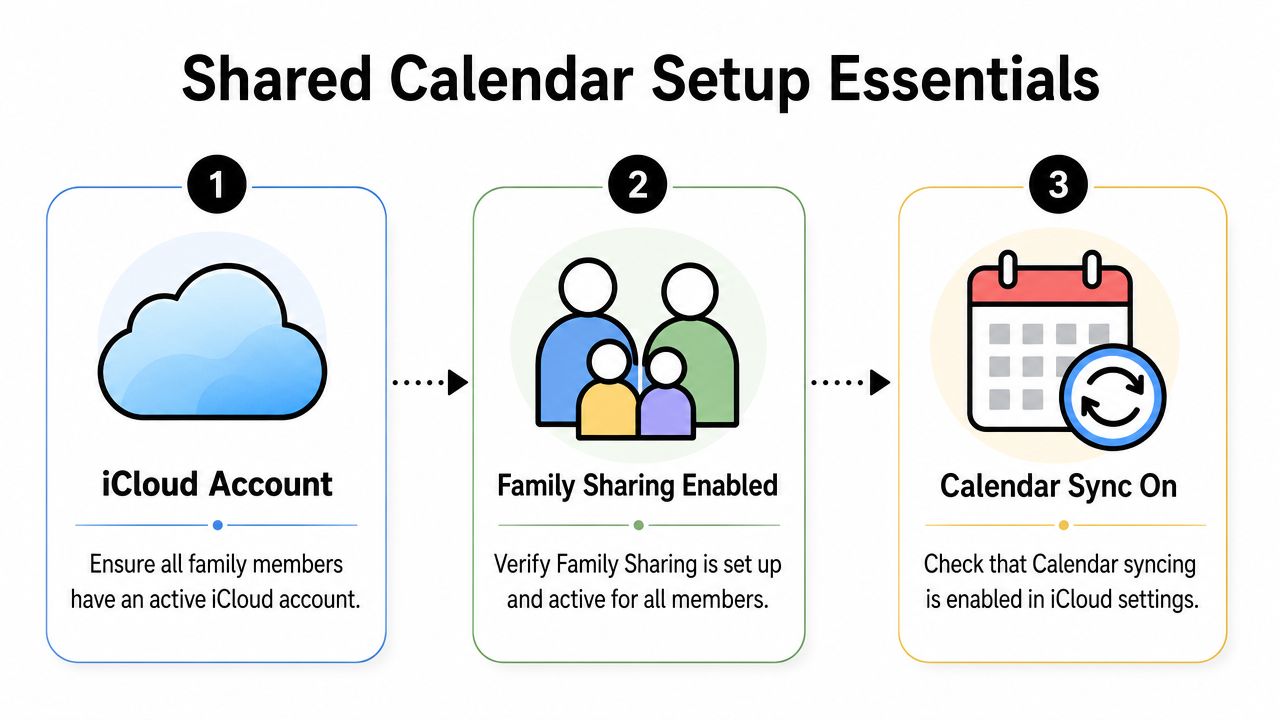
Shared iPhone calendars only work reliably if Calendars is turned on in iCloud for every person and every Apple device they use. Apple's own iCloud setup guidance shows Calendar syncing as part of the iCloud services that need to be enabled in device settings (Apple Support on setting up iCloud for Calendar).
That includes the older iPad on the kitchen counter, not just the main phone.
Use this check in order:
- Open Settings on the iPhone or iPad.
- Tap your name at the top.
- Tap iCloud.
- Confirm Calendars is turned on.
- Repeat on each device the person uses to view or edit the family schedule.
If your household switches between Apple devices during the day, this guide on syncing an iPad with your phone helps keep those devices showing the same events.
Build around the right sharing model
Apple gives families two common ways to share calendars. You can use the built-in Family calendar through Family Sharing, or you can create a separate iCloud calendar and invite only the people who need it. Apple's Family Sharing support page explains that a family group can include up to six family members, which is the limit that shapes the default Family calendar setup (Apple Support on Family Sharing).
That sounds simple, but the trade-off matters in real life.
The default Family calendar works well for whole-house events such as school breaks, travel, birthdays, and appointments everyone should see. It gets messy fast if you also dump in every practice, work shift, and personal reminder. In families I've helped, that is usually when people stop trusting the calendar because the signal gets buried under noise.
A cleaner setup looks like this:
- Use Family for events that affect the whole household.
- Create separate calendars for narrower jobs like one child's activities, meal planning, or a co-parent custody schedule.
- Add only the people who need each calendar, especially if one family member is already overwhelmed by notifications.
Account for the people who are not all-in on Apple
Many families are mixed-device families, even if the article started with iPhone. A spouse may use Gmail, a grandparent may rely on email invites, and an older kid may only check the calendar on a school-issued Chromebook. Apple's Calendar User Guide confirms you can share an iCloud calendar privately with specific people, which is often the better choice when not everyone belongs in the full Family Sharing group (Apple Calendar User Guide for sharing calendars on iCloud).
That setup gives you more control. It also prevents a common mistake. Families often assume one shared calendar should do everything for everyone.
It should not.
A solid foundation means choosing who needs access, which devices they use, and how much calendar traffic they can realistically tolerate. Get those three decisions right first, and the rest of the setup gets much easier.
How to Create and Share a New Calendar
A lot of family calendar frustration starts at the moment someone creates the wrong calendar.
A parent adds soccer practice to the default Family calendar. Then meal planning goes there too. Then one grandparent gets added because they need pickup times, while a babysitter only needs Friday night. Within a week, the calendar is technically working but harder to trust. The fix is usually simple. Create a calendar for the job it needs to do, then share only that calendar with the right people.
When the default Family calendar is enough
The built-in Family calendar works well for events that affect nearly everyone in the house. If the event changes who needs to be where, it belongs there.
Use it for things like:
- Household anchor events: school breaks, travel days, birthdays
- Shared commitments: doctor visits, family dinners, major appointments
- Recurring home tasks: trash day, bill reminders, regular pickups
Keep using the default calendar if your family mostly shares the same schedule and everyone who needs access is already in your Apple family group.
Create a separate calendar if the audience is smaller or the topic generates a lot of updates. Sports schedules, custody handoffs, meal plans, and one child's activity load are common examples.
How to build a custom shared calendar
On iPhone, open the Calendar app, tap Calendars, then tap Add Calendar. Name it based on purpose, not personality. “Kids Sports” is better than “Busy Stuff.” Short, plain labels are easier to scan on a crowded screen.
After you create it, tap the info icon next to that calendar and choose Add Person to share it. Apple's guide to share iCloud calendars from iPhone walks through the same flow. The practical part is deciding what each calendar is for before you send invites.
A few setup habits prevent cleanup later:
- Use one calendar per topic: school, meals, sports, travel
- Choose a clear color: each shared calendar should stand out from personal calendars
- Name calendars for quick recognition: “School Only” beats “Calendar 2”
- Share sparingly: if someone only needs one date, send an event invite instead of a whole calendar
If you also need a cleaner way to sort who belongs in each circle, this guide to creating iPhone groups can help you organize family members, caregivers, and helpers before you start sharing calendars.
Sharing with someone outside your family group
Mixed-device families often face friction.
A grandparent may use an iPhone but not be in your Family Sharing group. A co-parent may use Gmail on Android. A babysitter may only need one event and does not need access to the full household calendar. Treat each case differently.
For Apple users outside your family group, add them directly to the specific calendar. Confirm the exact email tied to their Apple ID before you send the invitation. If you use the wrong address, the invite often never lands where they expect it.
For non-Apple users, do a quick test before you rely on the calendar for anything important. In some families, it is better to send individual event invitations for key dates instead of trying to make one shared calendar fit everyone.
Here's a simple way to choose:
| Situation | Best move |
|---|---|
| Spouse and kids all use Apple devices | Use the default Family calendar |
| Grandparent with an iPhone but not in Family Sharing | Share a specific calendar directly to their Apple ID |
| Babysitter only needs one date | Share a single event |
| Mixed household with selective access needs | Create separate purpose-based calendars |
Mastering Permissions and Notifications
A shared calendar only stays useful if people trust it. That trust disappears fast when someone deletes an event by accident or everybody's phone lights up for every tiny change.
Who should get editing access
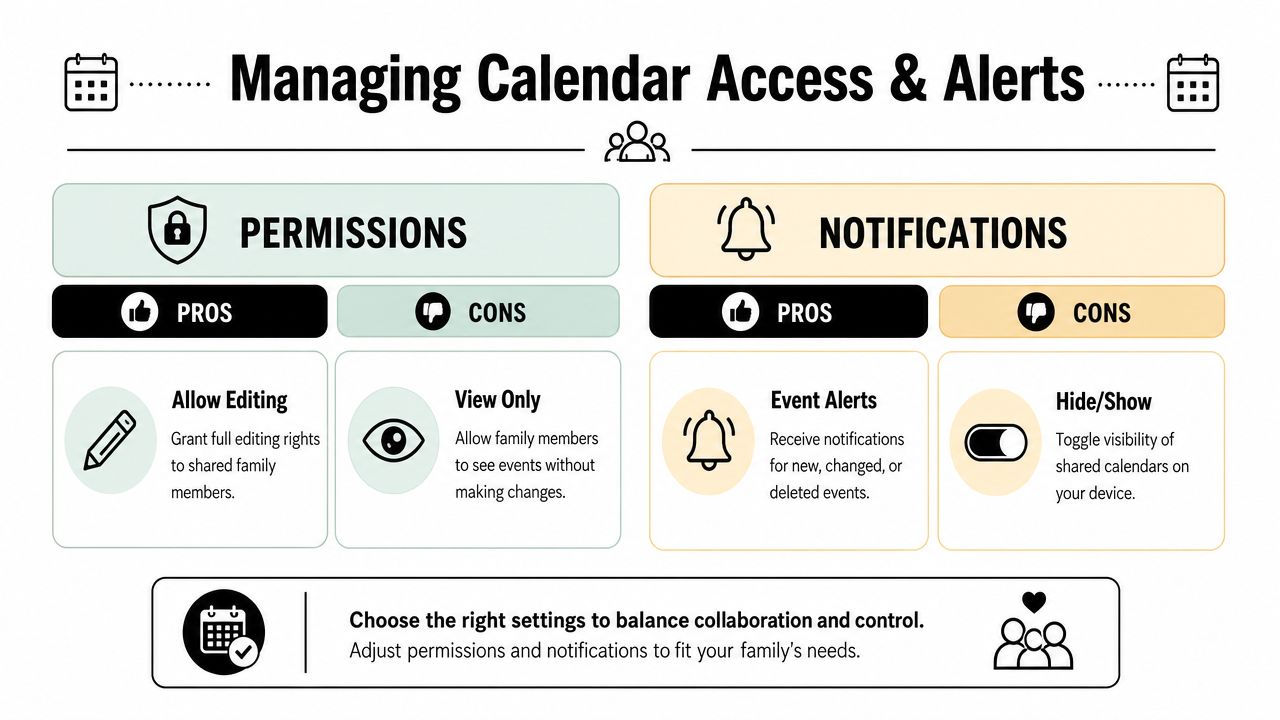
In Apple Calendar, permissions are granular. You open the shared calendar, tap the (i) info icon, pick a member, and toggle Allow Editing. That matters more than most guides admit. A documented pitfall found that 28% of family confusion incidents come from default editing access that lets children or other members accidentally delete events (permission details and pitfall).
That's why I recommend being stingy with editing rights on the main family calendar.
A practical split looks like this:
- Parents or primary coordinators: Editing on.
- Teens who only need visibility: View only.
- Grandparents or occasional helpers: Usually view only.
- One-off collaborators: Event invites instead of full calendar access.
Give editing rights based on responsibility, not just closeness. A loved one can still accidentally wipe out Saturday.
Some setups also let you reduce what another person sees through Show Only Free/Busy, which hides event details while still showing availability. That's useful when someone needs timing information without every note, location, or description.
How to stop the notification flood
The hidden downside of iPhone calendar sharing for family use is notification overload. Apple's Family Calendar can trigger alerts for additions, edits, and deletions from other family members, creating what one video analysis described as “visual chaos”. That same walkthrough points out that many users never realize they can turn off Show Changes to quiet the noise (video walkthrough on notification overload).
Try this before abandoning the shared calendar:
- Turn off Show Changes: Best for calendars with lots of edits.
- Keep alerts only for critical events: Medical appointments, school deadlines, travel.
- Use event-specific invites when possible: This limits noise for people who don't need the full stream.
- Review notification settings after one week: You'll quickly see which calendars are too loud.
The smartest family calendars are not the most detailed ones. They're the ones people can live with every day.
Practical Ways to Use Your Shared Family Calendar
Once the setup is done, the value comes from how you use it. The families who stick with shared calendars usually treat them less like digital paperwork and more like a lightweight command center.

Use cases that actually help day to day
One of the best uses is a meal plan calendar. Put tacos on Tuesday, pasta on Thursday, and grocery shopping the day before. That doesn't just answer “what's for dinner?” It helps the whole household anticipate the week.
A second strong use is a kids activity calendar. Add practice times, game days, recitals, and who's driving. If you use color well, one glance tells you whether the evening is calm or packed.
For home management, shared calendars also work well for:
- Bills and admin: Due dates, renewals, service appointments.
- Chores and routines: Trash day, laundry rotation, pet meds.
- Family fun: Movie night, grandparents visiting, birthday planning.
If you're combining calendar planning with household systems, these free planner app ideas can help you decide what belongs on a calendar versus a checklist.
Keep the system light enough to last
Many families tend to overdo it. They start strong, then every tiny update throws another alert. One commonly ignored problem with Apple's Family Calendar is the stream of notifications for added, changed, or deleted events, which can create that sense of visual chaos if you don't manage Show Changes well, as highlighted in the earlier video walkthrough.
A shared family calendar should reduce mental load. If it creates more noise than clarity, trim it down.
The rule that works best in real life is simple. Put time-based commitments on the calendar. Keep detailed planning somewhere else. Dinner at 6:30 belongs there. The full ingredient prep list usually doesn't.
Troubleshooting Common iPhone Calendar Sharing Problems
Even well-set-up family calendars break in very ordinary ways. A parent adds soccer practice, the other parent never sees it, and now pickup is a scramble. In my experience, the fix is usually one setting, one account mismatch, or one person looking at the wrong calendar.
If events are not showing up
Start with the three checks that solve this most often.
First, confirm the invite was accepted. Second, open the Calendar app, tap Calendars, and make sure the shared calendar is checked. Third, check which account the event was added to. Families often have iCloud, Gmail, and work calendars on the same phone, and events can end up in the wrong place without anyone noticing.
If nothing changes right away, wait a minute and check the internet connection on both devices. Shared calendars usually sync quickly, but weak Wi-Fi, low-signal cellular service, or Low Power Mode can slow things down enough to make it look broken.
One more setting is easy to miss. Go to Settings > Calendar > Accounts and make sure the iCloud account that owns the shared calendar is still signed in and syncing Calendar data.
If invitations fail
Invitation problems usually come down to identity.
Apple Calendar sharing works best when the invite goes to the exact Apple ID email the person uses for iCloud. If you send it to an old address, a secondary email, or a family member's general inbox, the invitation may not appear where they expect. I see this a lot with kids' devices and with grandparents who have had the same Apple account for years but use a different email day to day.
If the invite still does not arrive, remove that person from the calendar and send a fresh invitation. Also ask them to check whether iCloud Calendars is turned on for their device under their Apple Account settings.
If a family member uses Android
Many guides prove too idealistic. Real families are often mixed. One parent uses an iPhone, a teenager uses Android, and a grandparent just wants to see the school play date without learning a new system.
Apple's native shared iCloud calendar is strongest inside an all-Apple household. Once Android enters the mix, editing and syncing can get messy depending on the app and account setup. The practical question is not "Can this work at all?" It is "How much friction is your family willing to tolerate?"
A simple way to choose:
- All-Apple household: Use Family Sharing or a shared iCloud calendar.
- iPhone and Android household: Test whether one shared system, often Google Calendar, causes fewer problems.
- Someone only needs to view events: A read-only option may be enough.
- Someone misses updates constantly: Put that person on the simplest setup, even if it means fewer features.
That trade-off matters. A calendar everyone checks beats a fancier one that half the family ignores.
If your family calendar naturally connects to meal planning, grocery prep, and keeping everyone aligned at home, OrganizEat is worth a look. It helps families organize recipes, build shopping lists, and plan meals across iOS, Android, and the web, which is especially handy when your household coordination needs go beyond the calendar alone.